
Originally, you would have to send an email with an activation file to CAMWorks and wait a few days for a response; this can still be done if you wish, however we recommend you switch over to FNO Licensing. If you have not received your FNO License (a license code that is 24 digits long, formatted as XXXX-XXXX-XXXX-XXXX-XXXX-XXXX), let us know so we can have your license converted. Reactivating the license this method is significantly quicker. Please place a case requesting "CAMWorks Conversion to FNO Licensing". The initial conversion process will take a few days and will not cause your currently activated systems to cease running.
This guide applies specifically to Networked (Server) licenses. You can distinguish the difference by the second digit in the license number, if it's a 2, it's a Network. For example X2XX-XXXX-XXXX-XXXX-XXXX-XXXX. If it's a 1, see our guide on Activating Standalone FNO Licenses.
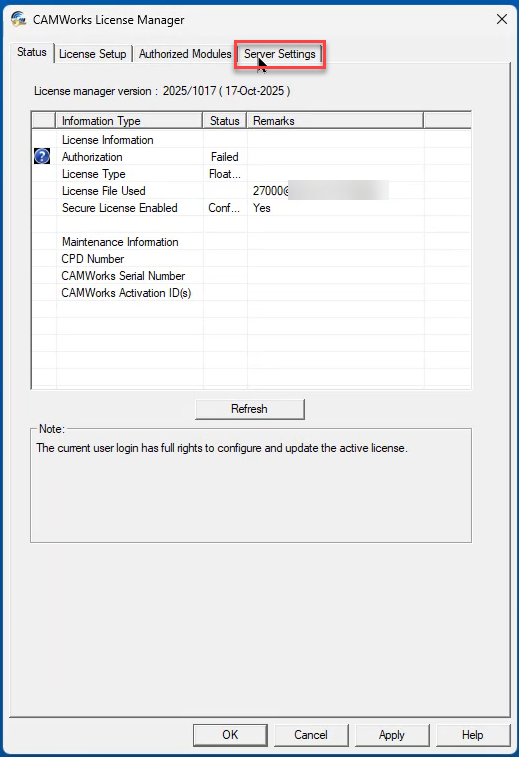
First, run the CAMWorks License Manager ("CW License Manager") as an Administrator. Then navigate to the "Server Settings" tab.
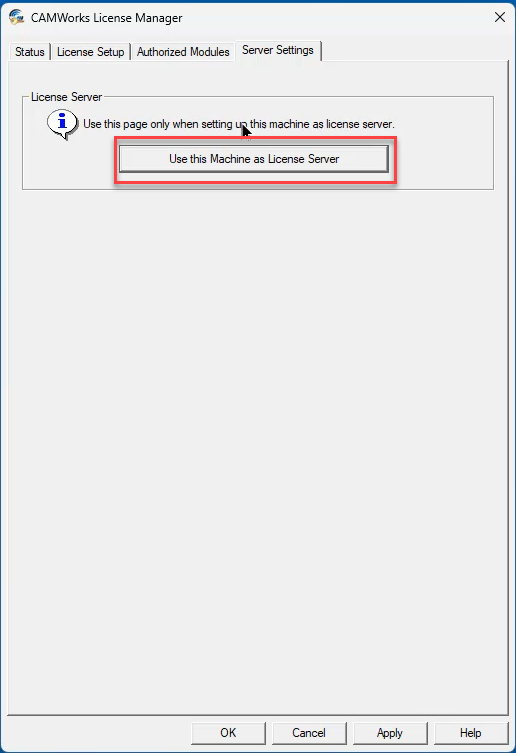
Select "Use this Machine as License Server"
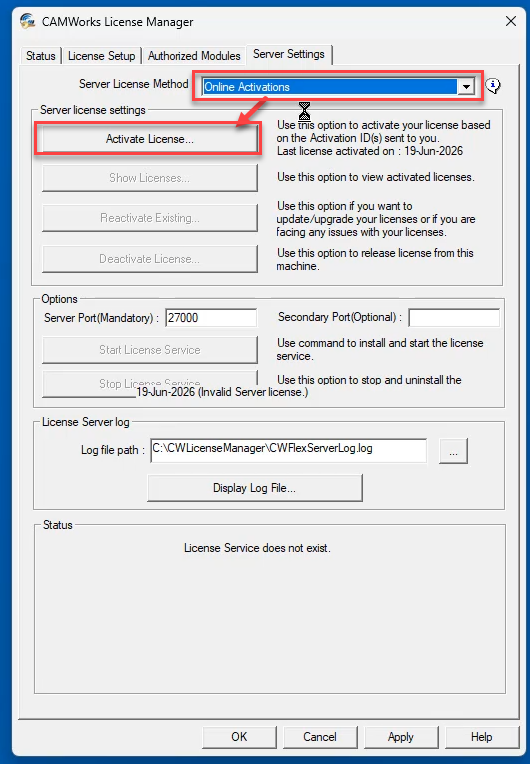
Select "Online Activations" then press "Activate License".
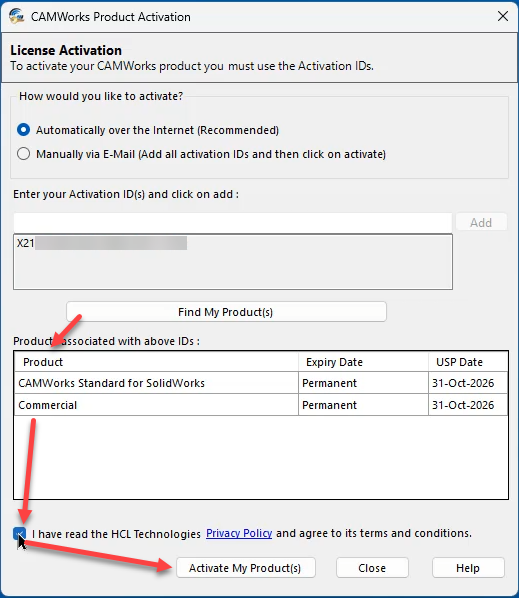
Insert your license code below and press “Add”
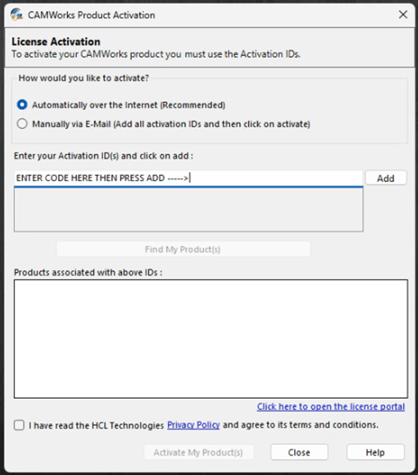
Press Find My Product(s) and ensure that your products are listed in the next box. Agree to the conditions and then press "Activate My Product(s)".
You will then be prompted with a box to place your name and email. You can insert your information here, it does not need to match up with anything.
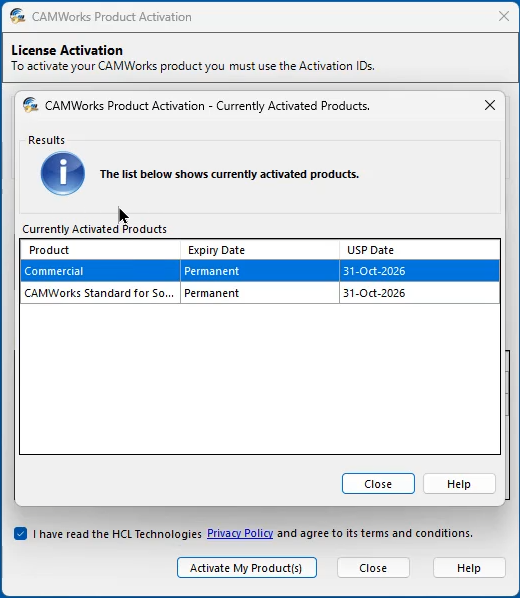
You should then receive a box mentioning that the activation has been completed.
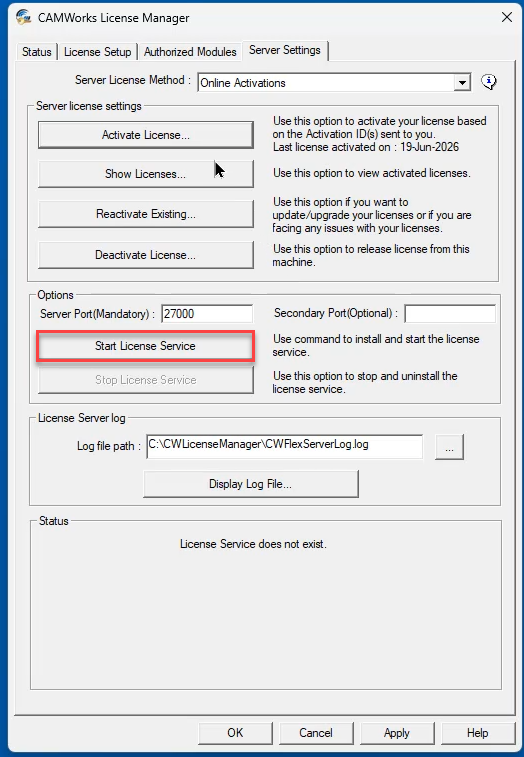
Now the next important step is to Start License Service. Make sure you press this box or the server will not start up on it's own. You can tell it's not running because the "Stop" button is grayed out.
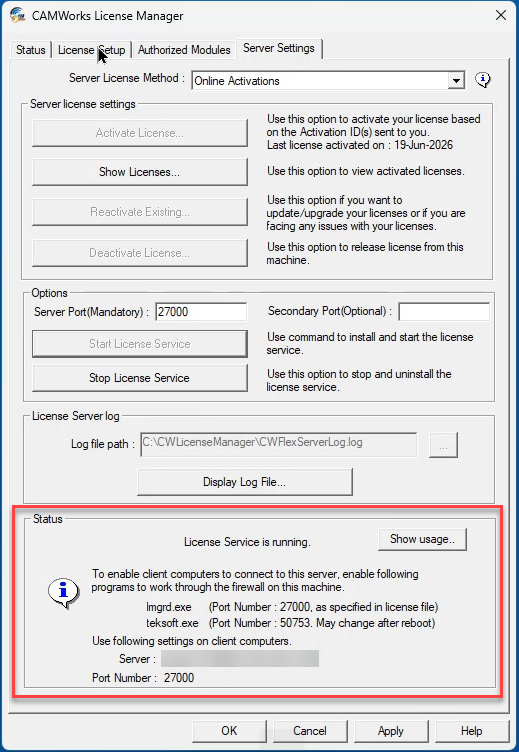
It will then fill out the "Status" section at the bottom of this page. Make a note of the server information and port numbers. Due to security we have this box blurred at the moment.
Now you can validate the information on the License Setup page. This should all set automatically, but you may need to configure some information here. The info should match the highlighted box above.
You can do a final check on the license activation by making sure authorized modules states the proper information on the modules you have. As well as an expiry date in the future. This will ensure that it is active.
If you are having trouble with this process, let us know!