
Originally, you would have to send an email with an activation file to CAMWorks and wait a few days for a response; this can still be done if you wish, however we recommend you switch over to FNO Licensing. If you have not received your FNO License (a license code that is 24 digits long, formatted as XXXX-XXXX-XXXX-XXXX-XXXX-XXXX), let us know so we can have your license converted. Reactivating the license this method is significantly quicker. Please place a case requesting "CAMWorks Conversion to FNO Licensing". The initial conversion process will take a few days and will not cause your systems to cease running.
This guide applies specifically to Standalone licenses. You can distinguish the difference by the second digit in the license number, if it's a 1, it's a Standalone. For example X1XX-XXXX-XXXX-XXXX-XXXX-XXXX. If it's a 2, see our guide on Activating Network FNO Licenses.
Once you have received your new license code(s), run the CAMWorks License Manager ("CW License Manager") as an administrator and switch the license type to Nodelocked (Standalone)/Online Activation if it’s not already set that way.
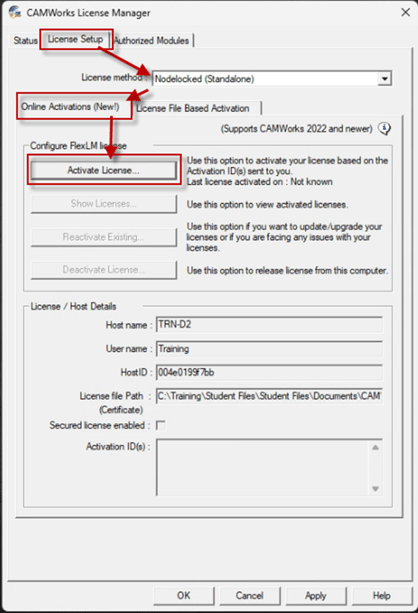
Insert your license code below and press “Add”
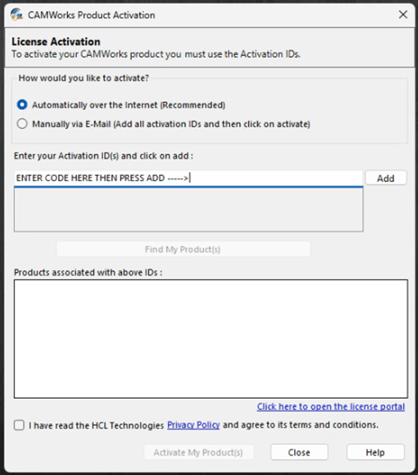
Select the product(s). Press Find My Product(s).
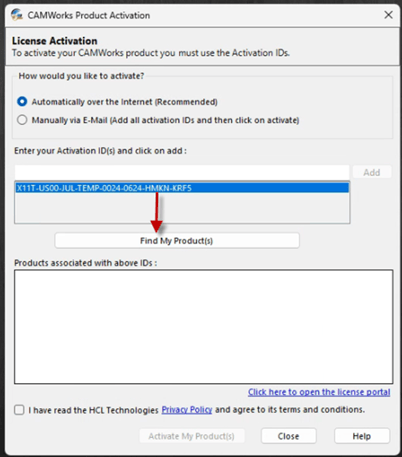
Select the “Read Terms and Conditions”. Press Activate my Products.
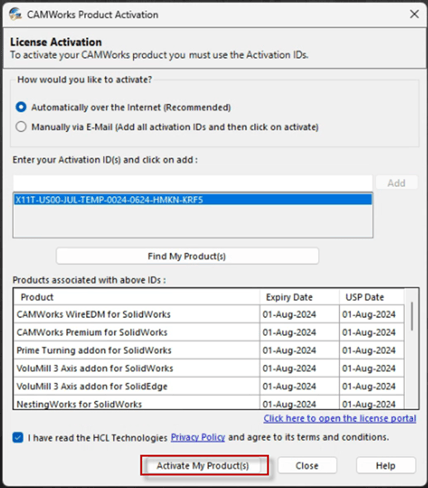
You may need to press “Apply” once you press Activate My Product. This should activate the product. You may have to reactivate yearly depending on your contract.
If you are having trouble with this process, let us know!