
Thumbnail previews are the images displayed in Windows Explorer when viewing SOLIDWORKS files. They can be small, such as when displaying the Details view in Windows Explorer.

Or they can be large, such as when viewing Large Icons.
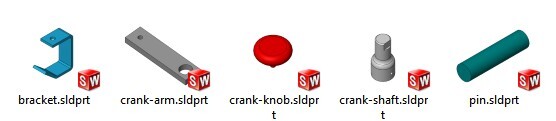
If the previews are not displayed, and instead are showing the default icons (whether using Details view, Large Icons, or some other view type), there are a number of possible causes. Let's start with the easiest and most likely cause.
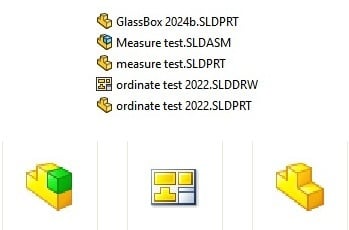
The Thumbnail Graphics Setting
The most likely reason thumbnail previews are not being displayed in Windows Explorer is because they are not enabled in SOLIDWORKS. Open SOLIDWORKS and click the Tools menu > Options... (or click the gear at the top of your SOLIDWORKS screen). In the General section, check the option to "Show thumbnail graphics in Windows Explorer". Click OK to close the Options window.
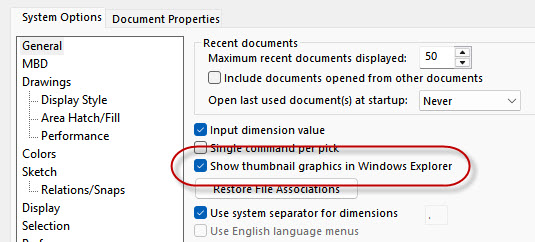
If Windows Explorer is already open, close it and re-open. The icons should now be showing previews.
If a newer version of SOLIDWORKS was recently installed and then uninstalled on the problem computer, you may wish to jump down to the section titled "Wrong File Version", as that will be the most likely culprit.
File Associations
If the default icons are still showing, leave the Windows Explorer window open and switch to Details view. Pay special attention to the Type column. Are the SOLIDWORKS files listed as SOLIDWORKS Part files, SOLIDWORKS Drawing files, and SOLIDWORKS Assembly files? If not, the file associations are broken.
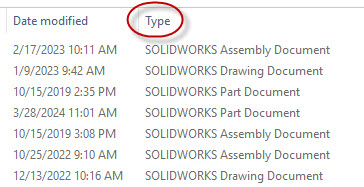
Repairing File Associations, Part 1
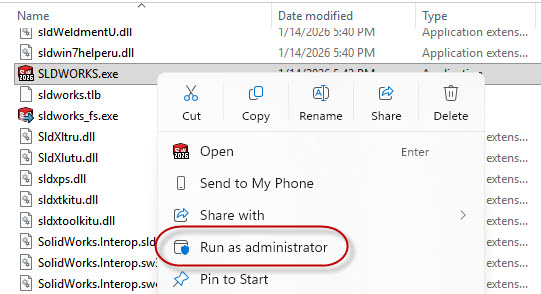
The easiest way to fix broken file associations is through SOLIDWORKS. For this to work, SOLIDWORKS must be run as administrator. In Windows Explorer, navigate to the SOLIDWORKS installation folder (typically C:\Program Files\SOLIDWORKS Corp\SOLIDWORKS). Look for the file named "SLDWORKS.exe". Right click that file and select "Run as administrator".
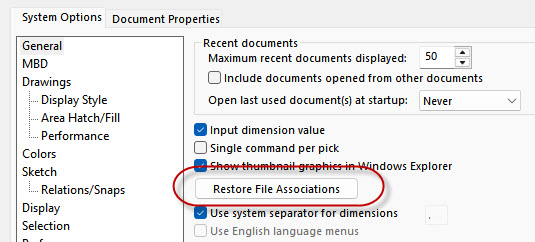
After SOLIDWORKS opens, navigate back to the Options and click the button in the General section labeled "Restore File Associations". Restart Windows Explorer and see if that fixes the problem.
Repairing File Associations, Part 2
Sometimes the SOLIDWORKS File associations are broken to a greater extent and need to be repaired through Windows. To do this, search for "file associations" in the Windows search bar and run "Choose a default app for each file type".
 When the "Choose defaults by file type" screen appears, search for .sldprt, .slddrw, and .sldasm. For each of those three file types, select SOLIDWORKS Launcher.
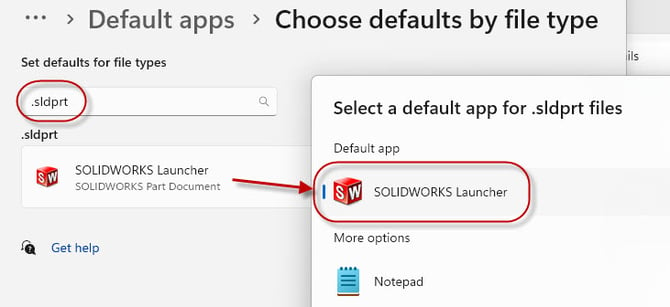
After each of those 3 file types have been reassociated with the SOLIDWORKS Launcher, restart Windows Explorer and see if the problem persists.
Manually Registering Files
If the file associations are good and the problem persists, the issue may be related to the underlying DLL files not being registered properly. In other words, the files responsible for the thumbnail behavior were not properly installed, or installed with incorrect permissions or under another account.
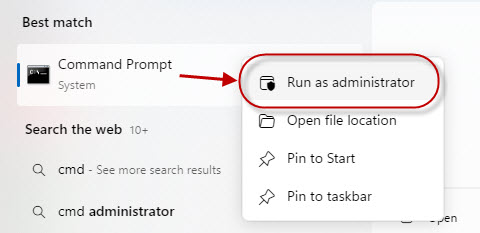
In Windows Explorer, navigate to the location "C:\Program Files\Common Files\SOLIDWORKS Shared". Additionally, open a command prompt by searching for "cmd" in the Windows search bar. Right click Command Prompt and select "Run as administrator".
The command that we need to run is "regsvr32". The files which need to be registered are "swdocumentmgr.dll", "sldthumbnailprovider.dll", and "sldwinshellextu.dll". This can be accomplished by typing "regsvr32" followed by a space and single quotation, then copying and pasting the path and file name, followed by another quotation, into the Command Prompt window, then pressing Enter.
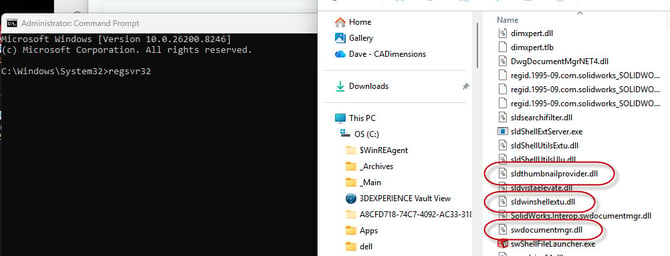
Here is what the Command Prompt window will look like if the instructions are carried out correctly, along with the message which should be displayed after pressing Enter.
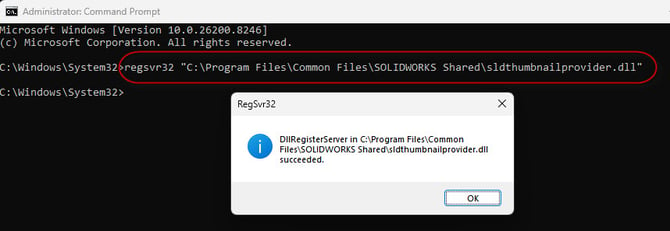
Once all 3 files have been successfully registered, open the Windows Explorer and see if the problem persists.
Wrong File Version
If you've come this far and are still not seeing thumbnail previews, it's likely the wrong version of one or more of the aforementioned three DLL files are on the computer. This can happen if a later version of the software was installed and then uninstalled.
To check the version of any of the DLL files mentioned previously, right click one of the files and select Properties, then click the Details tab. The version of each of the three files should match the latest version installed on the computer.
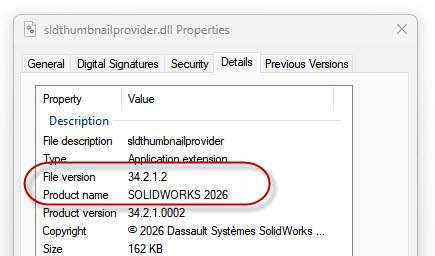
If any of the files are an incorrect version, one option is to copy the correct version from a different computer. If this process is used, the files must be manually registered using the process described in the previous section.
Another option is to rename the three files so they are no longer recognized by SOLIDWORKS. For example, rename "sldthumbnailprovider.dll" to "sldthumbnailprovider.OLD". Do this for all three files, assuming they are all the wrong version.
Run A Repair
After renaming the files, a Repair must be run on SOLIDWORKS. Open the Windows Control Panel > Programs and Features > select SOLIDWORKS 20xx SPx.x > click Change at the top of the column. This will open the SW Installation Manager and you can select Repair, then click through to let it run. (If you see a reboot prompt, click OK to ignore it).
Your thumbnail previews should now be working again. Happy Modeling!