
Sometimes it's the little things. When something is stored in the same place year after year, and then suddenly gets moved, it can be frustrating. If you're looking for your weldment profiles, this article will help.
Weldment Profile Path - Pre 2025
Prior to the release of SOLIDWORKS 2025, weldment profiles were stored in the folder location "C:\Program Files\SOLIDWORKS Corp\SOLIDWORKS\data\weldment profiles". The path may be different if the installation folder was customized during the installation process.
The Program Files location is not a hidden folder, which makes it easy to find. It is a system folder, though, which means files contained within cannot easily be edited. This becomes apparent to anyone attempting to create a custom weldment profile.
There are a number of ways around this issue. Profiles can be copied to a different location, modified as needed, then copied back (or moved) to the weldment profiles folder. Permissions can be altered by an administrator. A custom location can be used. What method is used depends on the situation and/or personal preference.
Weldment Profile Path - 2025 On
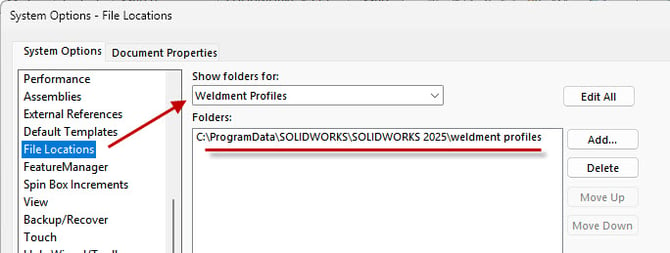
Starting with SOLIDWORKS 2025, weldment profiles were stored in "C:\ProgramData\SOLIDWORKS\SOLIDWORKS 2025\weldment profiles". The year value changes depending on what release was installed.
The ProgramData folder is hidden, but does not inhibit the user from creating new profiles or making changes to existing profiles. The fact that it is hidden does not affect anything other than making the folder difficult to find.
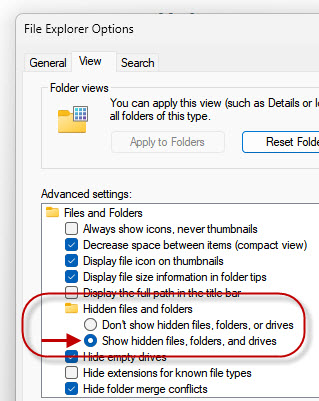
Here again, there are a number of ways to overcome this minor obstacle. Use the Windows Control Panel > File Explorer Options, click the View tab, and select the option to "Show hidden files, folders, and drives".
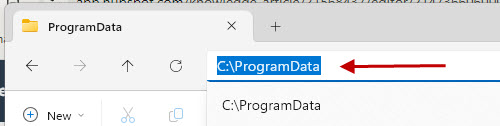
It's also possible to simply type in "C:\ProgramData" in Windows File Explorer and it will take you to that location.
Still Can't Find Them?
If the weldment profiles location has been customized, they are likely in a non-standard location. Use the File Locations setting of the System Options to discover what the location is.
Incorrect Path
Sometimes the path specified by the Weldment Profiles File Location setting is incorrect. SOLIDWORKS might still be looking at an old location where the weldment profiles were located at one time, but now they are no longer there. In that case, it will be necessary to do some sleuthing.
Try searching for the default name of the folder, which is "weldment profiles". If the profiles are stored on a server, perhaps a coworker has the proper path listed in their File Locations setting. As a last resort, you can always download a set of new profiles.
Free SOLIDWORKS Weldment Profiles!
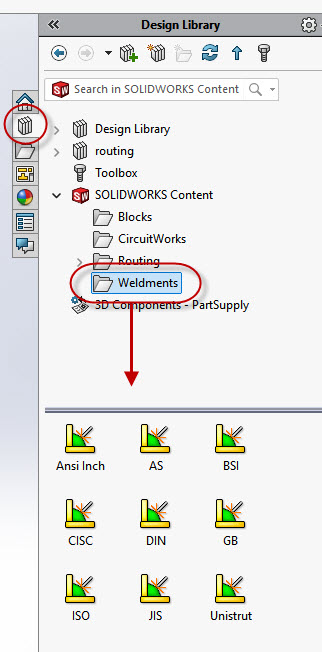
The canned profiles included with SOLIDWORKS are sparse, to put it mildly. There is a much better set of weldment profiles which can be downloaded free of charge. To obtain these profiles, navigate to the Task Pane Design Library tab, shown in the following image. From there, expand SOLIDWORKS Content, click Weldments, and Ctrl-click to download the weldment profile standard bundle of your choice.
Installing The Free Weldment Profiles
After the profiles have been downloaded, they need to be unzipped. Use the built in Windows extraction tool or your favorite utility to unzip (decompress) the zip file. Once that is done, you will have a folder with the name of whatever standard was downloaded.
The decompressed weldment profiles folder will have the same name as the existing weldment profiles folder already installed by SOLIDWORKS. Rename the new folder so you can tell the difference, or just delete the old one. It's up to you. In the example in the following image, the ISO standard was downloaded and then renamed to ISO DL (for "download") prior to it being moved to the Weldment Profiles folder.
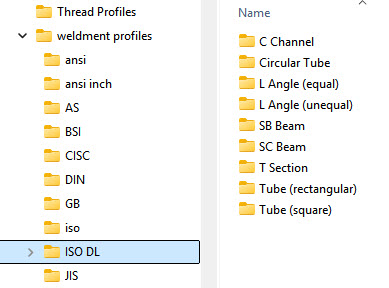
There is no other installation process needed. Download, unzip, rename, and move the folder. Once you know the steps, the entire process only takes a minute. The profiles will immediately become available. It is not even necessary to restart SOLIDWORKS.
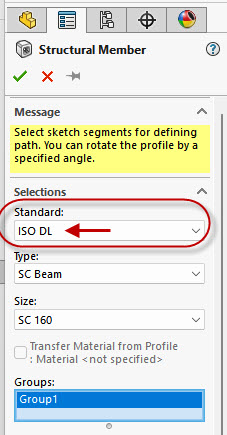
Happy Modeling!