
Enterprise Item Numbers are a common feature of PLM software such as the 3DEXPERIENCE Platform. It is a tool that lets you create a unique number associated with each part, assembly, drawing, or other component created in SOLIDWORKS.
Smaller organizations usually find it easier to use descriptive titles and file names. They don’t have that many components to contend with, and because everyone knows one another, questions can usually be solved by sending a single message. They don’t generally need a rigid naming scheme to keep things organized when file names like, “Left Side Panel” are clear enough.
However, in larger organizations, descriptive names might not be good enough. “Left Side Panel” of which product? Which iteration of that product? How do you know you aren’t working on the wrong component? But if you can check to see that you are working on Component 401864, and that matches what you’re meant to be working on, then perfect! You know you’re working on the correct part, and you don’t even need to know what it is.
How to set up an EIN
You will need to be an Admin on the 3DEXPERIENCE Platform you wish to use.
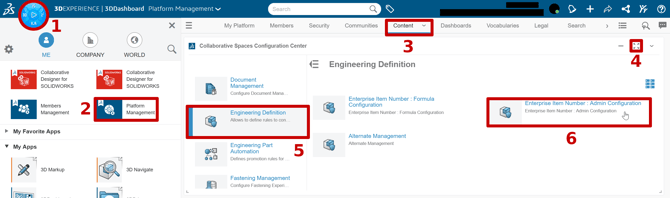
1) Open the Compass Menu in the upper left corner.
2) Go to the Platform Management Cockpit.
3) Look under the Content tab.Scroll down to the third widget, Collaborative Spaces Configuration Center, and expand this window to full screen.
4) In the leftmost column under Application-specific features, click Engineering Definition.
5) Click on Enterprise Item Number: Admin configuration
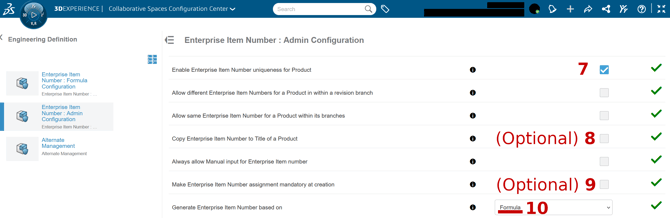
6) Click the checkbox for Enable Enterprise Item Number uniqueness for Product to ensure it’s Checked.
This setting will ensure that every EIN you assign will be unique to the file it’s assigned to. It cannot be reassigned to another component. New revisions of the same component will still retain the same EIN, but it is, as the setting says, unique to that part.
7) Optionally, you may also want to Check other settings in this page, such as, Copy Enterprise Item Number to Title of a Product.
This setting will, as it ways, force the Title of the component to be exactly the value of the EIN. Components can no longer be named “Left Side Panel”, its name will only be Part-401864.
8) Another commonly used setting in this section is Make Enterprise Item Number assignment mandatory at creation
This will automatically generate a new EIN for any new part, assembly, etc. that is saved to the 3DEXPERIENCE Platform. Generating the number happens automatically as part of the saving process.
10) Regardless of what other options you choose to select, you will want to change the last setting, Generate Enterprise Item Number based on to Formula.
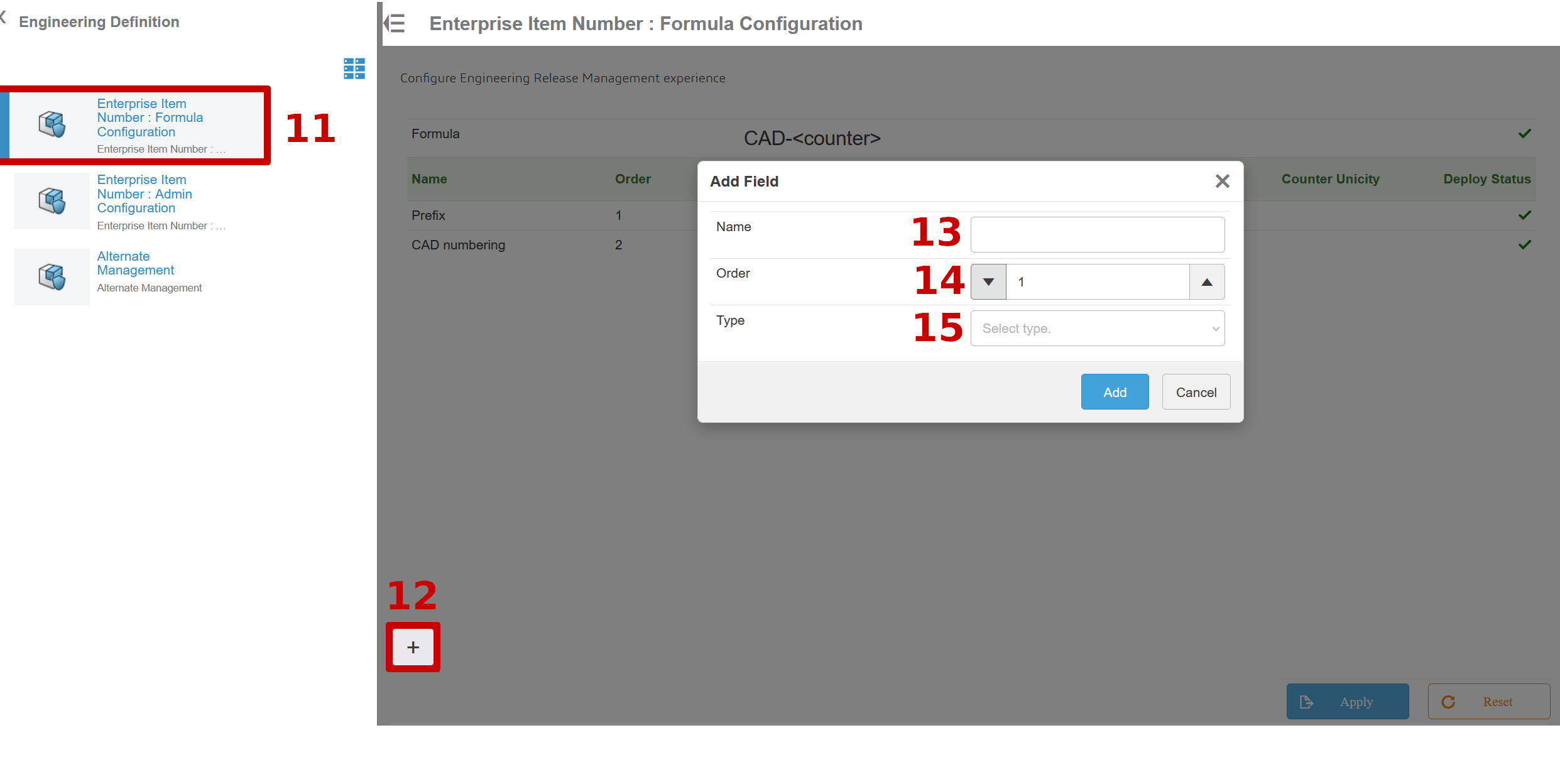
11) Retreat to the Engineering Definition menu from before, and instead go into Enterprise Item Number: Formula Configuration.
12) From here, you can structure how exactly you want your EIN formula to look. Click on the Plus icon in the lower left corner to add a new EIN structure.In the pop-up window that appears, create your new EIN structure.
13) First, give it a Name so you can distinguish this EIN formula from any others you might make.
14)Then, choose a number for the Order. This will determine what order the created EIN formulas will appear in when listed.
15) Then, select the Type of EIN structure you want.
-
- A Text EIN will simply ask for a text field for you to fill in.
- A User Input type will ask for a Regular Expression within the RegExpr field.
- An Attribute type will request what 3DX Platform Attribute you want associated with the EIN’s generation process, and will also provide an optional Default Value field if you wish to establish one. This type also offers a check box to Create new counter for each value, and if that one is selected as True, Avoid duplicate Enterprise Item Number is a sub-option therein.
- Finally, and most commonly used, a Counter type asks how many digits you want the EIN to be, and what value you want to start from. From there, the first part assigned an EIN will be given that starting value, and then the next part assigned an EIN will get a value one higher than that, and onwards and so forth.
I personally recommend a 6 digit EIN that starts at 0. That’s few enough digits to make it easy to read, and a million unique part numbers can get you pretty far.
You are welcome to set as many EIN schemas as you so desire. When you actually use them in Solidworks, you’ll have as many options to choose from as EIN formulas you created.
Speaking of which, let’s see how these work in action.
How To Apply an EIN to a Component
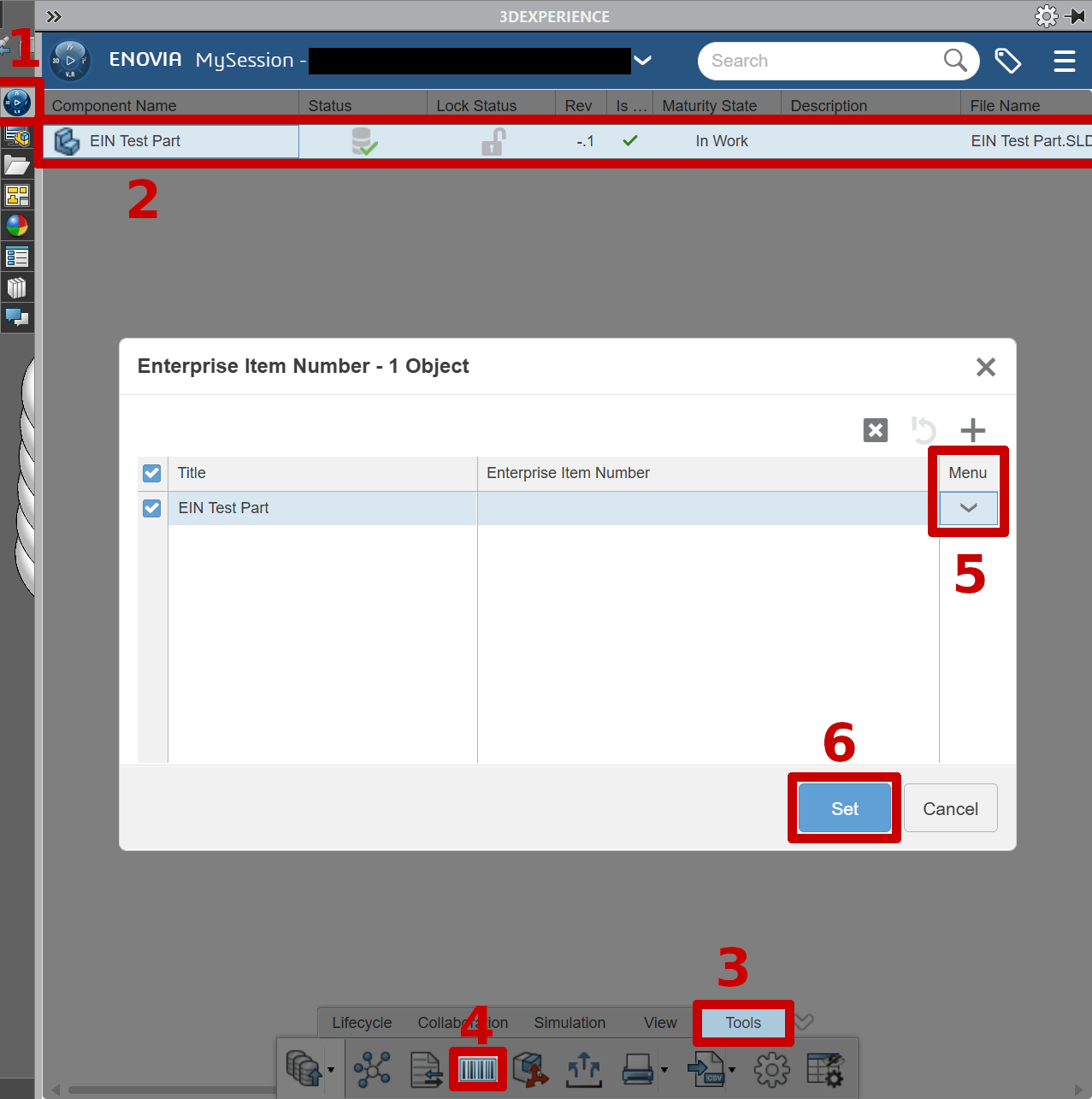
1) Open the MySession panel on the right of your Solidworks Design Workspace.
2) Select and highlight the component(s) you wish to add an EIN to within the MySession Panel.
3) Click on the Tools tab along the bottom of the panel
4) Click on the barcode icon to Set Enterprise Item Number.
5) Verify that you have all the components present in the window, use the Menu drop-down to make sure you are giving each selected component the correct EIN schema applied to them,
6) Then hit Set to apply the EIN.
As always, if you have any questions or concerns, please feel free to reach out to your Customer Success Advocate for assistance with 3DX Onboarding assistance, and the CADimensions Technical Support Team if you run into any technical issues.