
Prior to the release of SOLIDWORKS Design 2026, expanding the Apply Scene flyout menu would present a selection that would have looked something like this, at least in it's default state.
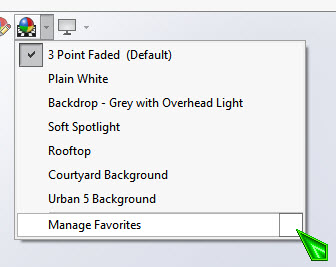
Clicking the button to the right of Manage Favorites would present the window shown in the following image.
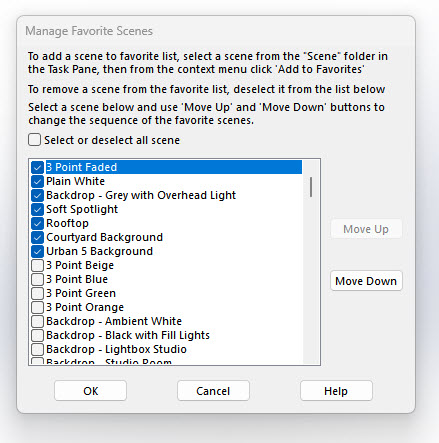
The Manage Favorite Scenes window made it very easy to specify what scenes were present in the Apply Scene flyout menu. All of your favorite scenes could easily be made available from the main graphics window. But not all of those same scenes are present in SOLIDWORKS Design 2026. What happened?
Dassault Systèmes Physically Based Rendering
SOLIDWORKS Design 2026 introduced a major upgrade to appearances, which now support Dassault Systèmes Physically Based Rendering, otherwise known as DSPBR. This upgrade was done so there could be a seamless transition when opening models in Visualize, which already supports DSPBR.
An aftereffect of DSPBR support for appearances was that scenes needed to get revamped as well. The 2026 What's New guide talks about DSPBR support, but there is no mention of the changes made to scenes.
There is a way to pull old scenes forward from previous versions into 2026, but it takes some work. It is a process that requires maintaining the previous version of SOLIDWORKS on your computer, at least until you have the chance to move the desired scenes into 2026. Alternatively, if SOLIDWORKS was upgraded without the previous version being uninstalled, the old folders may still be present under C:\Program Files\SOLIDWORKS Corp. Look for old versions of SOLIDWORKS folders, some of which may have numbers in parentheses.
Saving Models With Appearance, Decal and Scene Data
There is a setting that must be enabled which allows for saving appearance, decal and scene data with the model. It can be accessed by clicking the Tools menu > Options... > Document Properties tab > Model Display category. Look for (and check) the setting titled "Store appearance, decal, and scene data in model file", and shown in the following image.
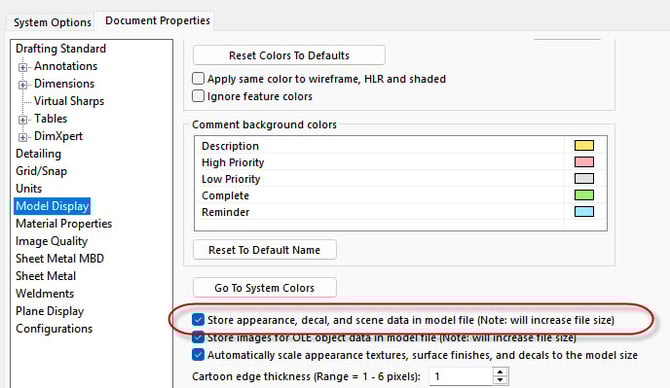
It would be wonderful if that were the only setting that needed to be adjusted. Unfortunately, that is not the case. The scene itself must be saved, or the scene will not travel to 2026.
We will be saving a model which uses the scene named "3 Point Faded", which is one of the scenes which no longer exist in 2026.
Saving The Scene
There is a process to this. One of the issues you will run into is due to certain scene files existing in a subfolder of the SOLIDWORKS installation folder. Namely, the Program Files folder. It is a system folder, and as such, cannot be written to under normal circumstances. To get around this, create a custom folder which can be written to. A suggestion would be to create a folder named Custom Scenes in your Documents folder.
Once that is done, edit the scene. This is done by first clicking the DisplayManager tab at the top of the FeatureManager panel, clicking the View Scene, Lights, and Camera button below that, followed by right clicking the Scene in the Scene, Lights and Cameras PropertyManager. Select Edit Scene... from the menu, shown in the following image.

In the Advanced tab, click the Save Scene... button, shown here.
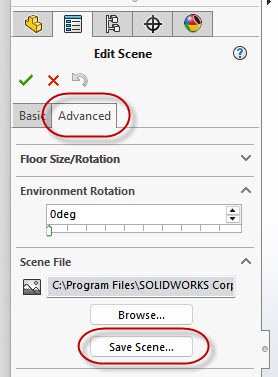
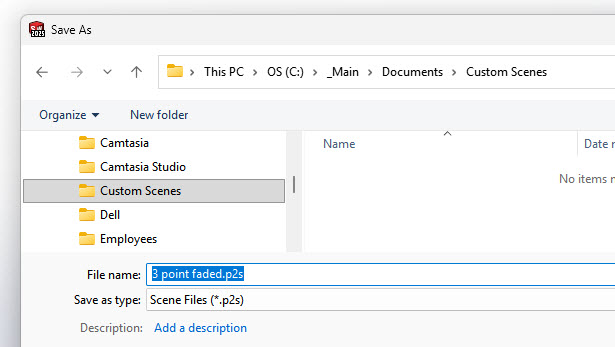
The Save As window will appear. This is where it will be necessary to navigate to the folder created earlier. In our example, a folder named Custom Scenes was created under the Documents folder. Give the scene a name that makes sense to you. We will stick with the name "3 Point Faded". (For reasons unknown, the scene name was originally preceded by 2 zeros. We've eliminated the zeros because they are unnecessary.)
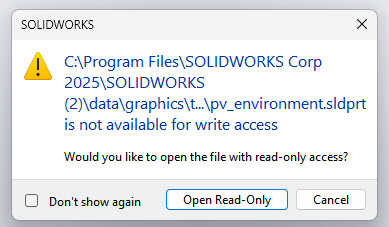
The next window that appears will be a warning about a read-only file. The file is a SOLIDWORKS part file named "pv_environment.sldprt". It is used in the creation of the icon which will appear next to the newly saved scene. Click the Open Read-Only button. There may be a brief moment when the file appears on the screen. It should close on it's own.
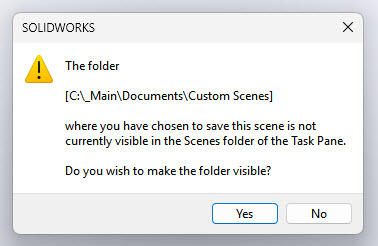
Following that, another warning message will be displayed. This next message will ask if the folder which was created earlier should be shown in the Scenes folder of the Task Pane. Make sure to click Yes.
The Edit Scene PropertyManager will still be open. Click the green check to say OK and close the PropertyManager.
The Saved Scene
If everything has been done properly, the newly saved scene will appear in the Task Pane in the Appearances, Scenes, and Decals tab, shown here. The Custom Scenes folder should be present under Scenes.
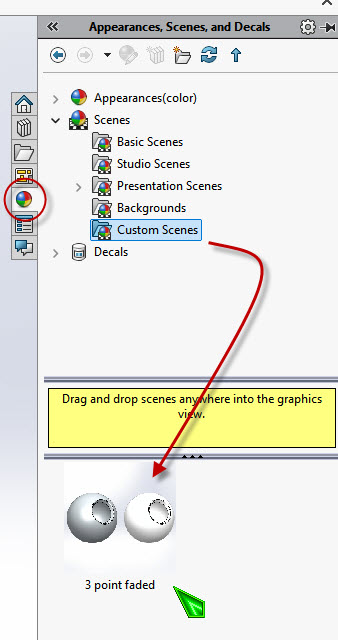
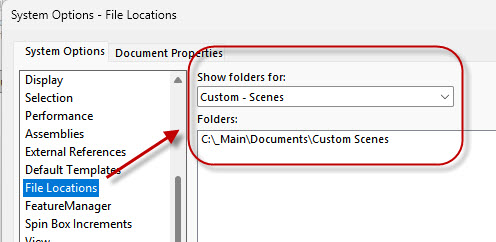
Clicking the Custom Scenes folder will show all of the custom scenes saved to that folder. In our case, that should be a scene named "3 Point Faded". This happens because the Custom Scenes folder has been added to the "Custom - Scenes" file location specified in the File Locations section of the System Options, shown in the following image.
Save The File
Now that the scene has been saved, save the model file one last time. Close the file. Opening the file on 2026 should now bring everything forward.
Opening In 2026
Let's explore what happens next. After opening the file in 2026, this is what the Scene, Lights, and Cameras PropertyManager looks like. Pay special attention to the Scene, Background, and Environment objects.
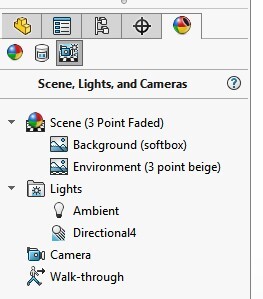
The Scene name is "3 Point Faded", which is shown in parentheses. That is the name which we gave it earlier. The scene file has a file type (extension) of P2S. Scenes require 2 additional support files. In this example, the first file is an image file named "softbox". The second is a high dynamic range (HDR) file named "3 point beige".
Link To The 2026 Files
Editing the scene allows for determining the paths for the support files. Mousing over (placing the cursor over) the path will display the location for the original background and environment files.

WARNING: Some of the support files exist as multiple file types. For example, softbox.png and softbox.hdr exist in the same folder. Pay attention to the file extension!
The goal is to link the "softbox.png" and "3 point beige.hdr" files to their SOLIDWORKS 2026 location. This will prevent the scene from breaking if and when SOLIDWORKS 2025 is uninstalled. The default location for background and HDR files is:
C:\Program Files\SOLIDWORKS Corp\SOLIDWORKS\data\Images\textures\background
Your SOLIDWORKS installation folder may be slightly different! If the year was not added to the installation folder, which is common when running multiple versions simultaneously, there may be numbers in parentheses after the "SOLIDWORKS" folder (e.g. SOLIDWORKS (2)). You may need to correlate which release of SOLIDWORKS these folders belong to. Lower numbers typically refer to previous versions.
Browse For The 2026 Files
Use the Browse button and navigate to the background folder mentioned previously. In our example, the file "softbox.png" should be selected for the background, and "3 point beige.hdr" should be selected for the environment.
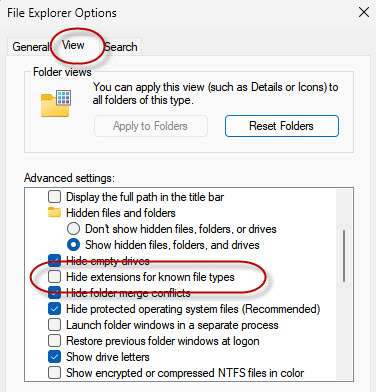
Being able to see file extensions while performing these tasks is crucial. If the file extensions are not visible, enable them by accessing File Explorer Options in Windows, then turning off "Hide extensions for known file types".
Once the files have been selected, make sure to save the scene again to lock in the paths. You will likely want to save the model as well, so the new scene definition is saved with it.
What About Lighting?
Lights are also an aspect of scenes. If lights need to be adjusted, please visit our knowledge base article on adjusting lights.
The Transferred Scene
At this point, the scene is fully functional in 2026, though it may not support DSPBR. Nonetheless, it will appear in the scene listing, and can even be added to your favorites. Any file opened or started new in 2026 can have the scene applied to it.

Happy Modeling!