
Creating sketch dimensions without utilizing the Smart Dimension command is possible thanks to the Preview Sketch Dimension tool, which was introduced in SOLIDWORKS 2024.
Starting a sketch, dimensioning it, and extruding a feature are typically the simple steps involved in creating a design in SOLIDWORKS. Applying dimensions to completely define the SOLIDWORKS sketch is usually the most time-consuming part of that process.
It may take up to four clicks to place a dimension, depending on your approach. Even while it might not appear to take a lot of time, it adds up when you multiply that across the entire design.
What does the Preview Sketch Dimension Tool do?
Even something as basic as adding a dimension can be done in multiple ways in SOLIDWORKS. With fewer clicks than usual, a sketch can be fully defined by using the Preview Sketch Dimension tool.
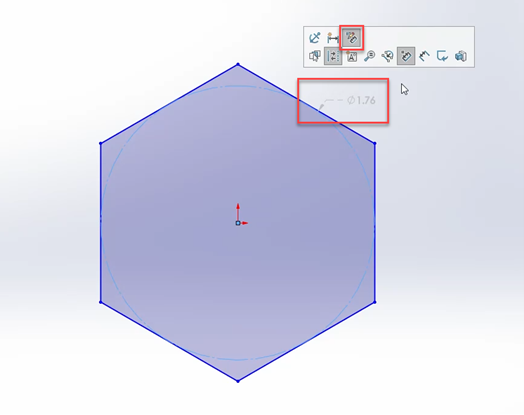
Previewing dimensions with SOLIDWORKS 2026.
This tool offers a simplified method for locking down drawing proportions in addition to insight into sketch sizing prior to adding dimensions.
How to Enable the Preview Sketch Dimension Tool
On a new SOLIDWORKS installation, the Preview Sketch Dimension tool is unchecked by default; therefore, it must be checked to enable the tool. The checkbox is located under the SOLIDWORKS System Options | Sketch category as shown below.
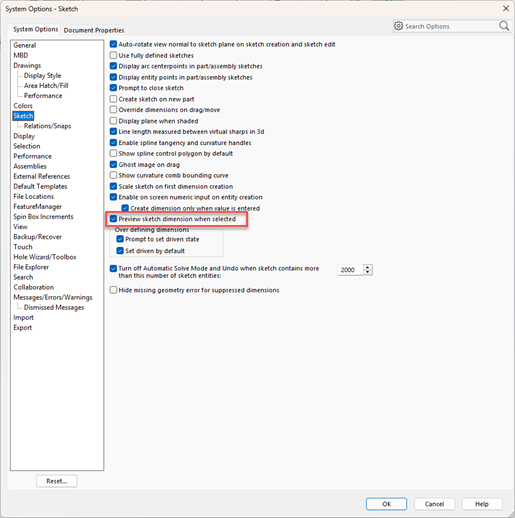 SOLIDWORKS System Options | Sketch
Additionally, the right-click menu in a sketch or the in-context toolbar can be utilized to activate the tool. The Preview Sketch Dimension icon on the toolbar allows you to easily turn it on or off without going into the SOLIDWORKS System Options.
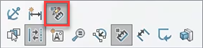 Enabling the tool from the in-context menu
How To Use the Preview Sketch Dimension Tool
1. Start a Sketch
Begin by creating a new sketch on a plane and create at least one sketch entity either open or closed.
 Create Sketch Entities
2. Select a Sketch Entity
A gray dimension with a dashed line between the leaders appears automatically when you click on a common sketch element, like a line, arc, or circle. Toggling the setting will show the selected entity's current size.
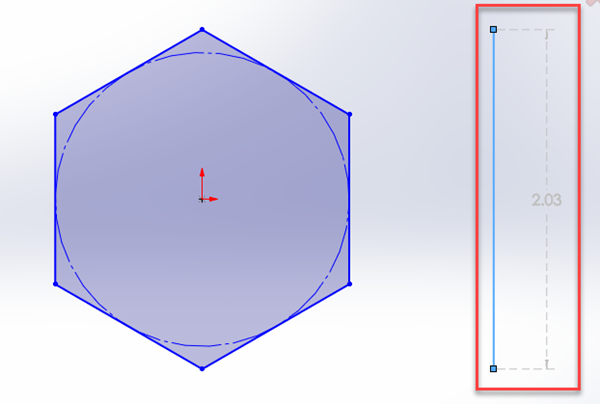 Select a sketch entity to preview the dimension
3. Set the Dimension Value
You can select the dimension to bring up the Modify dialog box while the preview is active. This allows you to specify the value, unit, and link to any variables in the SOLIDWORKS model and functions like the Smart Dimension tool.
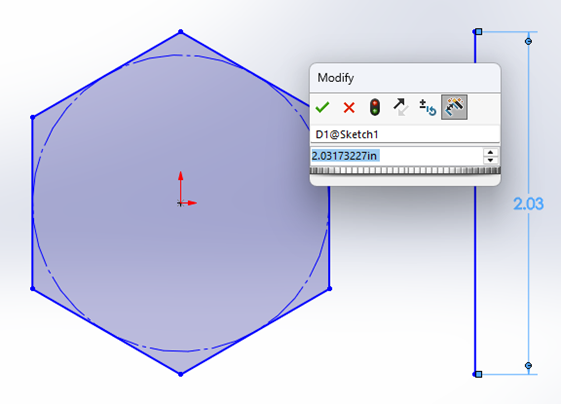 Entering a dimension value
Applying a Dimension to Multiple Sketch Entities
The Smart Dimension command automatically chooses the proper dimension type depending on the entities, which is one advantage over providing linear or angular dimensions. This is also true when using the Preview Sketch Dimension tool, which significantly simplifies the dimensioning procedure.
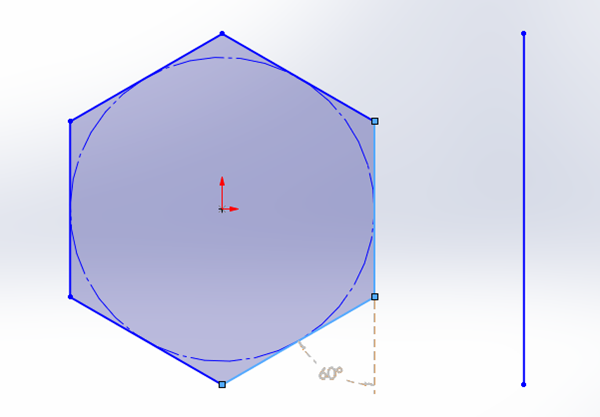 Applying an angular dimension using Preview Sketch Dimensions
By holding the control key and selecting multiple entities, you can define any type of dimension you could with Smart Dimension. The selections can include lines, points, or any other sketch entity you desire to dimension.