
In Part One of this article, titled Using Advanced Filters in 3DExperience, we discussed creating, saving, and working with 3DExperience Filters. We learned that Advanced Filters can be created in 2 ways:
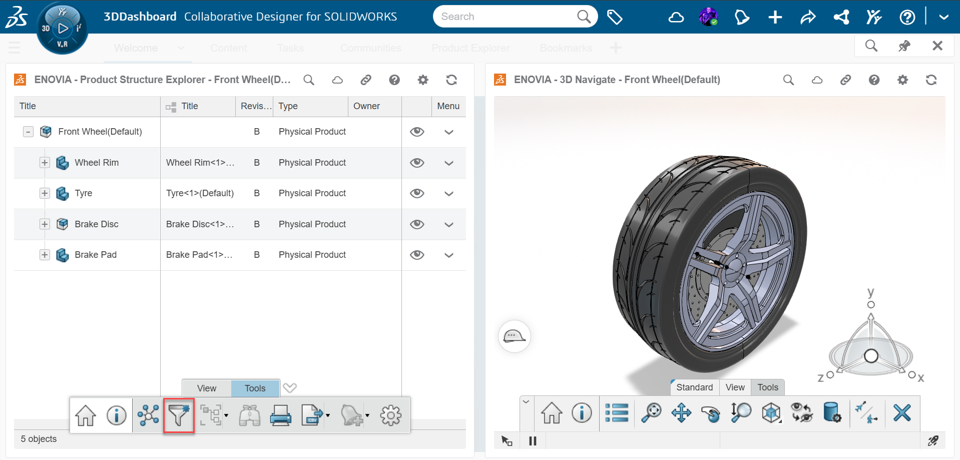
- From the Tools menu within Product Structure Explorer (on the 3DEXPERIENCE platform):
- From the Tools menu within Product Structure Explorer (on the MySession Panel within SOLIDWORKS):
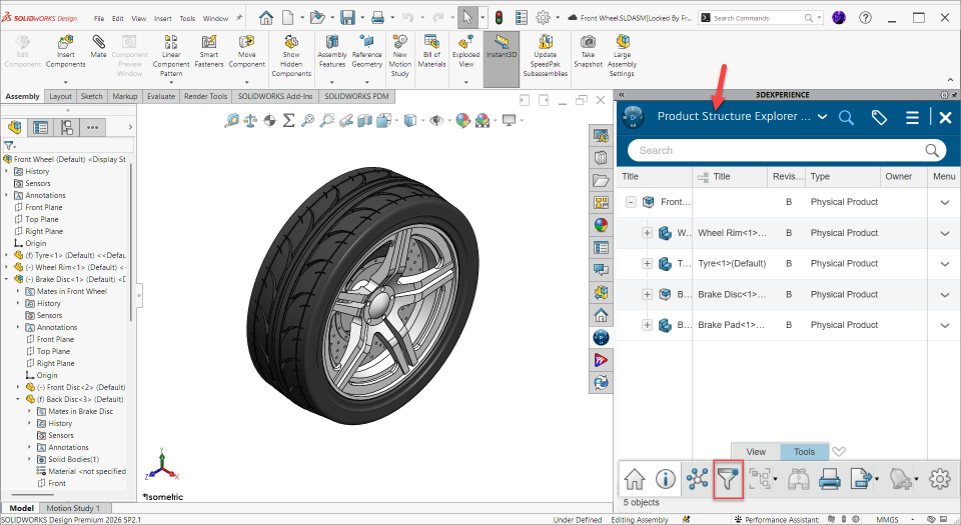
We also learned that there are 4 different types of filtering rules that can be applied or combined in different ways to achieve your desired results. Let’s take a deeper look at the first two…Selection Rules and Attribute Rules.
The Selection Rule
We discussed creating a filter using a Selection Rule at length in the previous article (See Using Advanced Filters in 3DExperience). But to recap:
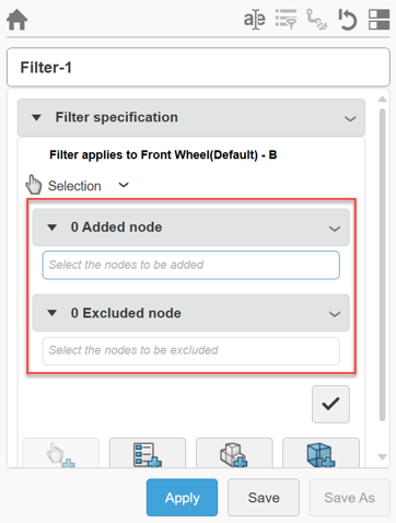
- Choose to include or exclude objects by selecting components within the Added node or Excluded node fields.
- Click the check mark at the bottom to finish the Selection rule.
- Add additional rules to the Filter or click Apply to see the filtered structure.
- Click Save to save the filter to the platform as a component.
Remember, you can also click on a part in the graphics window and use the level selector to easily select different levels of a sub-assembly. And use right-click, Hide/Show to help navigate parts you can't see. 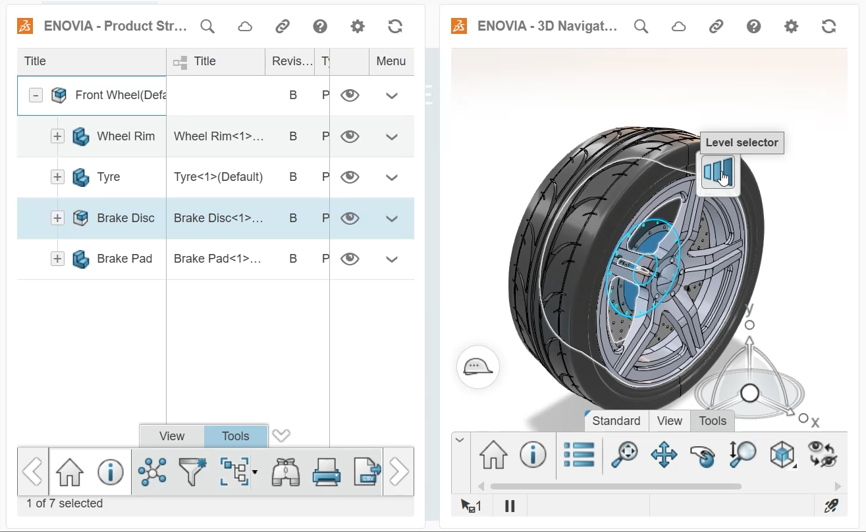
The Attributes Rule
The Attributes Rule allows filtering of objects, physical products, instances, etc. to include or exclude components based on component attributes. To create a new Attribute Rule:
- Open the assembly within Product Structure Explorer and click the filter icon.
- Under the New Filter section, select Attribute.
The next steps allow for various combinations or groups of Object Types, Operators, and Attributes within the filter menu to achieve different desired results.
- Toggle Keep/Remove to include or exclude results based on your criteria.
- Click Objects to select from a list of Object Types to filter.

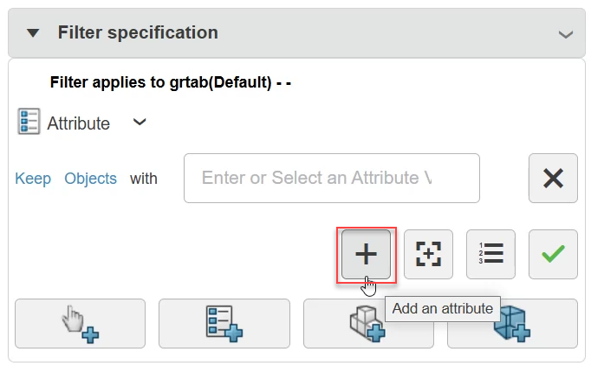
- Filter based on a Single Attribute by selecting Add an Attribute and entering an Attribute Value. You can then add additional Single Attributes if desired by clicking the +.
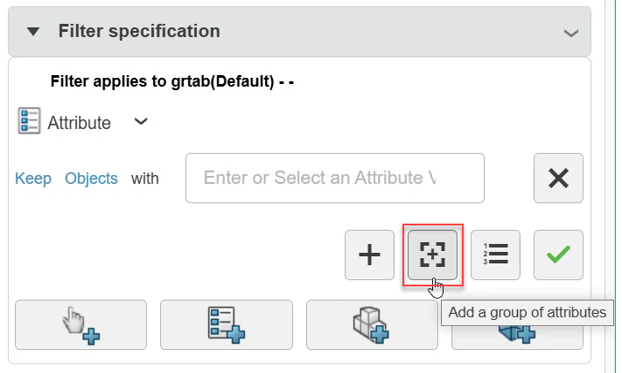
- Filter based on a Group of Attributes by selecting Add a group of attributes to specify the scope of attributes you want to include in the filter. When this filter is applied, the whole group of attributes and values are evaluated as a single expression. Make sure you validate the attribute group by clicking the check mark.
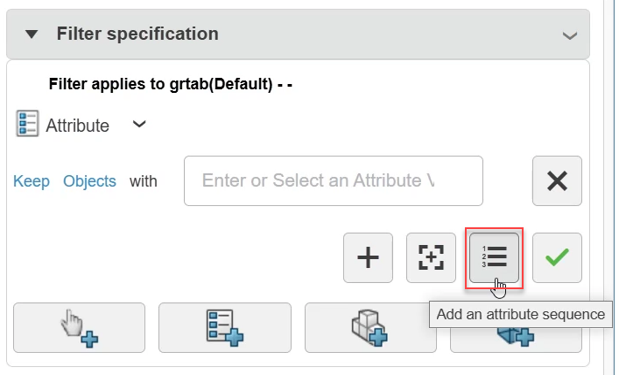
- Filter your structure based on an Attribute Sequence by clicking on Add an attribute in sequence. Make sure you validate the attribute sequence by clicking the check mark.
- Add additional rules to the Filter or click Apply to see the filtered structure.
Tip: Different operators are available depending on the selected attribute.
As an example, you may want to create an Attribute Rule designed to display only the components of an assembly that are currently locked by you. To accomplish this, you would build an Single Attribute Rule to Keep Objects with “Locked By” containing your username. 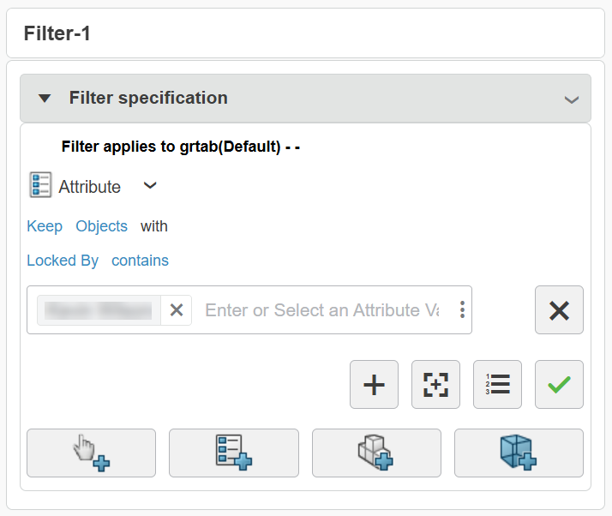
Remember that you can combine multiple criteria to create a single Filter. Combining rule types is usually more precise than any single rule on its own!
In Part Three of this series, we’ll take a look at the last two type of rules for Advanced Filters in 3DExperience…Configuration Rules and Volume Rules!