
The database that controls the Hole Wizard and Toolbox functionality has to be updated following each major SOLIDWORKS version upgrade if your SOLIDWORKS Toolbox is handled in PDM.
The ideal course of action is to schedule the Toolbox update for when users aren't working on files. Because open files referencing the Toolbox will lock the files required for the upgrade, this avoids any conflicts during the process.
NOTE: Only one user is required to upgrade the Toolbox stored in SOLIDWORKS PDM. The local cache must then be updated by all other users, as explained at the end of this article.
1. Validate that all Toolbox components are checked in to PDM.
Use the Complete Search tool to confirm that no Toolbox components are checked out while signed into the vault as the Admin. Set the "Look In" field in the search tool to the Toolbox folder (default is "SOLIDWORKS Data").
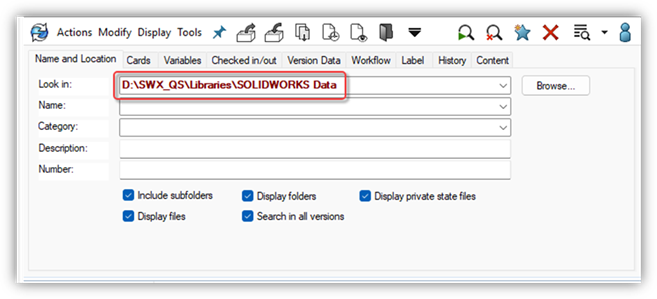
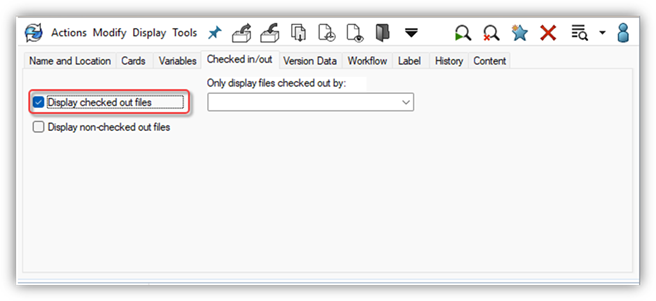
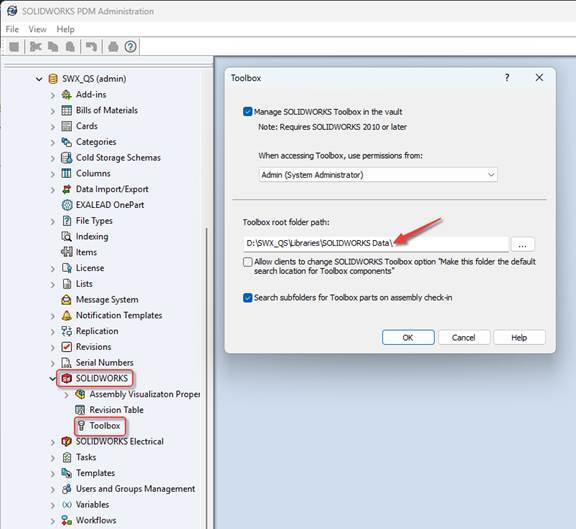
Note: If the location of the Toolbox folder in your vault is unknown, open the PDM Administration tool, log into the vault, and expand SOLIDWORKS, then double-click Toolbox to display the path.
2. Verify Toolbox Components are not used by checked-out assemblies
Download and extract the PDM report: PDMRpt_CO_ParentsWithTB_Parts.zip
1. Log in to PDM as the Admin user.
2. Select Tools | Report Generator
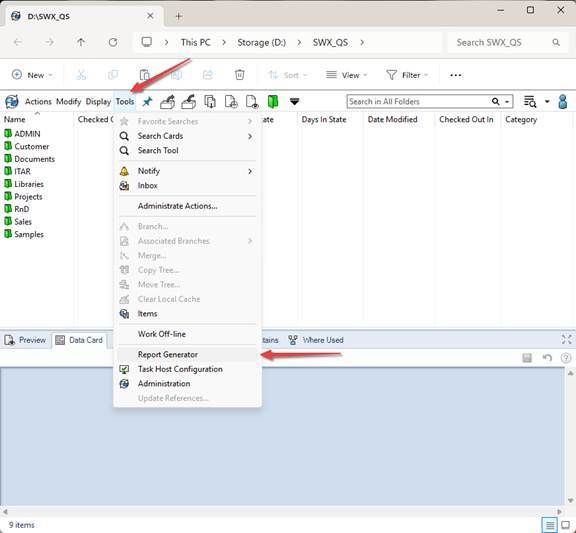
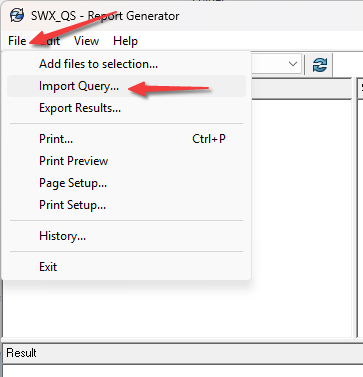
3. In the Report Generator dialog, select File | Import Query and then locate the ‘ListAllCheckedOutParentsWithToolboxParts.crp’ file and click Open
4. After opening the report file, the Query User Rights dialog will show. Here is where you designate what Groups/Users can run this report. Click OK when done selecting.
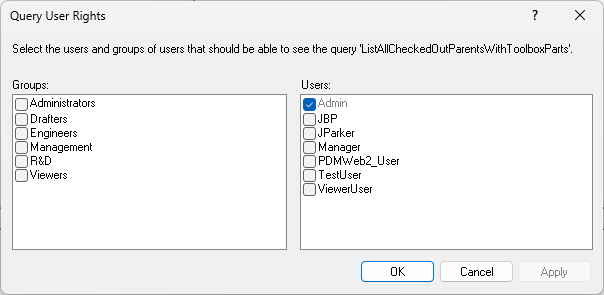
5. The query is now listed under Queries with a description of ‘Show all checked out parent files that reference toolbox parts’
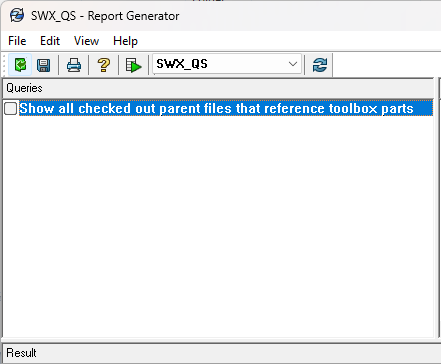
6. Checkmark the query and select Edit | Execute Query
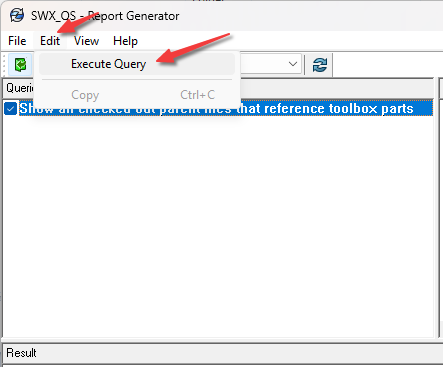
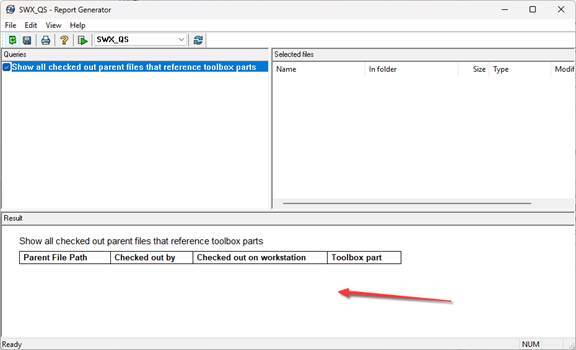
7. Review the Results list and check in any assemblies referencing Toolbox components.
3. Backup the Hole Wizard/Toolbox Folder Outside the Vault
Create a copy of the entire Toolbox folder and save it outside the PDM vault. To create a copy, simply right-click the folder within PDM and select Copy, then navigate outside the PDM vault to a folder of your choosing and right-click to select Paste.
4. Check out the Toolbox Database
The database must be checked out in PDM to upgrade.
- Log into the vault as the Admin user.
- Browse to <PDM vault>\<toolbox folder name>\lang\<language> and check out swbrowser.sdledb (the database) and swbrowser.sldedbold (the backup file).
In the example used in this document, the path is D:\SWX_QS\Libraries\SOLIDWORKS Data\lang\english\
5. Upgrade Toolbox via SOLIDWORKS Installer
To update SOLIDWORKS Toolbox, launch the SOLIDWORKS Installation Manager.
On the Summary screen, review the Toolbox Options installation path, ensure it is set to the Toolbox folder location in the PDM vault. If not, click Change, select Reference or Upgrade an existing Toolbox, and browse to the Toolbox folder location in the PDM vault.
Start the SOLIDWORKS upgrade.
Note: Use the SOLIDWORKS PDM File Version Upgrade tool to upgrade the entire Toolbox directory at once.
6. Check-In the Upgraded Database File
The upgraded database must be checked into PDM before any users can access it and start using Toolbox or the Hole Wizard within SOLIDWORKS.
- Log into the vault as the Admin user.
- Browse to <PDM vault>\<toolbox folder>\lang\<language> and check in swbrowser.sdledb (the database) and swbrowser.sldedbold (the backup file).
7. Update Local Cache
The local cache must be updated for every local vault view now that the Hole Wizard/Toolbox database has been upgraded.
The Toolbox root folder path can be found in the PDM Administration tool by expanding SOLIDWORKS and then opening Toolbox.
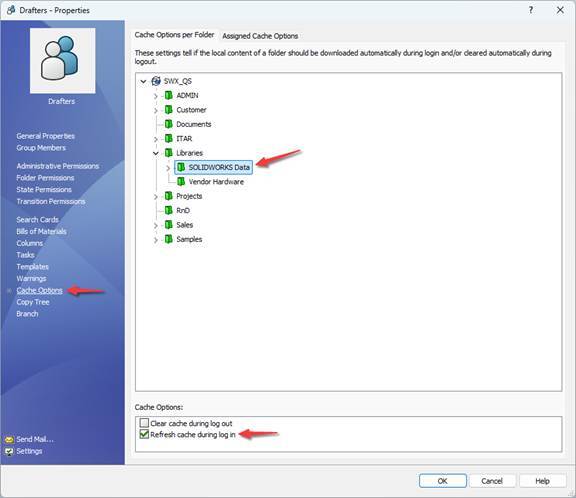
Set the Toolbox folder's User/Group Cache Options to "Refresh cache during login" to have the local cache updated automatically when a user logs into PDM.
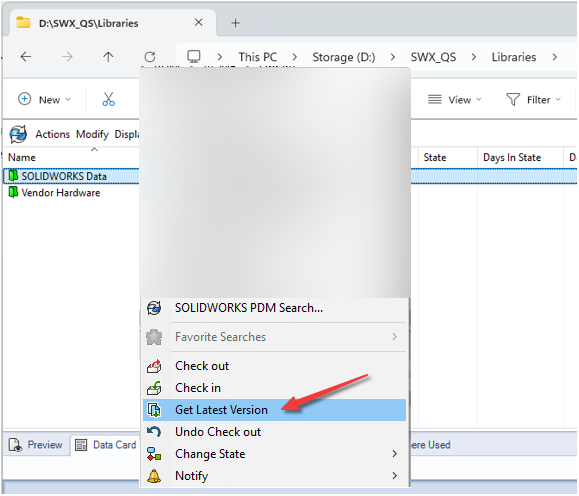
Each user must choose the Toolbox folder, then right-click and choose "Get Latest Version" to manually update the local cache.
Technical Support
If you have any questions or issues, reach out to CADimensions technical support.