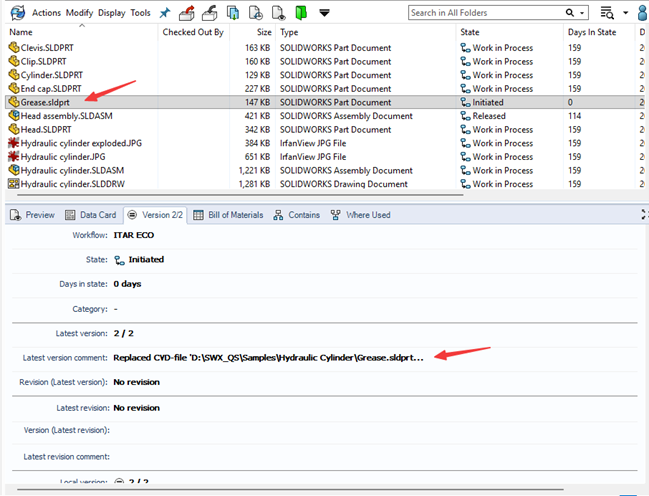
In SOLIDWORKS PDM, a virtual document is a representation of project-related data that doesn't come from a physical file. These virtual documents feature file data cards where metadata can be captured to manage non-modeled products, like consumables that don't need a physical file, unlike most other files maintained in PDM.
What can Virtual documents do?
- Design:
- It can be replaced with the physical file it represents, while keeping the previously entered data card values. This is useful as a placeholder during the early design phases, when you may not have modeled all components but want to keep part numbers, etc.
- Workflows:
- Save time by verifying changes to workflows or tasks in PDM without generating physical files. Simply add a virtual document to the vault and run it through a workflow to ensure it works as planned.
- Templates:
- Can be used within PDM Templates to generate temporary files based on serial numbers and data card rules, which can be replaced by physical files.
Creating Virtual Documents
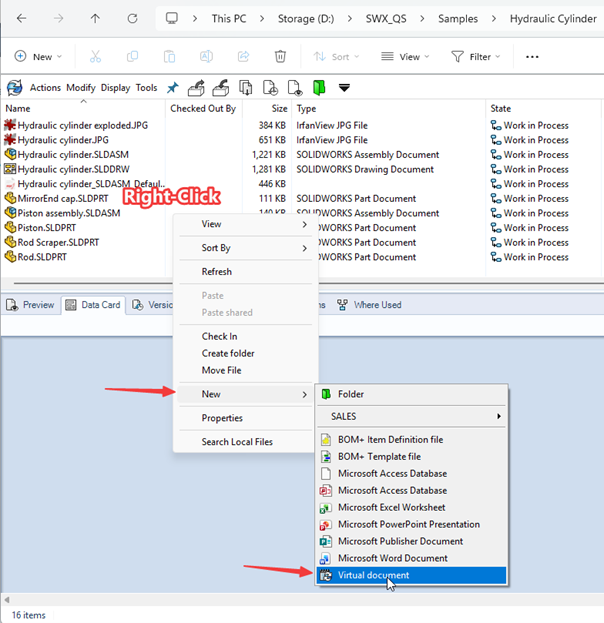
1. In a PDM Local Vault View, without selecting a file or folder, right-click in the file area and select New > Virtual Document.
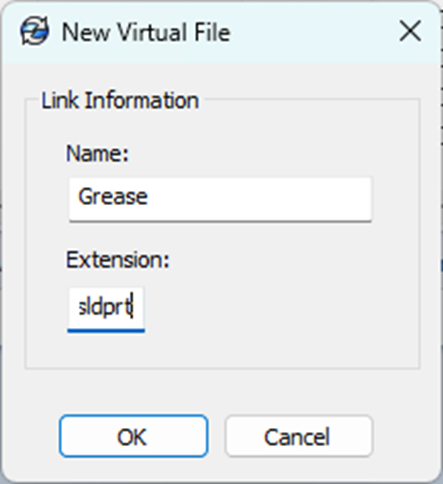
2. In the New Virtual File dialog box, enter a name for your virtual document. For Extension, enter the extension of the data card you want to associate. Do not put a dot “.” before the file extension. Just input the extension characters. For example, enter sldprt to associate the virtual document with a SOLIDWORKS part file.
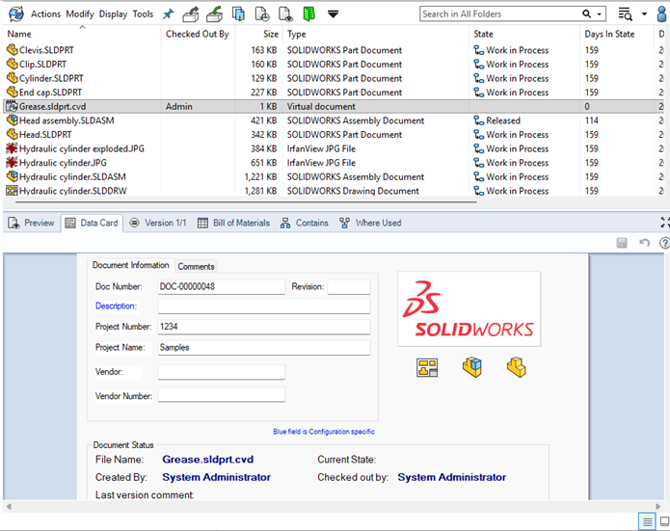
3. Click OK to create the virtual document. PDM creates and checks out a virtual document with the icon and file extension “cvd". The image below shows an example of one named "Grease.sldprt.cvd". The document type is 'Virtual document’; however, the data card is for a SOLIDWORKS part file. This data card is presented because the virtual document's file extension is sldprt.
The CVD extension is special just for virtual documents. The PDM system associates the data card with the extension entered, though it manages the virtual documents in the background using the CVD extension. You may have to turn on the Windows File Explorer View option to show file extensions to see the CVD extension.
Replacing Virtual Documents
A virtual document can be replaced with a file when required. To replace a virtual document, it must be checked out. Below are the steps for this process.
1. Select the virtual document and then select Replace from the Actions menu.
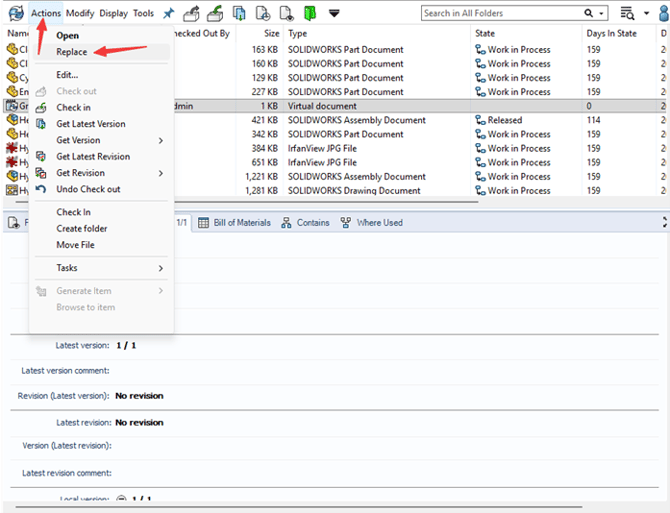
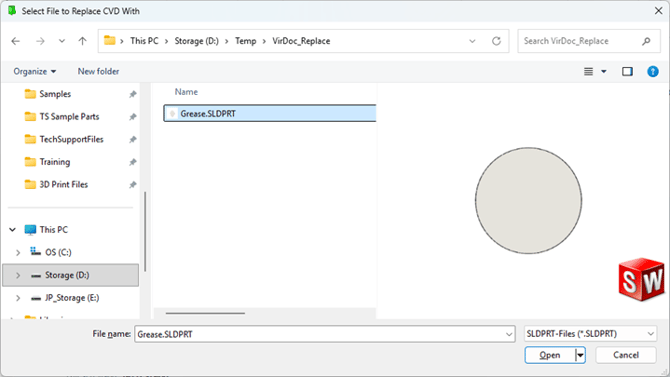
2. Locate the replacement file in the “Select File to Replace CVD with” dialog box, then click Open. The new file replaces the virtual file. The original name of the virtual document is preserved, and the file is automatically checked into the vault.
3. To see the newly created file, refresh the local vault view. A record is also added to the file's history to show how the file's name has changed since the .cvd was removed. The file in the following example is now a physical SOLIDWORKS file (.sldprt).