
The Quick Fix
With the new changes, SOLIDWORKS Connected is no more than a different name - and this article is a supplement to this one, here: https://knowledge.cadimensions.com/knowledge/the-latest-solidworks-product-names. If you are confused by the name changes, feel free to read up on that article and catch up on the latest updates.
Recently we have been seeing a large influx of cases regarding that they cannot obtain a license of SOLIDWORKS Design. The quick fix, is this:
Before clicking on SOLIDWORKS Design or Design with SOLIDWORKS, make sure that your client is up to date. You can check on this with the "Update" button, which looks like a little colored circle of arrows. An example screenshot, below.
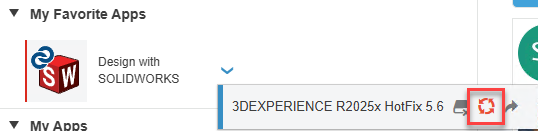
Depending on the situation, it can be different colors. Red is out of date and needs an update before it can run. Yellow/Orange (I can't really tell, honestly) means you can run, but it should be updated. Green, means you have had a change in role assignment. This is what causes the error, and is the most common pitfall of this name change.
Press the colored circle to update your roles/installation. This will most likely resolve your error. If not, it's possible there are a few other factors at play.
Check Your Roles
Make sure that you are assigned all the proper roles, and that you do not have any expired ones still attached to you. The name change may bounce the role off your account when you renew.
There's a quick setting to automatically remove all expired roles. Learn about it here: How To Automatically "Ungrant" Expired Licenses.
This won't automatically assign the new role, so make sure you're checking that. For a resource on roles and role assignment, click here.
Make Sure You're on the Right Tenant
Sometimes you wind up on the wrong tenant. Tenants can get confusing, so if you are using a bookmark, bookmark this link specifically to get to your base tenant easily.
The Technical Details
If you are curious and want to learn a little more on roles, the client install and the platform itself, let's get into it.
The Difference Between Network Style Licensing and Named User Licensing.
Now, named user licenses (like SOLIDWORKS Design, formerly Connected) are assigned to a specific user, and do not float in a pool of licenses that can be grabbed by any user. The role can be reassigned to another user manually, through the platform. This is a topic in and of itself, we will not get into here.
The main confusion starts here: license elevation is not automatic with named user, nor are changes to the assigned license. While that is a confusing sentence, let's break it down further.
When you use a License Server, a user connects in by launching SOLIDWORKS. This grants the most basic license possible with the installed products on startup. For example, if you have Simulation set to start up, it will grant a license of SOLIDWORKS Premium off the bat. However, if you start up with no Premium or Professional products, and for example enable Toolbox, the license will automatically upgrade to Professional, or Premium, if either are available. If not, you will be denied the license and it will remain a Standard, and not load the add in.
This does not work the same for SOLIDWORKS Design
If you have a license of SOLIDWORKS Design Standard, but want to enable toolbox, you will need to go in, change the roles so you are utilizing a Professional license, and then update the client. This is the most commonly missed step, and the reason for the above guide.
We have had some interesting situations. Let's start with an example that will showcase the issue.
A company has two licenses of SOLIDWORKS Design, one Standard, and one Premium, and just one PC to work on.
User A has Premium, and User B has Standard.
If User A logs in to the platform, launches for the first time and installs, the PC is now installed with SOLIDWORKS Design Premium. If User B logs into this computer, and attempts to launch with their role (Design Standard), they will get the error "Unable to obtain license".
This is because the PC is installed as a Premium License. User B only has Standard. This is the mismatch. If a third user shows up with a Premium License and runs on this PC, they would be fine. Just User B would fail.
You just need to match the client and the role together, that's what that little circle of arrows does in this situation.
Why Does Any of this Apply to This Guide?
You might've been thinking, man this guy gets off track easily. However, these are related key points, and honestly, things that you should know!
The name change did a few things. Most related to this guide, it changed the actual product name on the backend. We are seeing this case come up right after your renewal. So, if you recently renewed, and suddenly your locked out, that's probably why you're here!
This is because the "Connected" role, is still applied and the "Design" role, isn't yet. Even if you changed these roles around for you user account, it doesn't update the PC automatically. So, the update button needs to still be pressed.