In Visualize, there is a basic library of appearances, colors and materials that you can select. But, perhaps you have your own library of custom colors, or your own trademarked color scheme? There are a few ways to quickly load your colors into Visualize without having to manually adjust all those sliders!
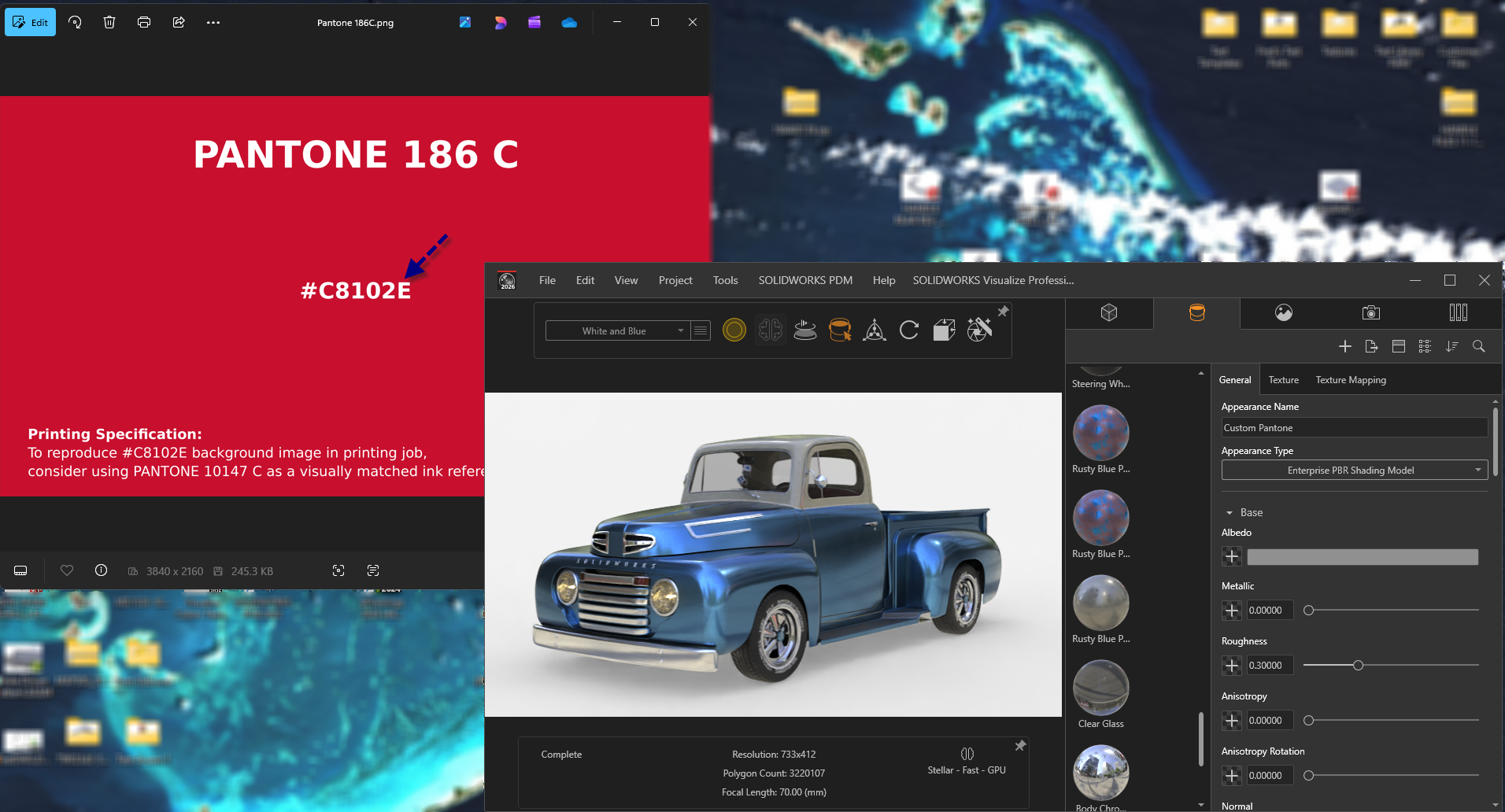
Let's take a look at this custom Pantone color that we want to load in and use in multiple projects, then share to our server for other users to load in.
Method 1: Use the provided hex code (if there is one)
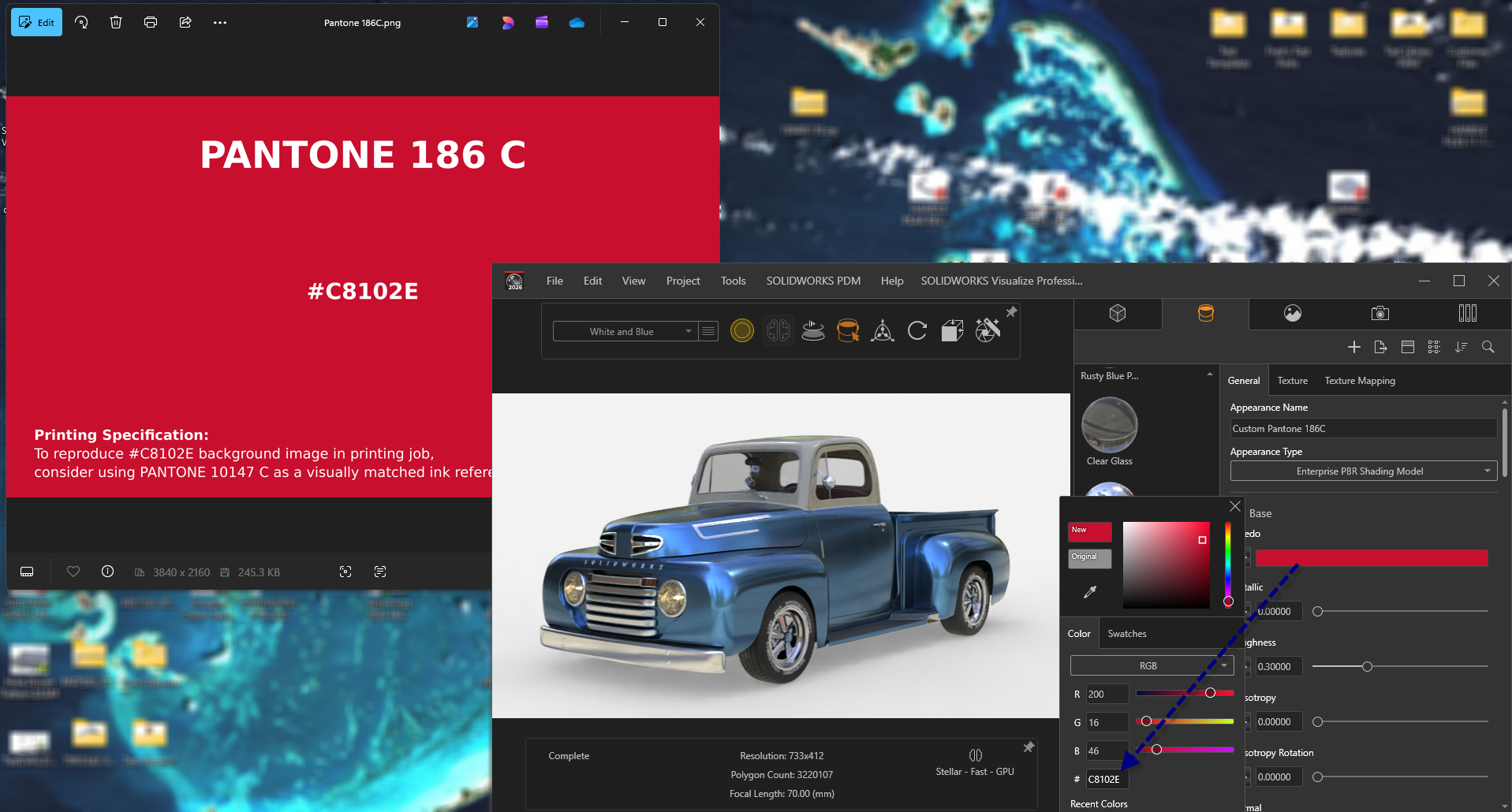
One simple way, is the hex code likely provided by the provider. If you have access to the hex code, it can be typed right into the "Albedo" box. Albedo, being base color in this instance.
Method 2: Utilizing the color picker.
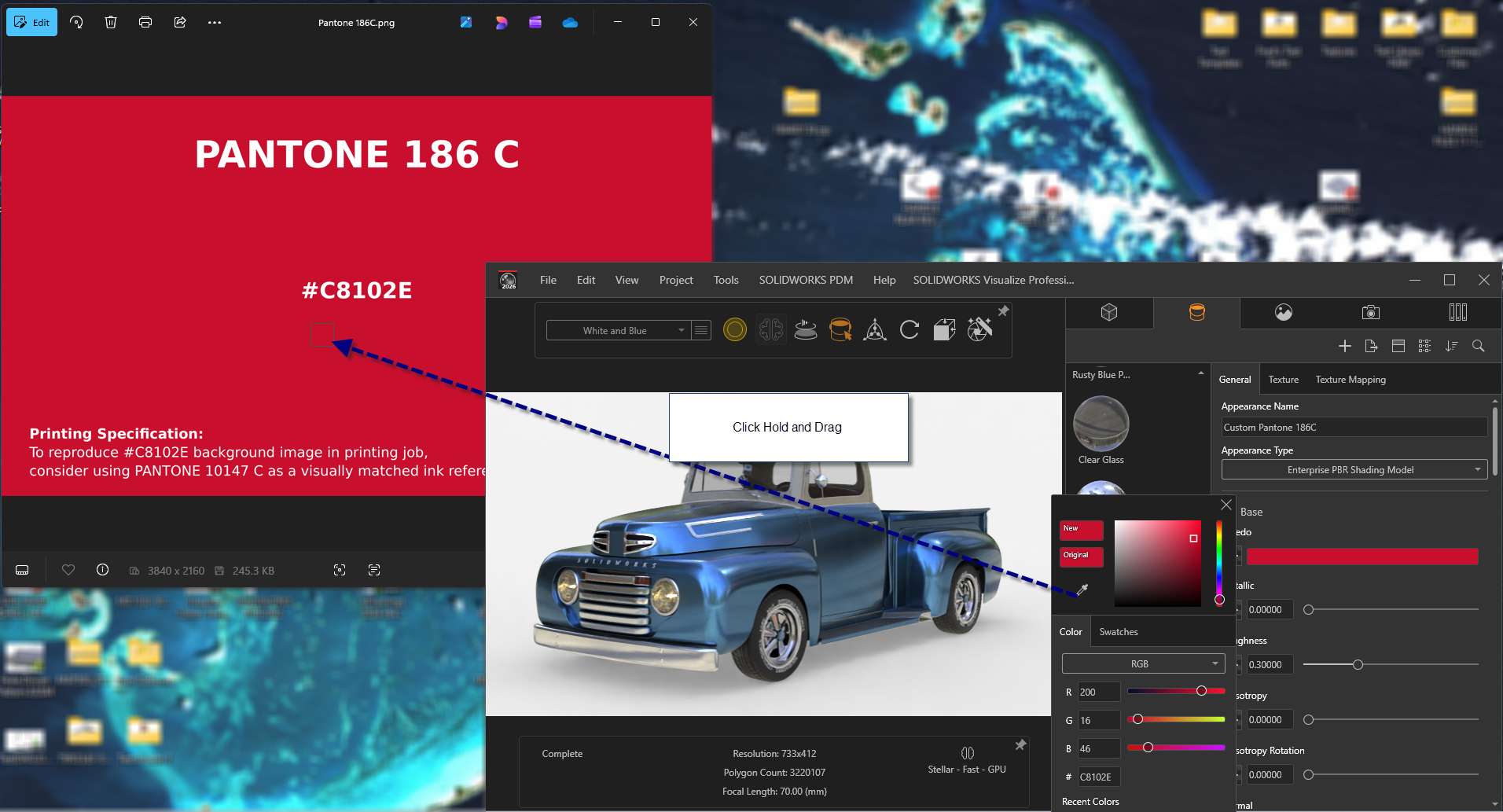
Or you can use the color picker if it’s not coming up well or the hex code isn’t available. You can use the color picker anywhere on your screen so just drag it to any color you want.
Exporting the Appearance
Then you can save that appearance into your library using Export > Save Appearance.
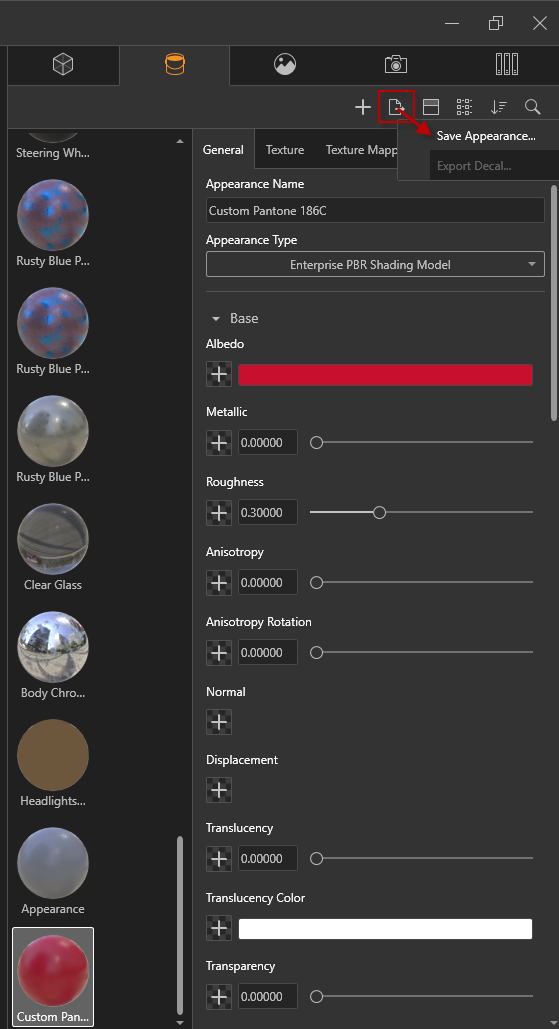
You can mess with the other settings here, but that's a topic for another article. We're just working on the base color.
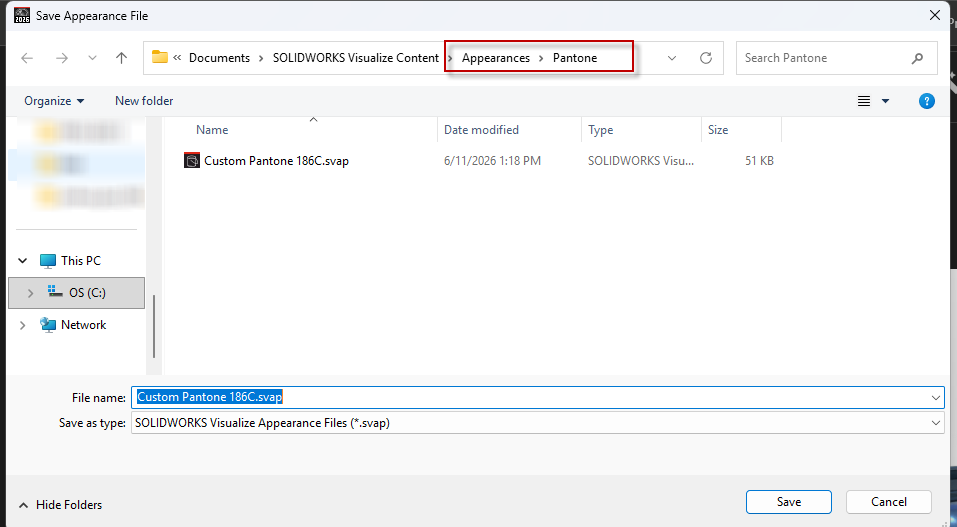
Go ahead and create a new folder, in this case I created a “Pantone” folder. This folder and appearance will appear inside of Visualize for all projects. Just remember to take this file with you if you change PCs or upgrade. I recommend keeping a backup of this folder just in case something happens to your PC or storage solution.
Now if I go into a new project, it’s located in the directory!
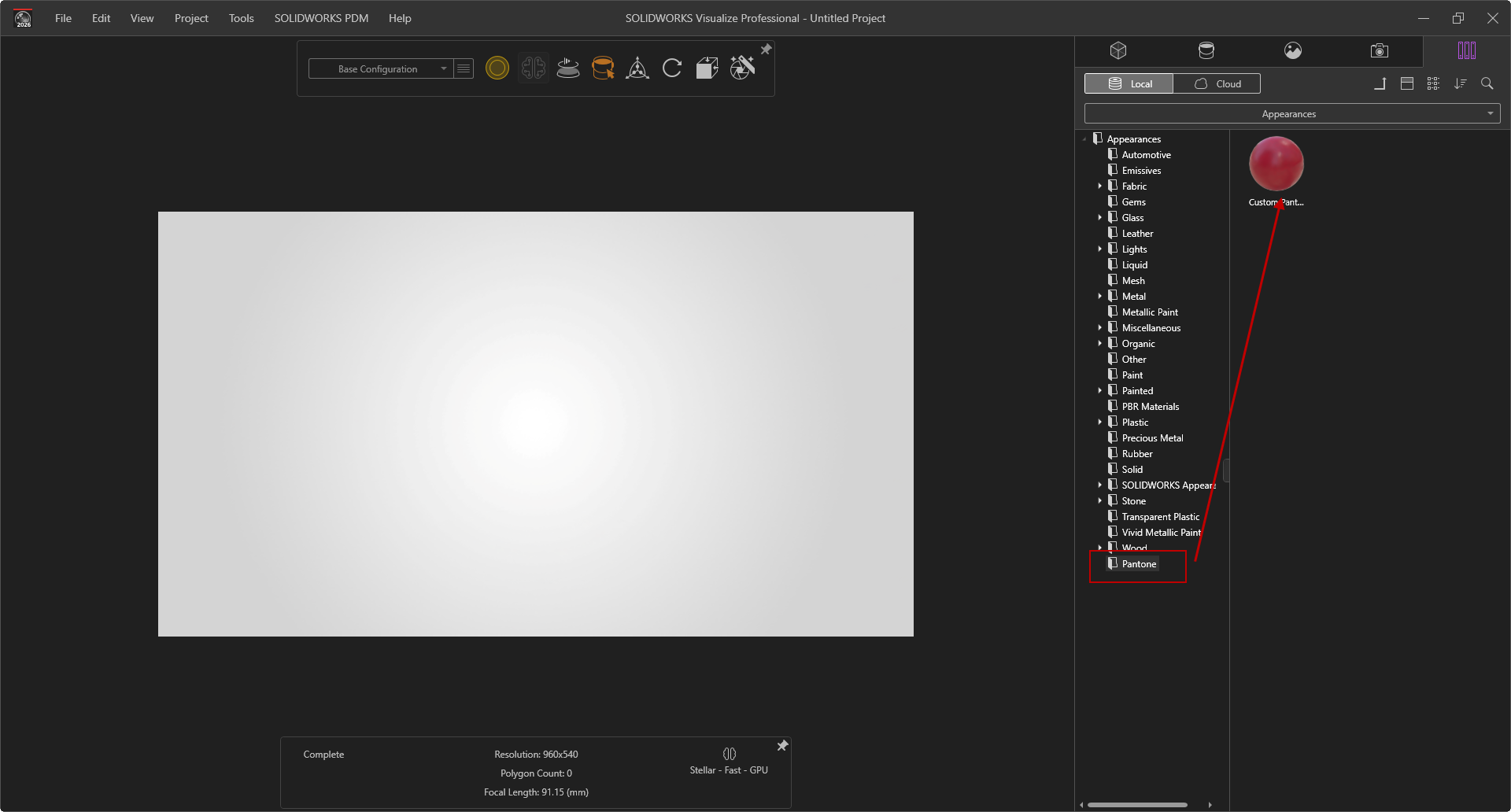
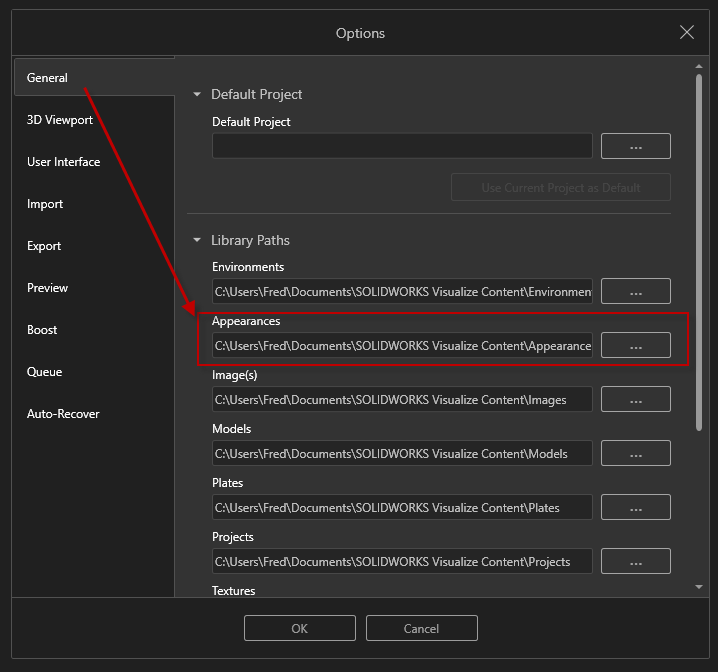
If you take the time to put these in, you can create the directories and share them out to all your users, or you can place them on a shared location so everyone can easily load the appearances your have created! In Visualize, you can only load one location of Visualize appearances - so these appearances need to be copy and pasted into the Visualize directory for each user, or you need to point your appearance library to the shared location.