
This issue is most often encountered if your system has previously had multiple monitors connected. There are a few methods that may help get a window or dialog box back on your screen. If one method does not work, proceed to the next one.
Method 1
- Reconnect an external display and you should be able to see and move the window or box in question to your primary display, and it should stay there in the future.
Method 2
- Click the icon in the taskbar to ensure that the program is in focus.
- Alternatively you can hold Alt and hit Tab, until the window you are looking for is highlighted. Release both keys, and it should be in focus.
- Then hold down the Windows key and press the right-arrow a few times. That should move the window across your screens and eventually bring it back onto the screen that is still active.
Method 3
- Similarly to the step above, click the icon in the taskbar to ensure that the program is in focus, or Alt+Tab to the window.
- Press Alt + Spacebar, then the m key. This will initiate the Move command on the window or dialog. Then press any arrow key in order to snap the window to your cursor.
- This process will only work correctly if the SOLIDWORKS main window is not set to fullscreen. The symbol in the top right should appear as shown below, then attempt.
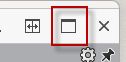
- This process will only work correctly if the SOLIDWORKS main window is not set to fullscreen. The symbol in the top right should appear as shown below, then attempt.
- Move your cursor, and you should see the window appear attached to it. Click where you would like to place the window, and that should be the new location where it will appear in the future.
Method 4
- The final option is to reset the registry key that controls the dialog box location. To do this, you will need to launch the Windows Registry Editor as administrator.
- Also close any running instance of SOLIDWORKS.
- Once in the registry editor, find the key HKEY_CURRENT_USER\SOFTWARE\SolidWorks\SOLIDWORKS 20xx\User Interface\Dialogs
- Right click on Dialogs and rename, we suggest adding ".old" or something similar to the name to denote it is no longer in use.

- Launch SOLIDWORKS and the key will be rebuilt with the default value. Any future dialogs should now appear centered on your screen.