
By default, SolidWorks installs standard profiles (like ANSI and ISO) in a hidden or installation-specific directory:
- C:\ProgramData\SOLIDWORKS\SOLIDWORKS [Version]\weldment profiles
- Alternative path: C:\Program Files\SOLIDWORKS Corp\SOLIDWORKS\lang\english\weldment profiles
When generating custom profiles in Solidworks, it is highly recommended you create a custom profile folder outside the default directory, so your shapes are not mistakenly deleted or overwritten during software updates. Proper Windows folder structure is essential for ensuring your Standards, Types, and Sizes appear correctly within the Solidworks Structural Member PropertyManager.
Solidworks relies on a strict “4-tier” hierarchy to populate its dropdown menus in the Structural Member tool. Let’s discuss these 4 tiers, and the differences required in your Windows folder structure when your custom files have multiple configurations vs custom profiles with only a single “Default” configuration.
- Home (Folder) (e.g., Custom Weldments)
The top-level parent folder where all other folders and files will be stored - Standard (Folders) (e.g., ANSI, ISO, or Company Standards)
Subfolder(s) to the Home Folder, representing various custom categories - Type (Folders/Files) (e.g., C-Channel, Square Tube, Angle Iron)
A Folder or a File, indicating the type or shape of the profile(s) - Size (Files/Configurations) (The (.sldlfp) library part files or configurations)
A File or a Configuration, indicating the size of the profile
We can use Type and Size to work together in different ways, allowing us to accommodate both Configured and Unconfigured Weldment Files
- If your Solidworks Weldment Library Feature Part file has multiple configurations, then save it in the Standard Folder. The file will represent Type, and its configurations will represent Size.
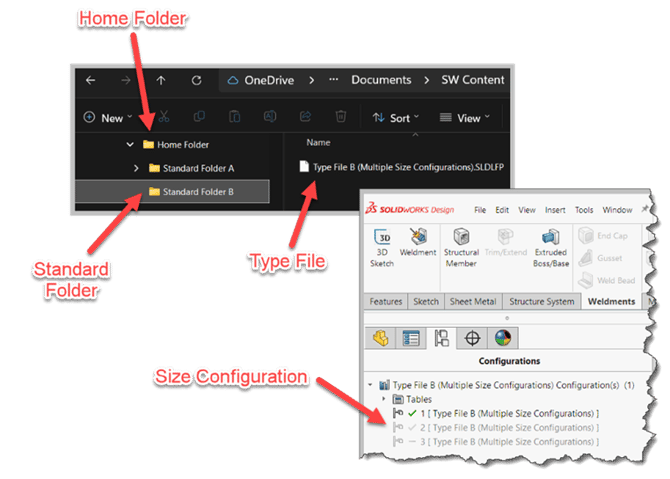
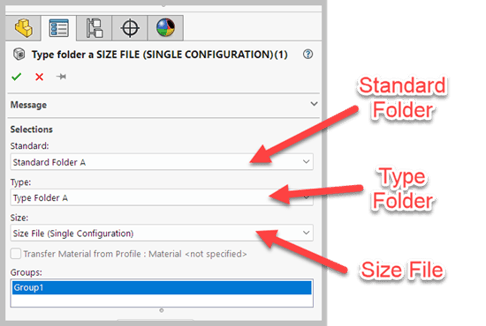
- If your Solidworks Weldment Library Feature Part file has only a single configuration, then create a subfolder within the Standard folder, and save your file within the new subfolder. In this case, the subfolder will represent Type, and the file within it will represent Size.
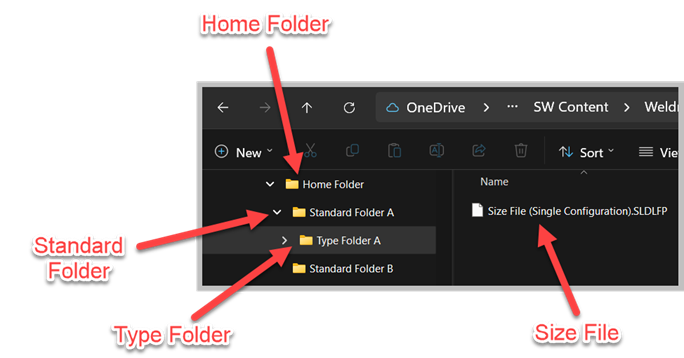
Once these folders and files are complete in Windows File Explorer, we need to properly map the Home Folder within Solidworks in System Options:
- Open SolidWorks and go to Tools > Options (or click the gear icon).
- Under the System Options tab, select File Locations.
- In the "Show folders for" dropdown menu, scroll down and select Weldment Profiles.
- Click Add, browse to your top-level "Home" folder, and click Select Folder.
- Click OK to save.
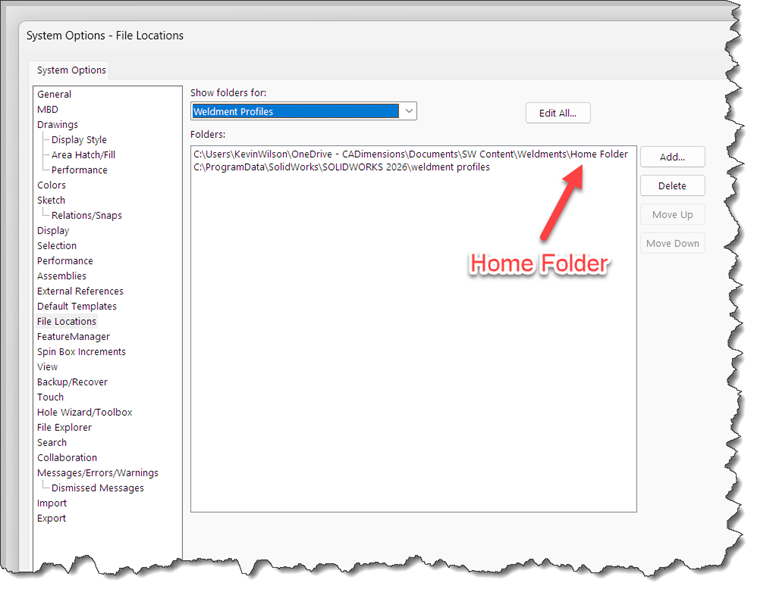
Now, when using custom weldment profiles, Solidworks Structural Member PropertyManager will correctly display both Configured and Unconfigured files.
- Weldment Library Feature Part with multiple configurations
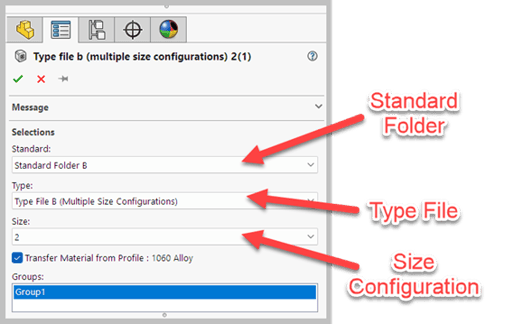
- Weldment Library Feature Part with a single configuration
If you have any questions, or would like help setting this up in your environment, please contact our support department at https://www.cadimensions.com/contact/support/