
What is the Report Generator?
Users can generate, store, and print reports from file data in the vault using SOLIDWORKS PDM Professional's Report Generator. Results are displayed in the Report Generator's pane, and the import file extension is typically CRP.
Results can be exported to comma-separated value files and imported into other tools.
Accessing the Report Generator
Once logged into a local vault view, go to the Tools menu and select Report Generator.
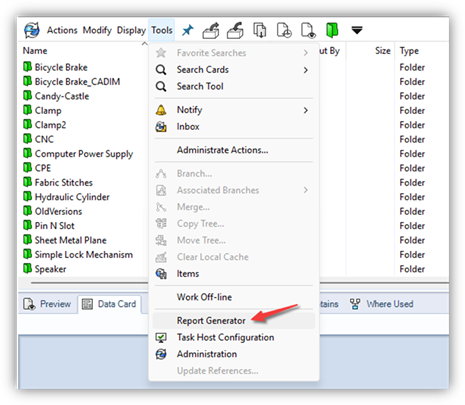
If this is the first time using this tool, there may be no reports to use. Sufficient permissions will be required to import new queries.
Administrative Permissions for the Report Generator
If you need to add new or administer existing report queries, you need to have sufficient privileges in the vault. This can come from either user or group permissions.
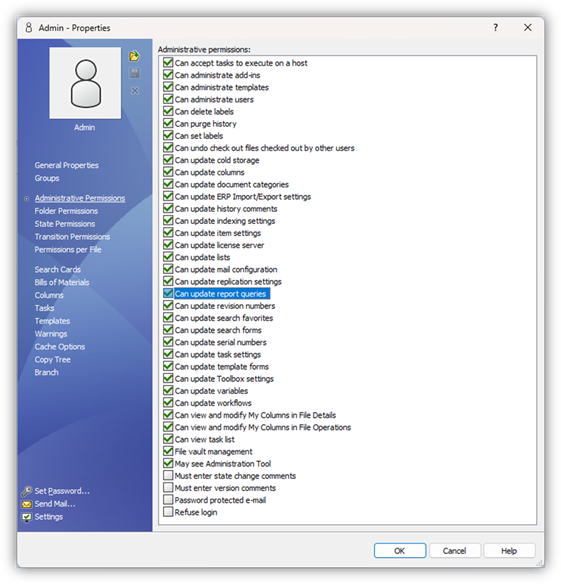
Ensure that you have “Can update report queries” enabled under the Administrative Permissions tab. This would need to be added for every user or group that would be interacting with the Report Generator.
Importing Report Queries
After opening the Report Generator, you can then import new queries to run. If none exist, there are default queries included with SOLIDWORKS PDM so you can learn how to generate reports.
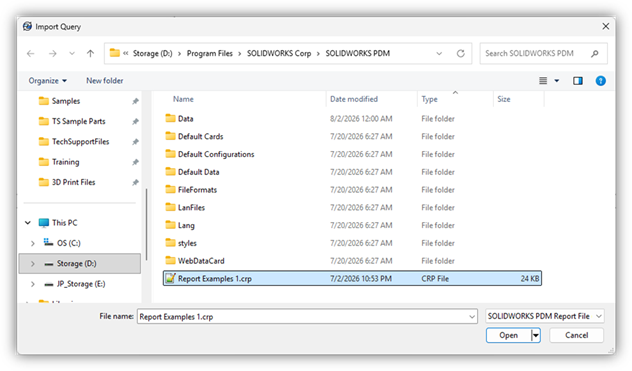
The default SOLIDWORKS PDM installation directory (C:\Program Files\SOLIDWORKS Corp\SOLIDWORKS PDM\) includes a file with multiple reports bundled inside of it, but additional queries can be downloaded from the 3DEXPERIENCE Knowledge Base (search for either “report generator” or “crp”) or generated on your own.
Example Reports
The report examples consist of nine reports, including finding documents in a specific workflow state, with a specified configuration, and even referenced by another document.
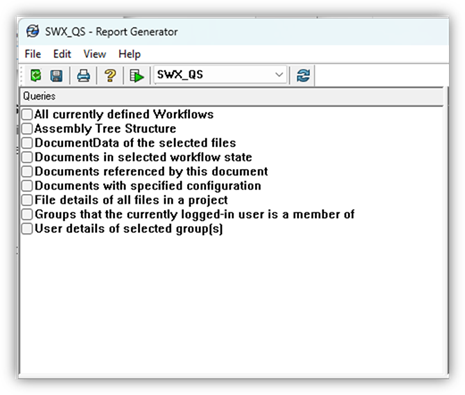
These examples are great for learning the Report Generator file formatting and reverse engineering into a custom query.
Assigning Report Permissions
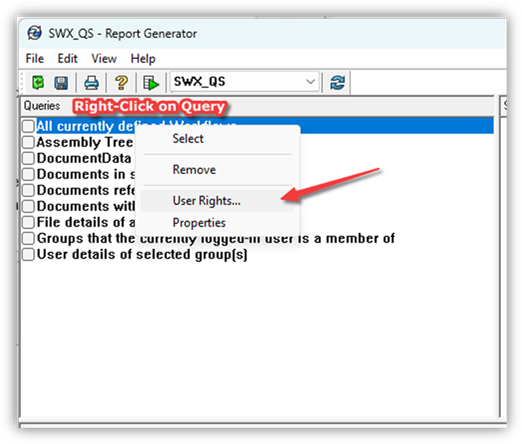
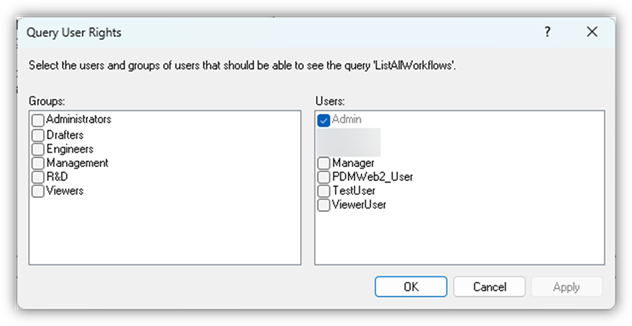
When importing a report, a prompt to choose which users and groups have permissions to use that query will show. Also, rights can be added or removed for these queries to modify who is allowed to see and run them.
Running Reports
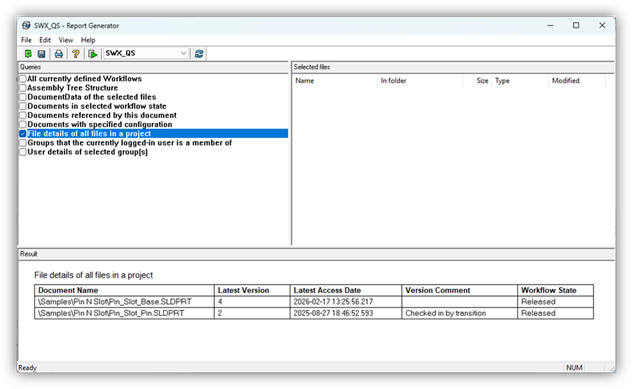
Once imported, they can be run on vaults. Use the drop-down menu to select the vault you want to run the query on, then select the report you wish to run and click Run.
SOLIDWORKS PDM Reports Next Steps
SOLIDWORKS PDM comes with some example queries to help understand how the Report Generator works. The next step is to create custom queries to extract beneficial information from your vault.
Consult the SOLIDWORKS PDM Help documentation for information on creating custom reports and the other samples from the Knowledge Base. Finally, we can either help or create these reports for you.
To discuss your reporting needs, click here.