
Since 1996, SOLIDWORKS users have been asking if they can save their SOLIDWORKS files to a previous version. The conversation would go something like this:
Customer: "We sent files to our clients for review, and they can't open them because they are on the previous release of SOLIDWORKS. Is there a way to save our files back to that release?"
Me: "No, sorry, that functionality does not exist. You will have to save in a neutral file format, such as STEP, and will lose your feature tree."
Over the years, it is arguably the most common enhancement request. With the release of 2024, it is finally possible.
How Does It Work?
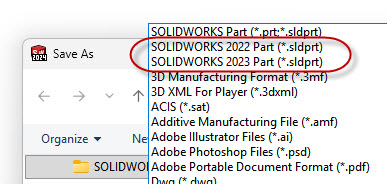
The process could not be easier. The ability to save to a previous version is built into the Save As command, as shown in the following image. In the Save As command, using the Save As Type file list, pick the version the part, assembly, or drawing should be saved back to.
What Are The Limitations?
It is only possible to save back to the prior two releases. There may be features that can't make the transition to an earlier version. Some items may have incompatibility issues, and some items may not be supported. SOLIDWORKS will inform you if this is the case, and you can choose what to do at that time.
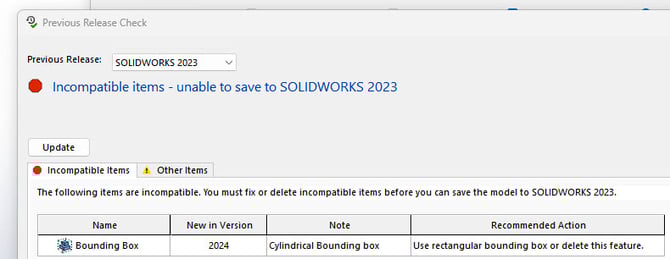
The following image shows an example of an incompatible item. The assembly in question is being saved from 2025 to 2023. The assembly contains a cylindrical bounding box. Cylindrical bounding boxes were introduced in 2024 and did not exist in 2023. Saving to the 2023 version can still be accomplished, but the bounding box will be deleted. If it is determined the bounding box is not needed, save the assembly.
Two's The Limit
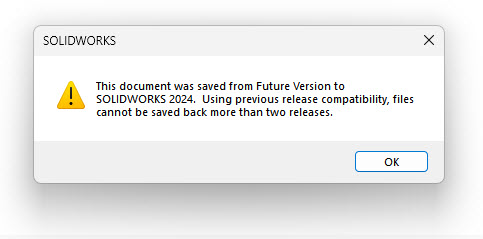
Another limitation is the inability to save back more than two releases. For example, if a file was saved from 2026 back to 2024, it cannot be opened in 2024 and saved back to 2023 or 2022. The following error will appear.
 Future Versions
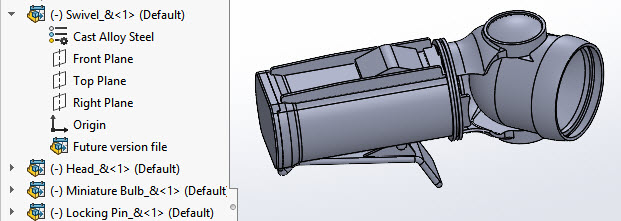
Simply opening and viewing future version files in SOLIDWORKS is possible, but operations are severely limited. For example, if running SOLIDWORKS 2023 service pack 5, SOLIDWORKS 2024 parts and assemblies can be opened. It is not possible to open drawings or anything more recent than 2024. Furthermore, it is not possible to do any editing whatsoever. The file can't even be saved unless exported to some other format.
Why The Limitations?
It's all about the database structure. In order to add functionality, every release demands a different database structure for the feature tree. In it's early years, the database structure was undergoing huge changes, with functionality being added at a furious pace. In more recent times, functionality does not change nearly as fast. It has become more feasible to allow for "saving backwards", as it is sometimes referred to.
Interoperability, Generally Speaking
The take-away from all this can be summed up in one statement; you can always go forward, but you can't go back. With the release of SOLIDWORKS 2024, at least there's another option. The argument can be made that saving backwards should not be relied on too heavily, and it should only be used when necessary due to incompatibilities with earlier versions.
It's still always best to have everyone on the same page, using the same release of SOLIDWORKS. If that isn't possible, at least there may be another path forward now.
Happy Modeling!