
The Application Exception: Invalid Class error that may appear when attempting to run eDrawings will be covered in this article. The SOLIDWORKS PDM preview tab can be affected by this error since it utilizes eDrawings.
This error can appear simple dialog, stating “Application Exception: Invalid Class” or a string of many lines of error codes.
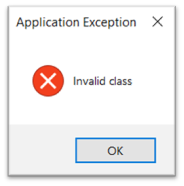
The error is caused by a fault in Windows Management Instrumentation (WMI) within the machine’s OS.
Troubleshooting the problem can be done in several different ways. In 99 percent of cases, the problem is fixed by the first solution listed below. If not, you can try to fix the issue using one of the other solutions shown. However, we advise involving the IT department in these solutions.
Solution 1
The first solution is to use the Command Prompt to fix the files in the location C:\Windows\System32\wbem. To do this, follow the steps below.
- Go to Windows Start > type CMD > next to the Command Prompt app select Run as Administrator.
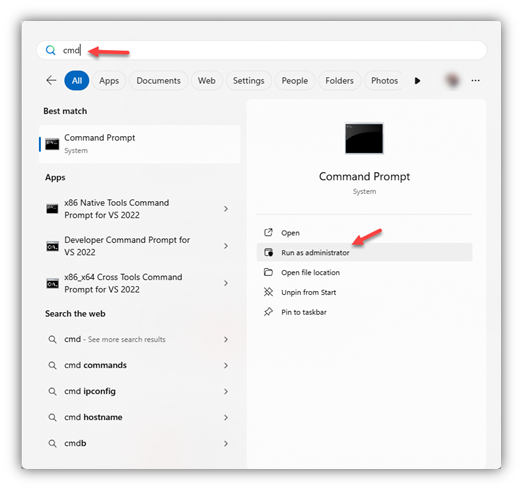
- In the Command Prompt, copy and paste the text below to navigate to the folder:
Cd C:\windows\system32\wbem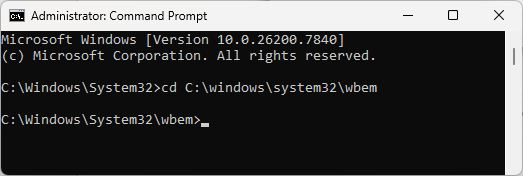
- On the next line in the Command Prompt, copy and paste all the lines below as a group and wait for the system to finish (keep in mind this may take a couple of minutes to run through):
regsvr32 /s %systemroot%\system32\scecli.dll
regsvr32 /s %systemroot%\system32\userenv.dll
regsvr32 cimwin32.dll
mofcomp cimwin32.mof
mofcomp cimwin32.mfl
mofcomp rsop.mof
mofcomp rsop.mfl
for /f %s in ('dir /b /s *.dll') do regsvr32 /s %s
for /f %s in ('dir /b *.mof') do mofcomp %s
for /f %s in ('dir /b *.mfl') do mofcomp %s
regsvr32 wmisvc.dll
wmiprvse /regserver
- You may get a couple of RegSvr32 pop-ups, for these select OK for each one.
- You may get a couple of RegSvr32 pop-ups, for these select OK for each one.
- Test launching eDrawings and/or PDM Preview tab with SOLIDWORKS file selected.
Solution 2
This solution is to ensure the Windows Management Instrumentation (WMI) service is started by following these steps.
- Go to Windows Start > type Services > open Services Application.
- Check if the Service for Windows Management Instrumentation is started. If it is stopped, click “Start the service” on the left side details section as shown below.
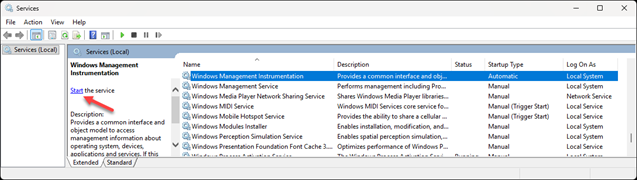
- Test launching eDrawings and/or PDM Preview tab with SOLIDWORKS file selected.
Solution 3
This one checks whether the WMI service is running via the System Configuration utility and rebuilds the CFG file.
- Open File Explorer, then copy and paste the following in the path:
%SystemRoot%\System32\Wbem\Repository - Delete or rename the "$WinMgmt.CFG" file in the folder.
- Leave the FS folder as is, as recreating this CFG file requires these FS files.
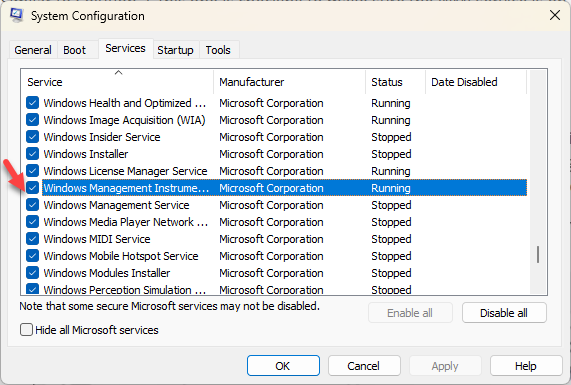
- Next, go to Windows Start > type MSCONFIG > open the System Configuration utility.
- Ensure you enabled the Windows Management Instrumentation (WMI) services in the Services tab.
- Reboot the computer to rebuild the CFG.
- Test launching eDrawings and/or PDM Preview tab with SOLIDWORKS file selected.
Solution 4
This solution will try to resolve this issue is running a few lines in the Command Prompt. To do this, follow these steps:
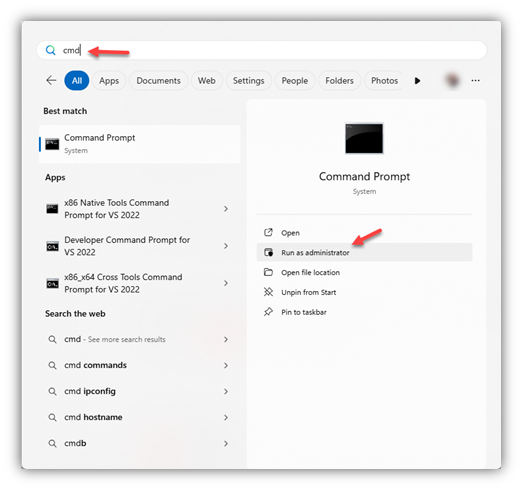
- Go to Windows Start > type CMD > next to the Command Prompt app select Run as Administrator.
- Copy and paste the highlighted text below in the Command Prompt then press Enter:
net stop winmgmt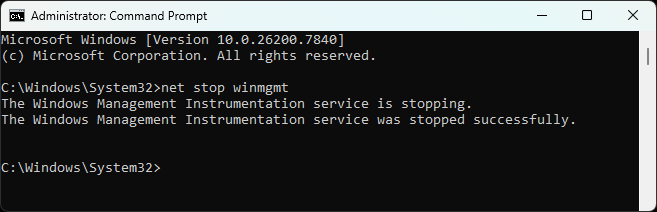
- If you are notified that you are stopping other services, click OK.
- If you are notified that you are stopping other services, click OK.
- On the next line, copy and paste the highlighted text below in the Command Prompt, then press Enter: winmgmt /resetrepository
- On the final line, copy and paste the highlighted text below in the Command Prompt, then press Enter: net start winmgmt
- Test launching eDrawings and/or PDM Preview tab with SOLIDWORKS file selected.
Solution 5
This final solution will run through performing a Re-installation of eDrawings and repairing any corrupted Windows DLL’s:
- Click Start and type Command Prompt (CMD). Right click on CMD and select Run as administrator.
- Enter the command SFC /scannow and press Enter.
- Uninstall eDrawings if installed as a standalone application from the Control Panel.
- If it is installed with SOLIDWORKS, go to Control Panel>Programs and Features>Uninstall a Program. Right-click on SOLIDWORKS and click Change. Select Modify your installation, then proceed to the Product Selection window. Uncheck eDrawings, then click Next > Modify Now. This will uninstall eDrawings from the system.
- If the issue is with the Preview tab in PDM, contact support for assistance.
- Some registry keys may remain on the system after uninstallation. As a local administrator, open Registry Editor and find the following keys:
- HKEY_LOCAL_MACHINE\SOFTWARE\eDrawings
- HKEY_CURRENT_USER\Software\eDrawings
- Rename the registry folders eDrawings to eDrawings_old.
- Restart the system and install eDrawings.
- Test launching eDrawings and/or PDM Preview tab with SOLIDWORKS file selected.
Note: Link to the advanced WMI repair article if none of the solutions above work here.