The Copy Tree tool is similar to SOLIDWORKS Pack and Go, but it includes file management tools designed expressly for use with SOLIDWORKS PDM. When you use Copy Tree to copy and rename a file in PDM, it records the new relative position of the associated files when they are checked in. This includes relationships between assemblies, subassemblies, drawings, and parts.
Note: In contrast, the SOLIDWORKS PDM Move Tree tool allows you to relocate a file or full file structure within PDM to a new folder or several new directories without making copies.
CAUTION: SOLIDWORKS Pack and Go should never be utilized with SOLIDWORKS PDM. Pack and Go only replicates files that are cached locally and ignores PDM file versions.
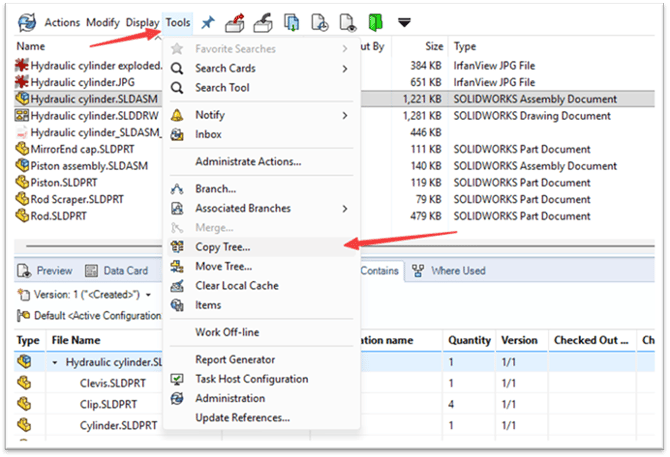
Copy Tree is available from the Tools dropdown list in the File Explorer of the Local Vault View
Copy Tree Dialog
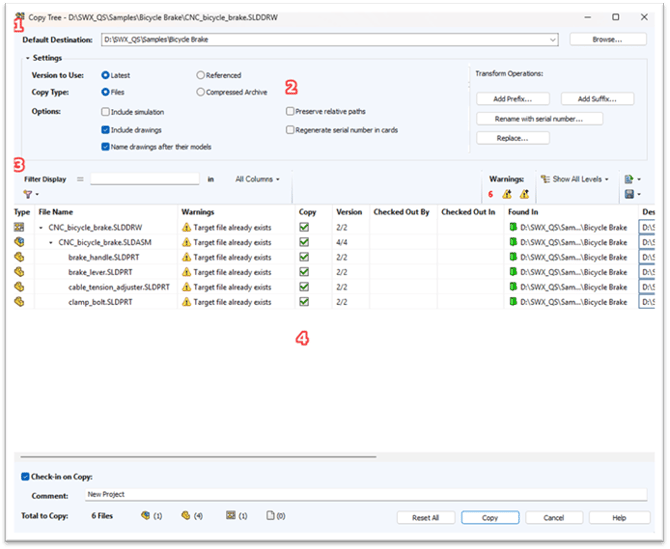
1. Default Destination: This section shows the current location of the selected file(s). The path can be set to a location inside or outside PDM.
2. Settings Group: This collapsible section contains settings for versions, type of copy, and options.
a. Versions to use:
-
- Latest – Uses the latest version of every file selected.
- Referenced – Uses the version(s) of the referenced files based on the version of the top-level file that is being copied.
b. Copy Type:
-
- Files – Copies the files to the destination folder selected.
- Compressed Archive—Copies the files into a compressed .zip that will later need to be unzipped to utilize the files.
- Notes:
- Preserve relative paths, Regenerate serial number in cards, and Name drawings after their models options are unavailable.
- Destination Folder Path and Target File Name columns are cleared.
- Warning! If the archive file is in the vault and you have not configured a Zip program using the Local Settings section of the Administration tool, a warning appears in the Warnings column, and the Copy option is unavailable.
- SOLIDWORKS PDM supports 7-zip and WinZip. For details, see "Configuring 7-Zip as Copy Tree Compressed Archive Program" in the Administration Tool Help.
- Notes:
c. Options:
-
- Include simulation – Copies SOLIDWORKS Simulation results associated with the selected files.
- Include drawings – Shows any related drawing files in the file list so you can include them when copying the reference tree.
- Name drawings after their models—Sets drawing file names to the same as their associated assembly or part file names.
- Preserve relative paths—Keeps the paths of references relative to the copied parent file, creating a folder structure as needed. When you clear "Preserve relative paths," the folder hierarchy is flattened, and all referenced files are copied to the same destination folder as the parent.
- Regenerate serial number in cards—If serial numbers are used in data cards, assign the next number in the sequence. For Rename with serial number transformations, the same serial numbers used to name the files are used in data cards.
- Add Prefix—Adds the prefix you type to the file names.
- Add Suffix—Adds the suffix you type to the file names.
- Rename with serial number - Replaces file names with serial numbers.
- Only available if serial numbers have been defined in the SOLIDWORKS PDM Administration tool.
- You can also right-click files in the file list and select Rename with Serial Number and the serial number to use. If all selected files have the same serial number defined in the SOLIDWORKS Design Add-in, that serial number is bold and is first on the list.
- Replace - Replaces strings in file or folder names.
- Additional information about using the filter can be found here.
- Select which files to copy or exclude.
- Select files to rename using transform operations (within Settings Section), or manually rename by selecting the file name in the “Target File Name” column.
- Verify new file names and paths based on selections from the sections above.
- There are many options to add/remove columns, change the order of them, and access visibility tools via the right-click menu. More details on these and other options can be found here.
d. Transform Operations: Modifies the file names of selected files using the transformation you select (Transformations other than Rename with Serial Number are cumulative. For example, you can add both a prefix and a suffix).
3. Filter Display: Lets you enter text to refine the list of files displayed.
4. File List: Use the file list to perform the following operations and options.
In the example image below, the Target File Name contains the custom suffix “_CADIM” for the files selected to copy. Also, the “Default Destination” path was manually changed so that a new folder will be created. Notice that rows with changes will be highlighted in yellow.
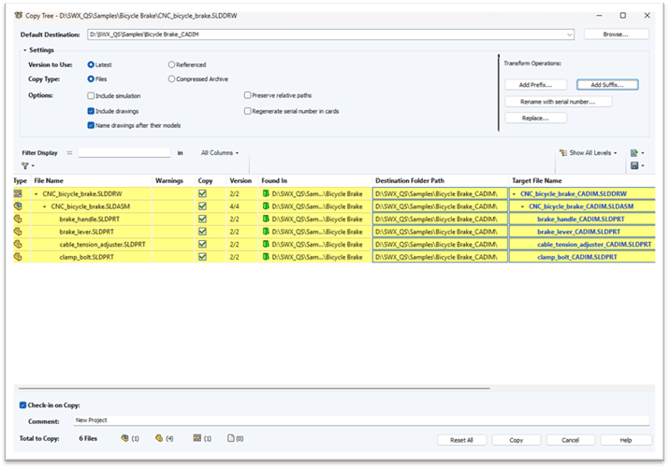
The bottom of the dialog contains options to Check-in on Copy with a Comment and Total to Copy, which summarizes the number of files to be copied based on the selections.

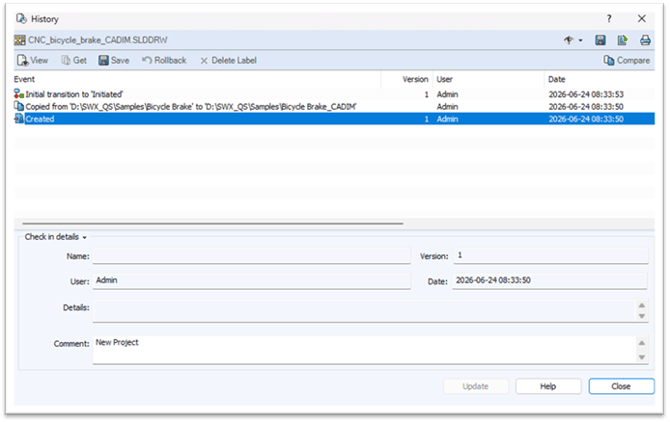
Copied files are treated as new files with new History specific to the copied file including the comment listed from the Copy Tree dialog.