
Key Components to Back Up:
There are two main parts of a SOLIDWORKS PDM server:
-
SQL Database – Stores all file information, versions, and system data
-
Archive Server – Stores the actual files Both must be backed up together to ensure a complete recovery.
Step 1: Back Up the SQL Database
- Open SQL Server Management Studio (SSMS)
- Find your PDM vault database
- Right-click → Tasks → Back Up
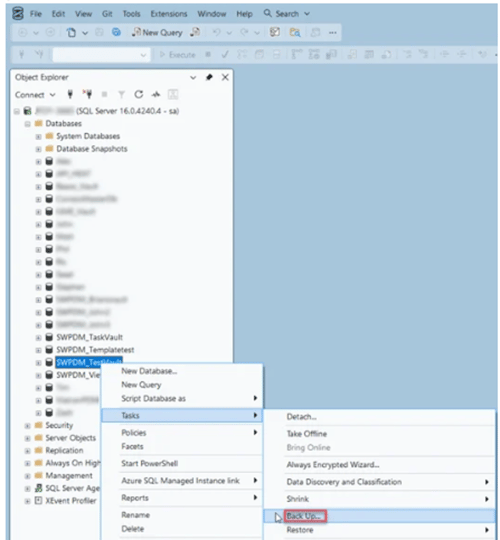
- Choose “Full Backup” and save the file. Make sure to name the file and include the .BAK extension in the path.
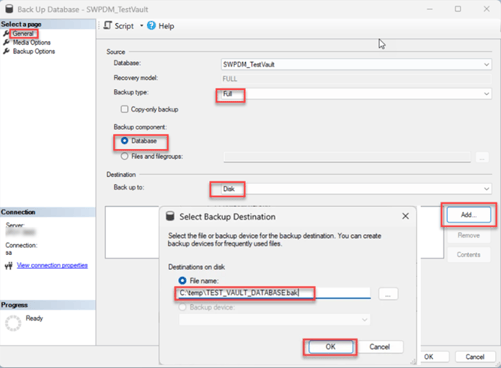
Tip- you can automate the backup process using maintenance plans for SQL Standard, or this method for SQL Express
Step 2: Back Up the Archive Server
- Locate the archive folder on the server
Default location is C:\Program Files\SOLIDWORKS Corp\SOLIDWORKS PDM\Data\VaultName
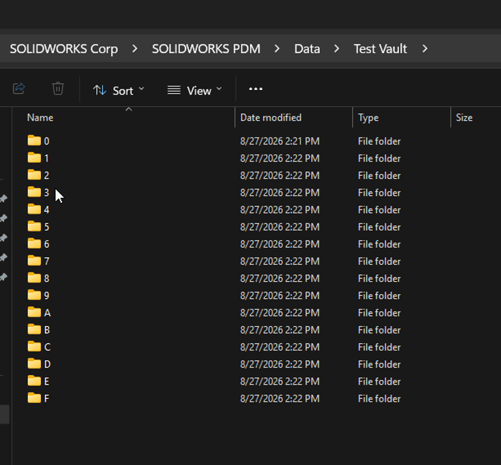
-
-
Stop the PDM Archive Server service (using the Archive Server Configuration tool)
-
Copy the entire folder to a backup location
-
Restart the service after the copy is complete
-
Tip: Keep the folder structure exactly the same.
Step 3: Back Up Archive Server Configuration
- Open the Archive Server Configuration tool
- Connect to the archive server
- Export the server configuration settings to a backup file
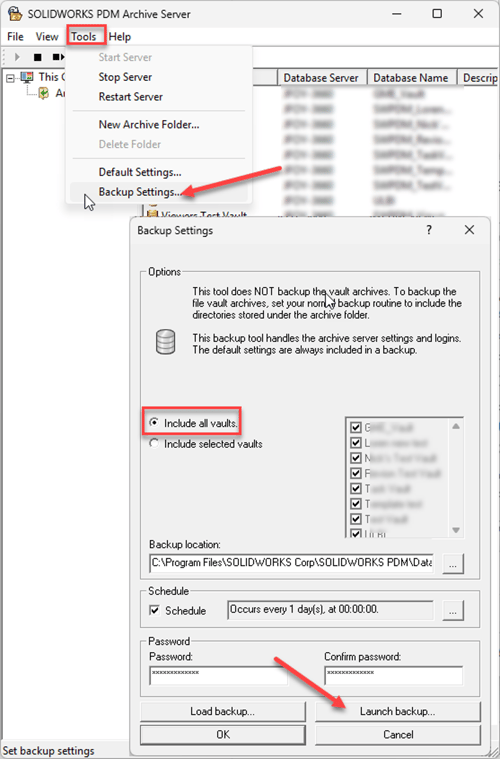
This ensures you can quickly restore vault settings and connections if needed.
Step 4: Test Your Backup
- Restore the database and archive on a test system
- Confirm files and data are accessible
Tip: Test backups regularly to make sure they work.