
Installing the SolidNetwork License Manager Server
First, install the License Manager ("SNL") onto the new server. You can install it in multiple places without activating.
Follow our install guide here: https://knowledge.cadimensions.com/knowledge/installing-the-solidnetwork-license-manager-server
Transfer the License Off of the Old SNL Server
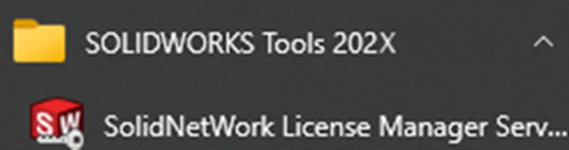
- Launch the SOLIDWORKS SolidNetwork License Manager Server from the Start Menu.
- Select the Server Administration Tab > Modify and then choose Transfer a software license.
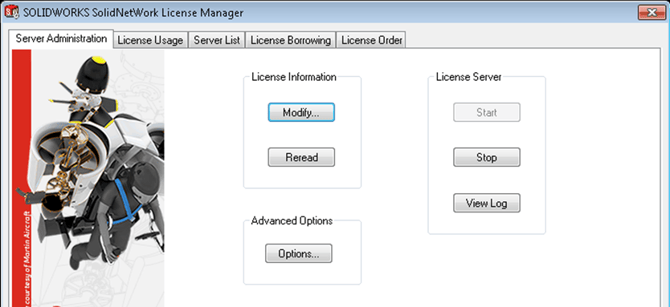
- You will be asked if you want to transfer over the internet or through email. It is recommended that you choose Automatically over the Internet.
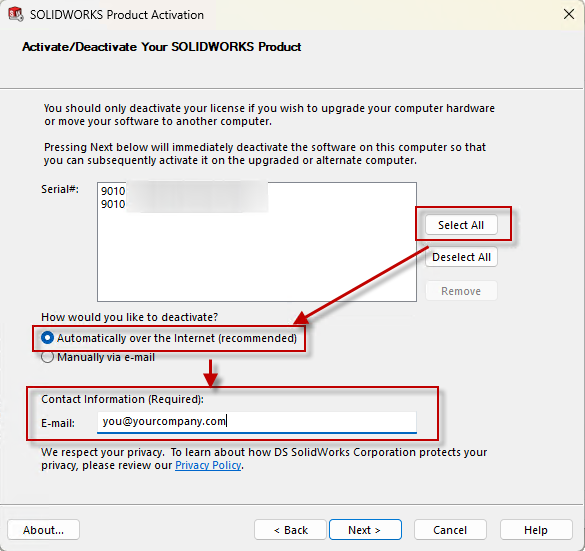
- Once the process has completed, a dialog box will appear with the result Transfer Succeeded. Click Finish.
Activate the License on the New SNL Server
- Launch the SOLIDWORKS SolidNetwork License Manager Server from the Start Menu.
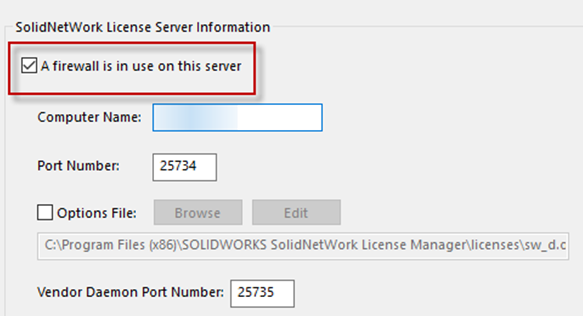
- If not prompted to activate, go to the Server Administration Tab, choose Modify, and then Activate/Reactivate. Take note of the server name and port number. If there’s a firewall on the server, be sure to check the box and leave the default port number. Click Next.
- You will be asked if you want to activate over the internet or through email. It is recommended that you choose Automatically over the Internet.
- Once the process has completed, a dialog box will appear with the result Activation/Reactivation Succeeded. Click Finish.

Note: As of 2022, all licenses must be activated yearly. Take a note of your reactivation date, and ensure that it's reactivated before then to reduce downtime.