
Before we get started – You’ll need the following:
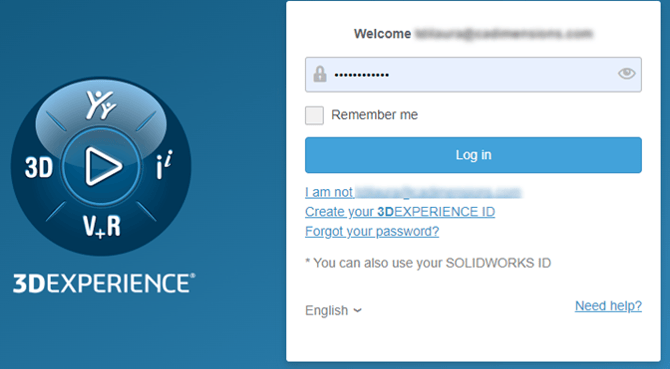
• SOLIDWORKS Login or 3DEXPERIENCE Login. If you do not have one, check out our post on Creating a SOLIDWORKS Account.
• Verify System meets SOLIDWORKS requirements. https://www.solidworks.com/support/system-requirements
• Local Administrator account access.
Downloading Installation Files
- Log into the SOLIDWORKS Support Download page https://www.solidworks.com/support/downloads

- Scroll down (if necessary) and select Download, on the version you wish to download. If you need a previous version, you can select the dropdown. SOLIDWORKS allows downloads for the previous 3-4 major versions. If you need a version older than that, contact us to request it.
Note: Network licenses are backwards compatible. It's recommended to update to the latest version possible, even if your clients are on an older version. A server activated on say, 2026, can hand out licenses for 2025, 24, and so on all the way back to 2007 (although, a 20-year gap is not recommended).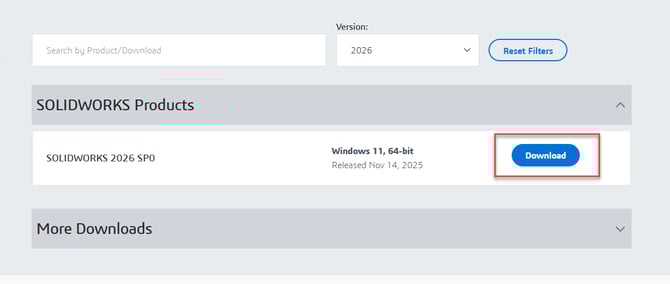
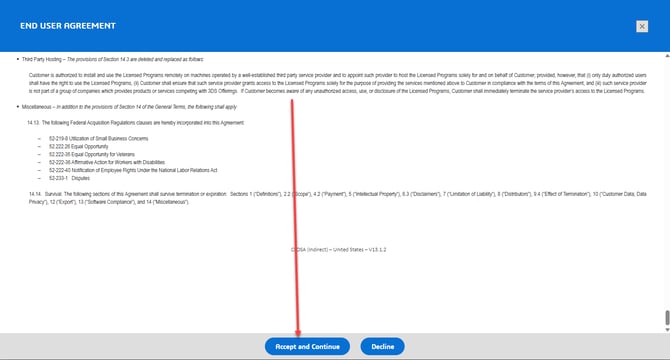
- Scroll to the bottom and accept the Customer License Agreement
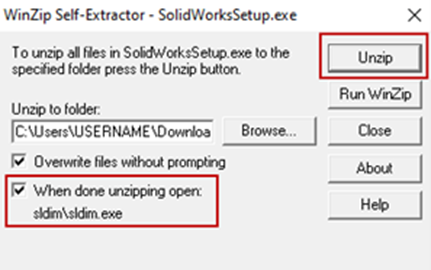
- Locate SolidWorksSetup.exe (This will typically be in your Windows “Downloads” folder) Right click on “SolidWorksSetup.exe” and choose “Open” or Double click to launch

- Choose where to extract the files. Be sure to check “When done unzipping open:” to auto launch the Installation Manager
- Choose “Install SolidNetWork License Manager

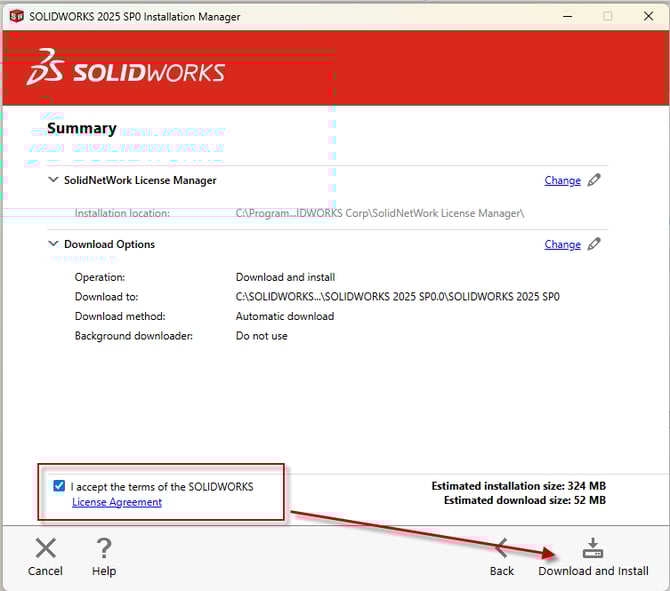
- If all looks correct on the Summary, accept the License Agreement and select “Download and Install”
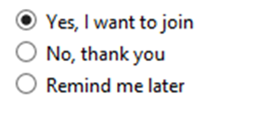
- Installation is complete. Please choose if you would like to join the SOLIDWORKS Customer Experience Improvement Program.
Activate the SolidNetwork License Manager Server
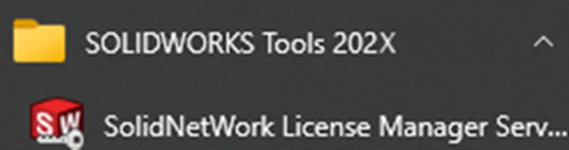
- Launch the SOLIDWORKS SolidNetwork License Manager Server from the Start Menu.
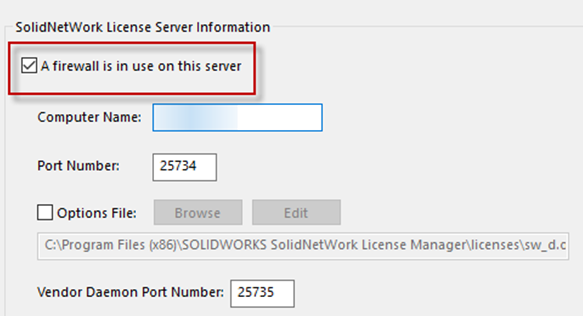
- If not prompted to activate, go to the Server Administration Tab, choose Modify, and then Activate/Reactivate. Take note of the server name and port number. If there’s a firewall on the server, be sure to check the box and leave the default port number. Click Next.
- You will be asked if you want to activate over the internet or through email. It is recommended that you choose Automatically over the Internet. Also, if you are activating more than one serial number, it is important to choose Select All before proceeding.
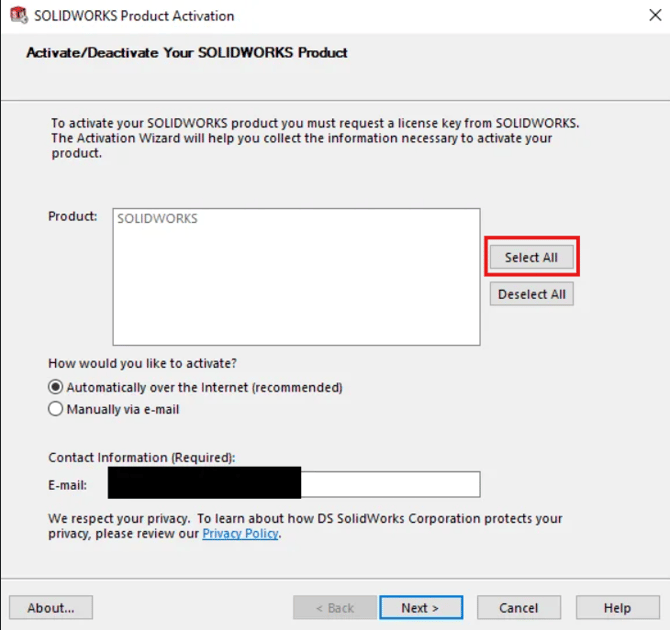
- Once the process has completed, a dialog box will appear with the result Activation/Reactivation Succeeded. Click Finish.

Note: As of 2022, all licenses must be activated yearly. Take a note of your reactivation date, and ensure that it's reactivated before then to reduce downtime.
Not working like it should? Place a case here and a support rep will reach out!