
If you are looking for a simple setup for a single user, please see our guide about installing locally. It is simpler to manage a local install of SOLIDWORKS Electrical (SWE) as you take networking out of the equation. However, if you have several users that are all working on shared projects together, continue on with this guide.
This guide will not cover licensing - please see our "Getting Started with SOLIDWORKS" sections if you have questions on that.
Please be aware of the changes to Electrical in 2026.
-
As of 2025, the port information has changed. You'll need to have ports 26666-26676 (10 ports) open in order to run the software properly.
-
VPNs are not supported for SOLIDWORKS Electrical and have been noted to have issues. I recommend creating a test environment to ensure you VPN is compatible (if you are using one). As a workaround, remote desktop applications are suitable.
Step 1. Installing the Collaborative Server
First, you're going to start installing the Collaborative Server. This is a SQL Express database that SWE points to. This is where all files are shared and stored.
Step 1.1 Download the installation media.
You can grab the SOLIDWORKS Products download from the Downloads Portal (https://www.solidworks.com/sw/support/downloads.htm) and run the “SolidWorksSetup.exe”.
Place this installation on a server that is or will be prepared for sharing (clarification below in step 1.3).
Step 1.2 Install Server Components
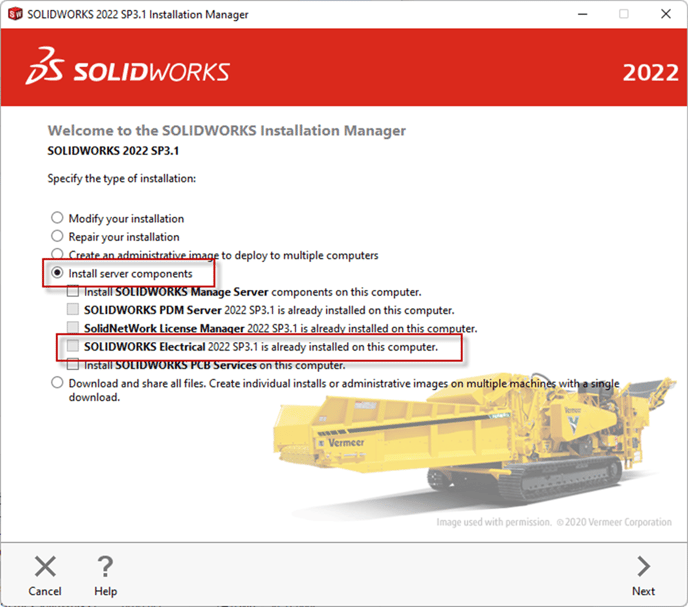
It may ask you if you want to make changes to your machine. You will want to press yes. This will bring up the installation manager screen again. You most likely will get a warning that “a reboot is pending.” Just press OK. Select the option Install server Products. Select “SOLIDWORKS Electrical Share Data”. My screenshot is a little different as I already had it installed.
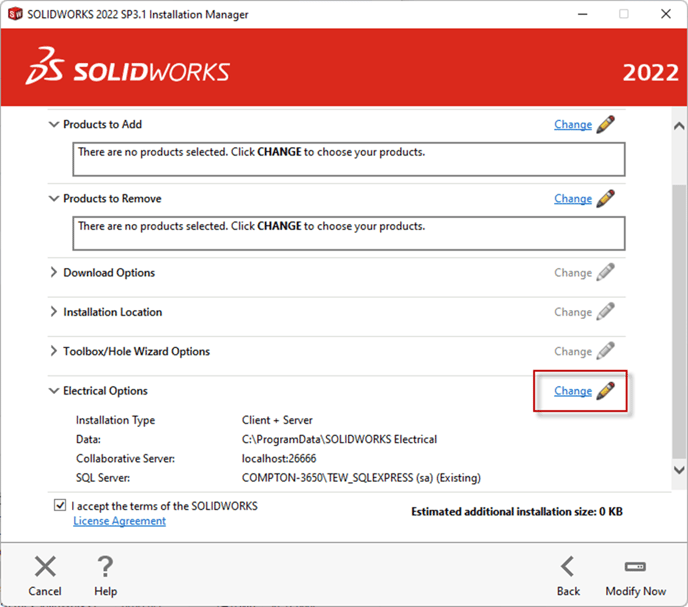
Then press Next until you get to the final page (when it says Install/Modify now), select “Change” under Electrical options.
Confirm that all three options for install are selected in the top section “Features to Install”. Then confirm that “Install a new instance of SQL Server” is selected under the “SQL Server” box. When installing the server component, you want this to be set to the default name for the SQL Server. If you have complications with this, please let us know.
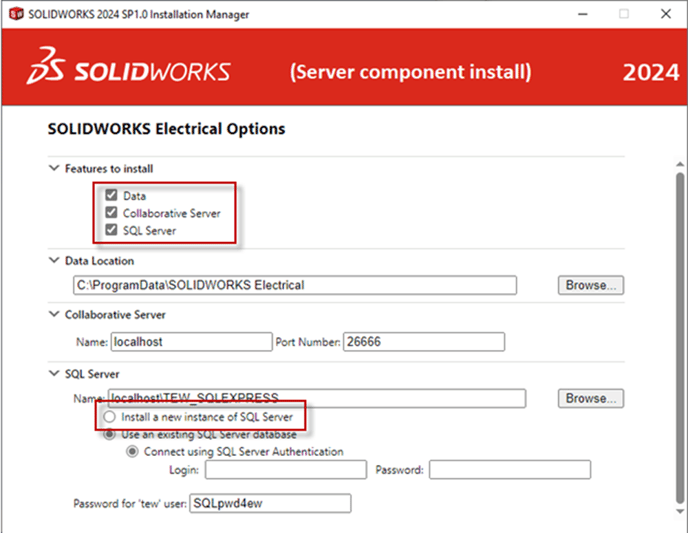
IMPORTANT: Make a note of this screen. You will need this information for setting up the client to communicate. It's recommended to leave these values as default. If using "localhost" (like pictured above) make a note of your server's machine name or IP address.
Press Back then Modify Now.
The server should be installed. If it does not, please place a case and send us any error(s), code(s) or log(s) that are provided.
Step 1.3 Configuring the Server (Firewall and Sharing)
If you do not have firewalls or do not have tight security this step may not be required. However, it's recommended you implement these conditions to ensure a successful connection.
Firewall:
Ports 26666 through 266676 should be open (TCP and UDP) on both the Server and the Client. If you need assistance on how to add these, see our guide on opening ports here, just add rules for these ports.
You may want to also create exceptions for SQL to communicate if you are having issues with that. the default ports for SQL are 1433 and 1434.
File Sharing:
After the server is installed, a projects folder will be made. This folder must be made accessible to either the specific users, or simply, everyone.
By default (or from the location specified in the previous step) the data folder is located at C:\ProgramData\SOLIDWORKS Electrical. It's recommended to make this folder accessible fully to the users.
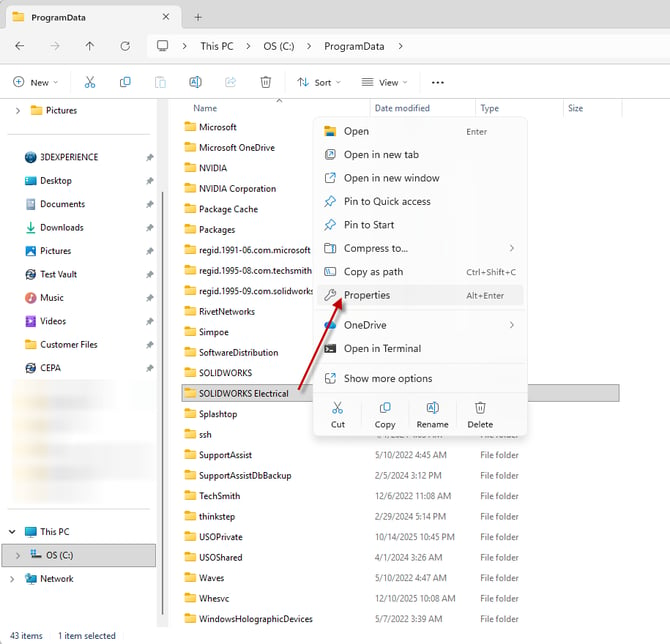
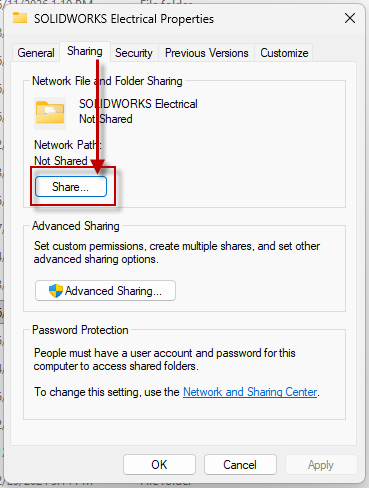
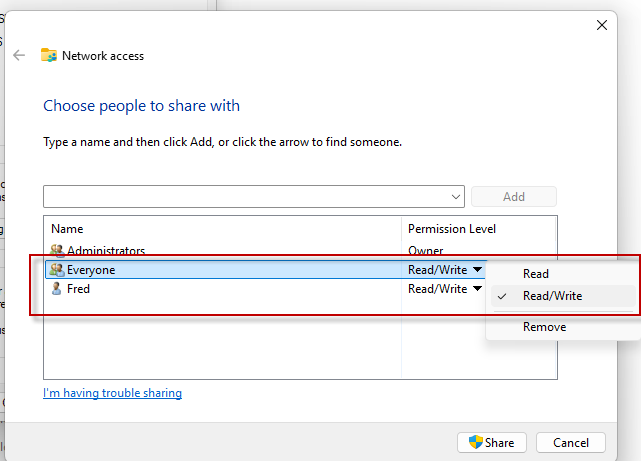
Specify the group or specific users. In this case, we're going to open this up to Everyone. These are Windows users, so you can utilize Windows User Profiles or Groups here. I have myself, and Everyone accessible. They require Read and Write.
Considerations: It is recommended to install the client on the server machine to ensure that there are no problems with the server itself. Those steps to follow.
Step 2. Installing the SOLIDWORKS Electrical Schematic Client
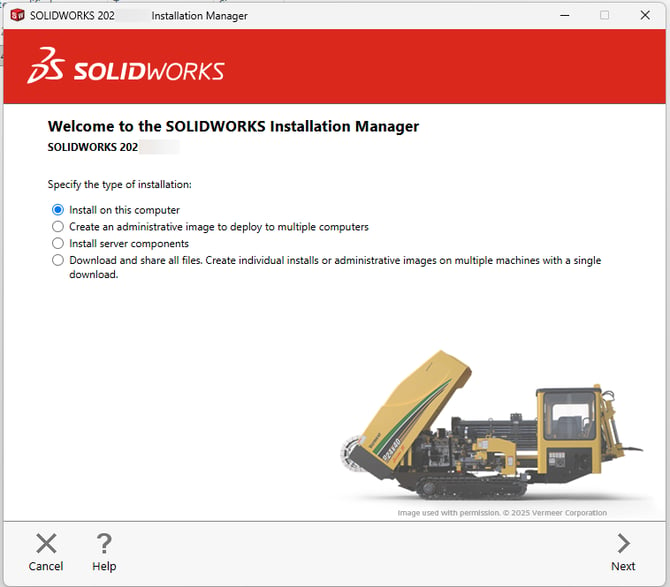
Take the installation media you downloaded in Step 1.1 and move it to the client PCs. Run that setup.exe again and install SOLIDWORKS. You will likely get a warning that "A Windows reboot is pending..." press OK. You will always get that warning.
Press "Install on this PC" or "Modify your installation" (if you already have SOLIDWORKS installed).
On the serial number page if…
- The serial number you were provided for Electrical Schematics is the same as the SOLIDWORKS serial number (beginning with a 9010), press next and skip this page.
- The serial number you were provided for Electrical Schematics is different than the SOLIDWORKS serial number (beginning with a 9000), enter the serial number in the “Electrical Schematic” slot.
NOTE: Electrical 3D is a separate product. It requires its own serial number/purchase.
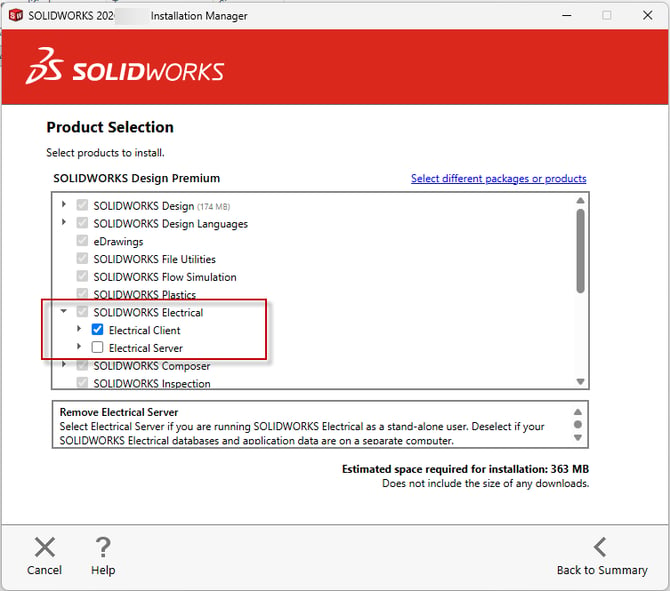
Check on the box for “Electrical Client”. Do not check on the box for Electrical Server.
Press Back to Summary.
Select "Change" next to Electrical Options. Enter the information you took a note of from Step 1.2.
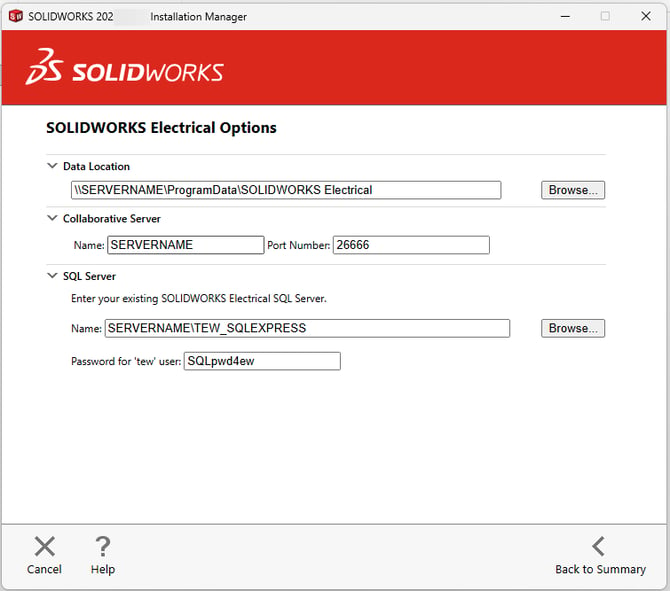
Press Back to Summary again, and then press Install Now (or Modify Now).
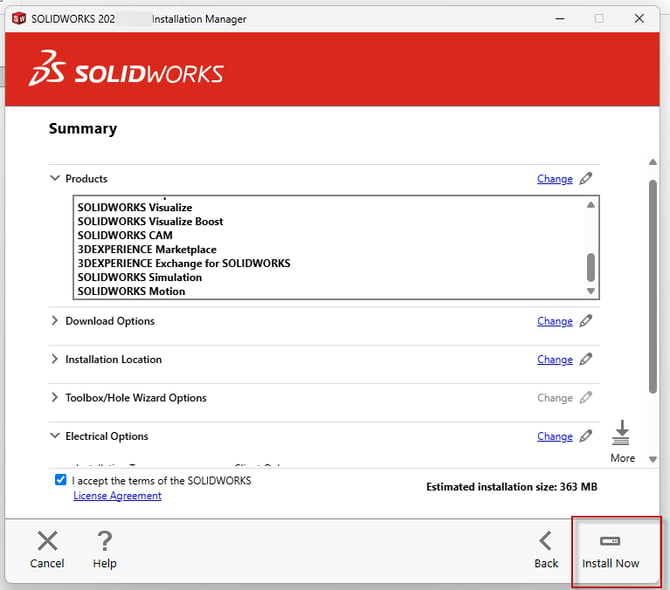
You should be all set from here. Launch SOLIDWORKS Electrical Schematic and ensure that you can connect to the server now.
Optional: Step 3: Troubleshooting
In case you are having issues with the install, there are a few things to test.
Go into the application settings to make sure that both the Collaborative Server and Database tabs are pointing at the right spot.
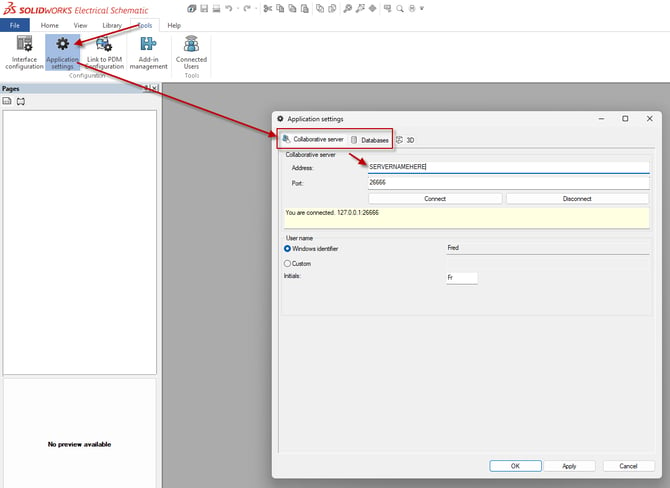
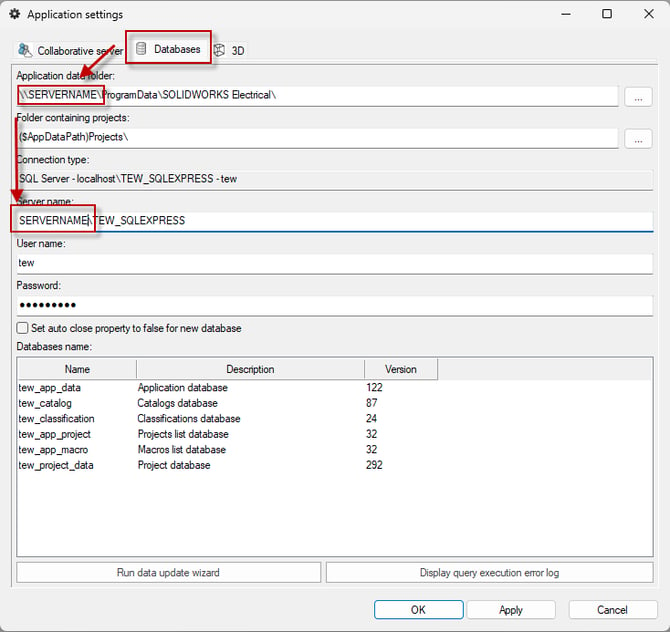
We have seen where the username and password was mistyped on the databases screen. Please ensure that it's correct.
Most commonly, connection issues lay within the firewall exceptions. Ensure that communication is viable among these channels. A quick test is to utilize telnet. You may want to consult your IT before performing those steps.