
Configuration and Supported Systems
Please ensure that your systems are able to work with DraftSight. You can find the supported information here: https://www.DraftSight.com/support/system-requirements
How to tell which version of DraftSight you have, and what's supported.
DraftSight Enterprise and Enterprise Plus are supported by us, if you have Standard, Professional or Premium, you will need to contact DraftSight directly for support. This guide is only for Enterprise or Enterprise Plus customers!
What's the difference?
DraftSight Enterprise (and above) are networked serial numbers, they have a "1" in their third digit, for example, the first four digits would be 9010... or 0010...
Numbers with a "0" in the third digit are standalone licenses. They are not supported by us. You can find help for these serial numbers here: https://www.DraftSight.com/support/home. Scroll down to "Contact Us" and press "Submit a Ticket" for the fastest response.
For more optional information on license types, click here!
Breakdown
Here is a simple summary of the steps in the order you need to perform them.
- Install License Server
- Configure Firewall and Allow Ports
- Install Clients
Step 1: Installing the SolidNetwork License Manager Server
DraftSight is a part of SOLIDWORKS, so it is entirely handled by the SOLIDWORKS license manager, which we call the "SNL". From here on out it will be referred to as SNL.
We have a guide here that is regularly updated on how to install the SNL: here's where you can learn to do that!
Step 2: Configuring Firewall and Ports
This is more-a-less a guide full of other guides. Generally, it's good practice to set up your firewall to allow the communication. It is not always necessary to do this. If you are unable to configure your firewall, then you might be okay. If you have communication issues, come back to this step and update the firewall settings.
Click here to learn how configure your firewall for SOLIDWORKS and DraftSight applications. DraftSight most commonly utilizes ports 25734 and 25735. If you have a PDM system (if you don't know what this is, you probably don't have it!) you will likely need to configure the other PDM ports, as specified in the guide linked above.
Step 3: Installing and Configuring the DraftSight Client
Once you have set up the server and made sure that you have communication you are ready to install the clients! You can get the installation media for the clients here.
Once the DraftSight executable downloads, run it.
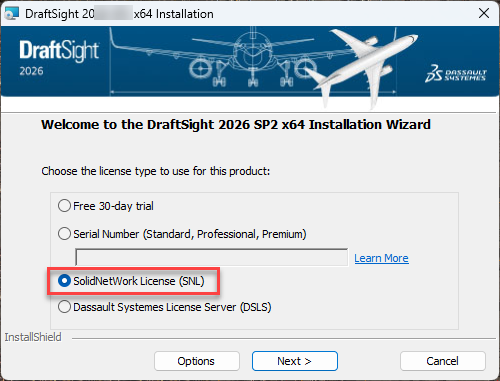
The first screen you encounter will be the setup for the license. Contrary to your normal process, do not select Serial Number. Select "SolidNetwork License (SNL)".
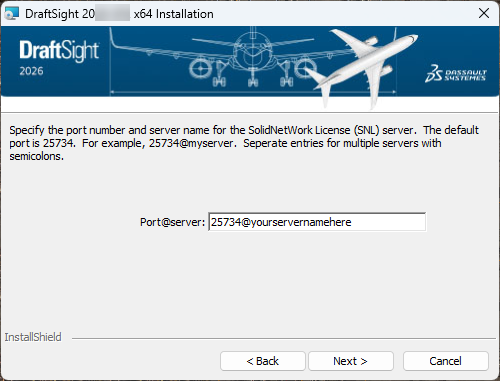
Insert the port and server name like so replacing "yourservernamehere" with the name of the server you installed on, or the IP address of that server. 25734 is the most common and default port choice.
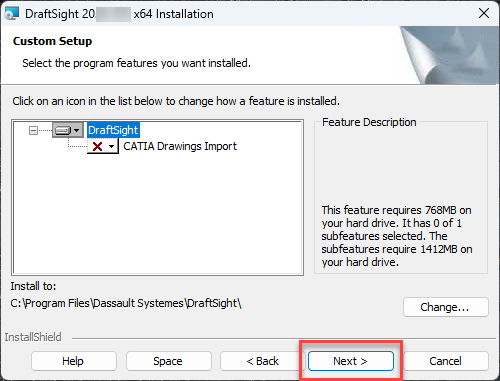
On the next screen, you can just press next and install the default DraftSight setting.
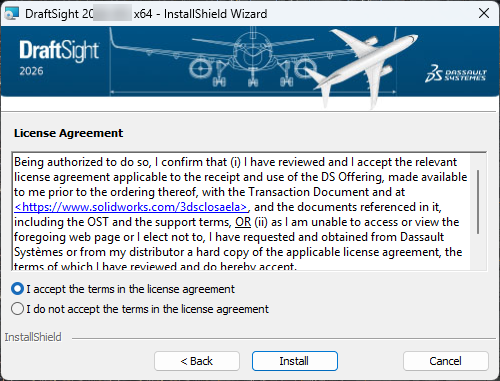
Accept the terms in the agreement, and you are all set! Installation will begin once you press install.
Not working like it should?
If things didn’t go as planned, please contact CADimensions Technical Support for further assistance.
If you have an existing case, please contact the Application Engineer you are working with; otherwise submit a new case online.