
The next step after upgrading your SOLIDWORKS PDM software to a newer major version or service pack is to upgrade the database associated with the vault via the Database Upgrade Tool.
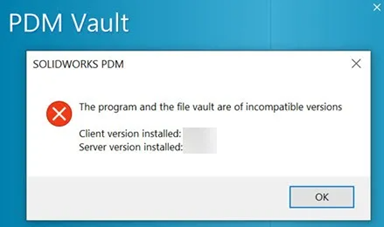
If this step is not performed, the warning message will display if the program and file vault are of incompatible versions with the phrase “The program and the file vault are of incompatible versions”.
Access and Run the Database Upgrade Tool
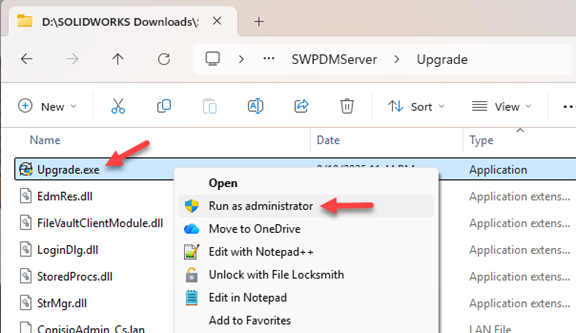
The Database Upgrade Tool is in the downloaded SOLIDWORKS PDM installation media directory. The default location is C:\Users\<username>\Documents\SOLIDWORKS Download\SOLIDWORKS <version>\SWPDMServer\Upgrade\
Locate the Upgrade.exe file and Run it as Administrator from the right-click menu.
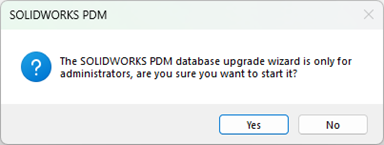
Confirm Administrative Permissions
A message will indicate the upgrade wizard should only be performed by PDM administrators. Click Yes to continue if you are logged in as a user with administrator permissions.
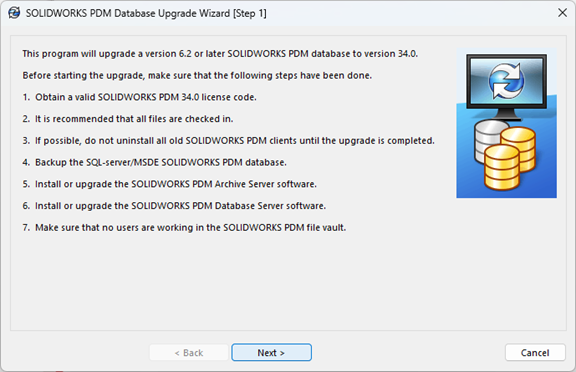
Confirm Prerequisite Actions
The upgrade wizard will then display a message with recommended steps prior to the upgrade. After verifying that all the steps have been completed, click Next.
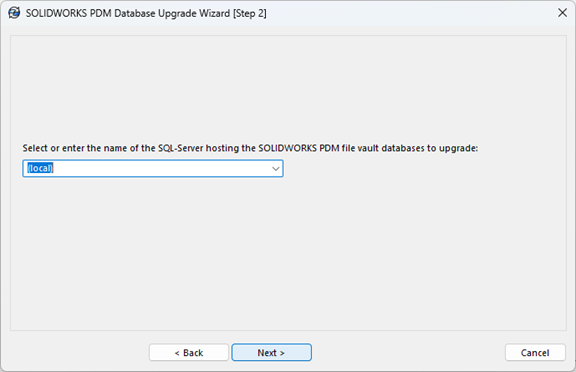
Select SQL Server
Select or enter the Microsoft SQL Server hosting PDM and click Next.
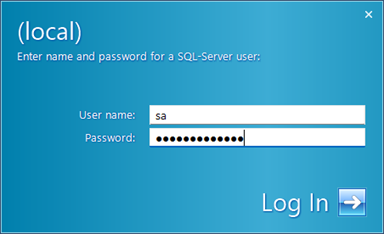
Login into SQL Server
Enter the “sa” account or an account with sysadm permissions and password then click Log In.
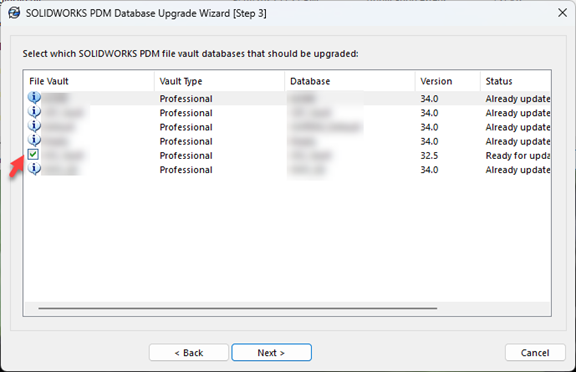
Select Vaults to Upgrade
A list of all vaults is displayed, including File Vault, Vault Type, Database Name, Version, and Status, indicating whether each vault requires upgrading. Select the vault(s) that require upgrading and then click Next.
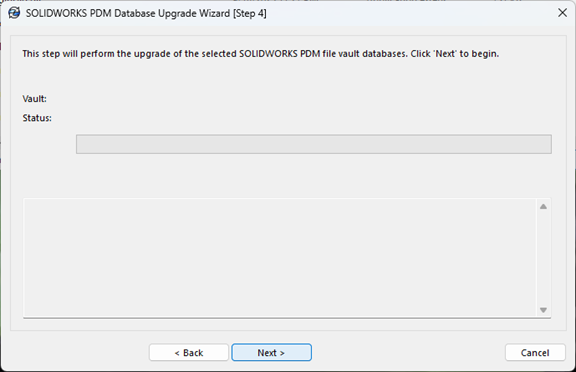
Start the Upgrade
Click Next again to begin the upgrade.
Note: Next must be clicked again after this screen is displayed or the process will not start
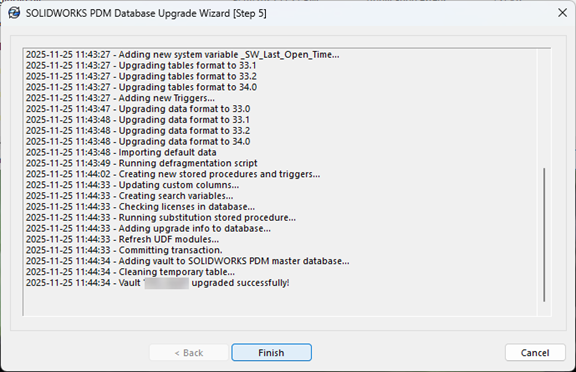
Verify Upgrade was Completed
The upgrade summary will show whether the upgrade was successful or unsuccessful. To finish the procedure and end the PDM Database Upgrade Tool/Wizard, click Finish. Now that the updates have been completed, the PDM Database(s) will be operational.
If you have any questions or issues, please reach out to our tech support team here.