
IMPORTANT: Confirm all users whose license is going to be revoked have closed the SOLIDWORKS software prior to starting this procedure.
Once confirmed, open your 3DExperience Platform and follow these steps:
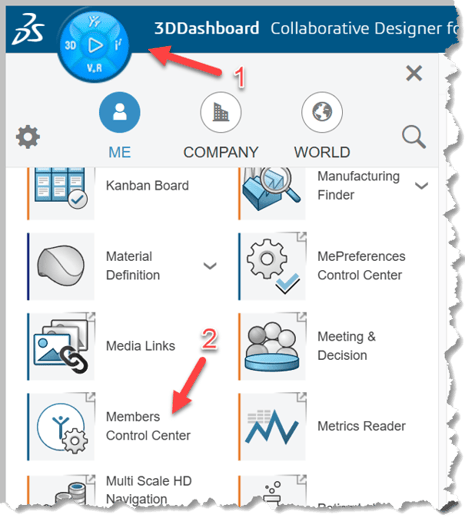
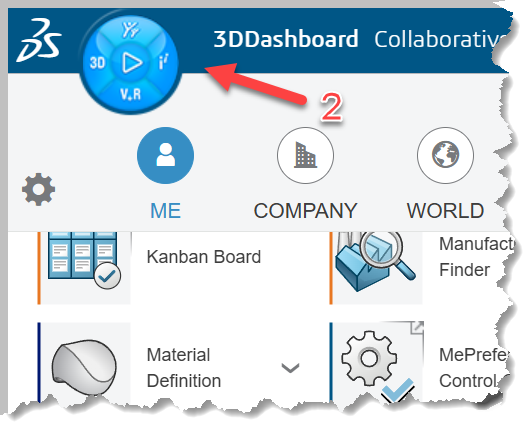
1. Click the Compass
2. Under "My Apps" on the left, scroll down and select Members Control Center
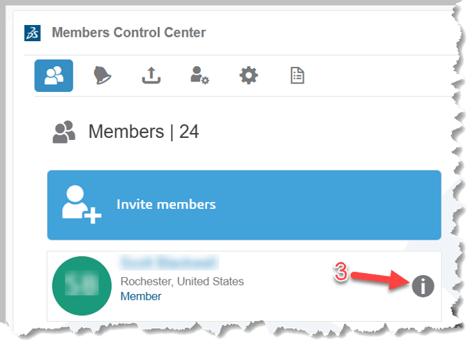
3. In Members Control Center, browse to a user whose SOLIDWORKS license you want to transfer, and click the “Details” icon to the right of their name
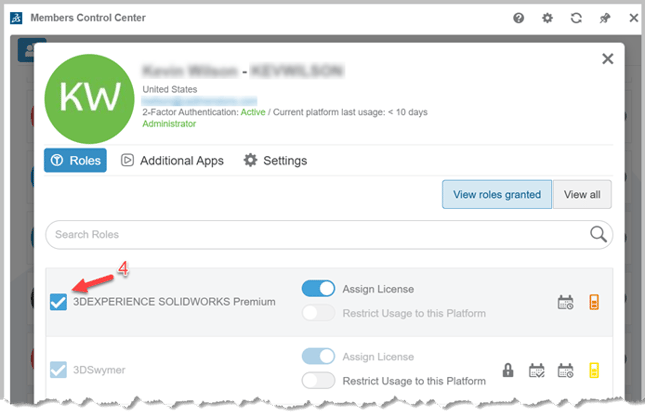
4. Within the users’ “Details” panel, locate the “3DExperience Solidworks (version)" currently assigned to them, and uncheck it to release their license back to the platform
5. Repeat steps 3 and 4 for all users for whom you are removing a current license
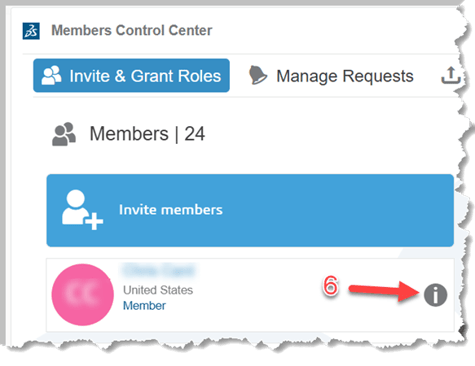
6. Once complete, browse to a user whom you wish to now assign a license and again click the “Details” icon to open the "Details" pane.
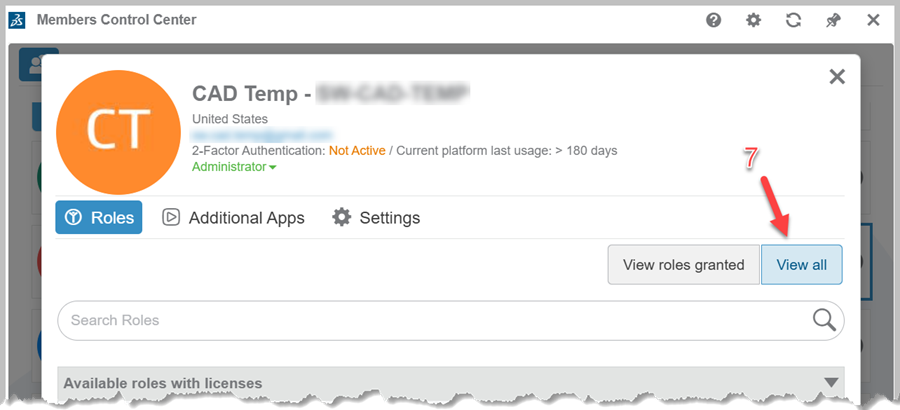
7. Under Roles, select “View All”
8. Using the page buttons at the bottom of the panel (if necessary), browse to locate the available 3DEXPERIENCE SOLIDWORKS (version) licensing. Check the box next to the desired version for this user
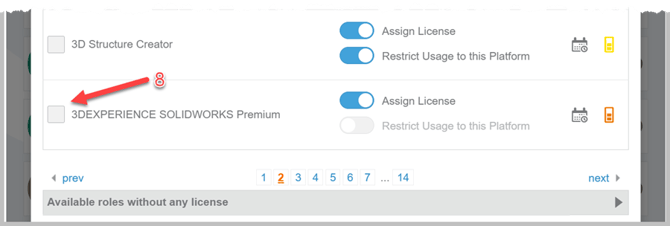
IMPORTANT: Please note that once assigned, a license cannot be unassigned for a minimum 24-hour period. Please be cautious and assign the proper license to the proper user.
Once all licenses are reassigned, users will now need to update their local installations of SOLIDWORKS using these steps:
1. Open your web browser and log in to the 3DEXPERIENCE platform.
2. Click the Compass icon
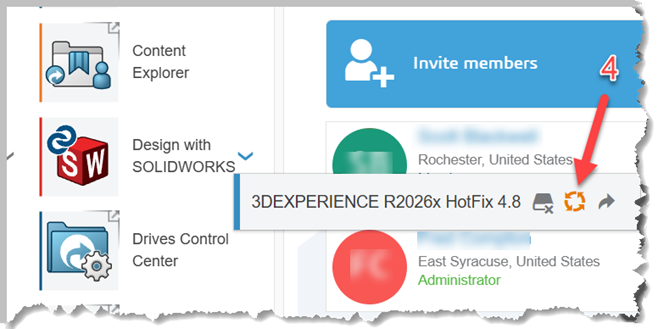
3. Under the Me section, find your SOLIDWORKS app (e.g., SOLIDWORKS Design or Design with SOLIDWORKS) and click the dropdown arrow next to the app
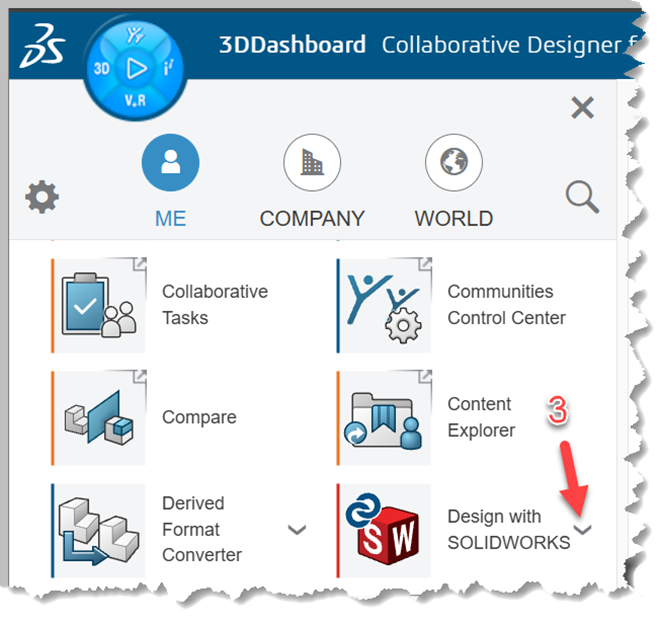
4. Click the update or download button
If prompted, download and install the updated 3DEXPERIENCE Launcher first.
The 3DEXPERIENCE Windows Installer will launch. Click Next, verify your settings, and click Install to finish the update