
Required Items:
1. Local Windows admin rights may be required for either method shown as they both change values in the HKLM registry hive.
1. Go to Start > All> SOLIDWORKS 20XX > SOLIDWORKS Tools > SolidNetWork License Manager Client.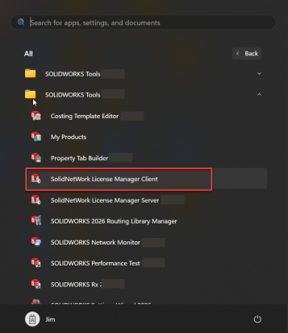
2. On the Server List tab select the “Add” button then type in 25734@"YourNewServerName" then hit OK.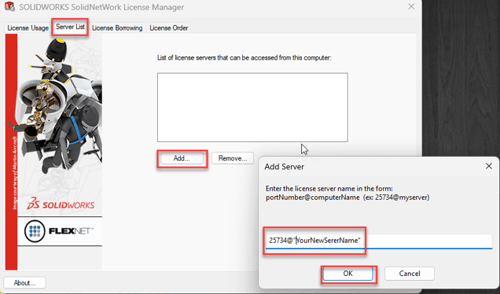
3.Select OK again in the main box.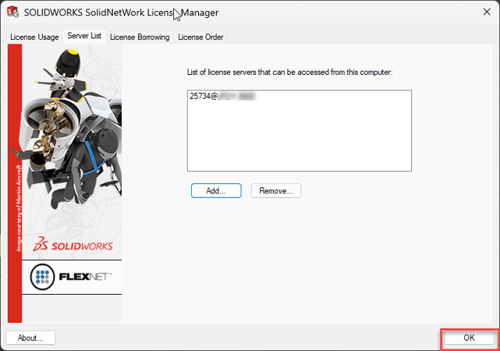
4. Launch SOLIDWORKS and confirm it opens with no errors.
Alternate Method:
If there are multiple users that need to be updated this can also be accomplished by updating the registry keys below for the clients.
- HKEY_LOCAL_MACHINIE\Software\FLEXlm License Manager
- HKEY_LOCAL_MACHINE\SOFTWARE\WOW6432Node\FLEXlm License Manager
Only perform this method after backing up your registry and if you have experience modifying the registry as incorrect changes can cause system issues including damage to the Windows operating system.
1. Open Notepad and copy and paste the items below:
Windows Registry Editor Version 5.00
[HKEY_LOCAL_MACHINE\SOFTWARE\FLEXlm License Manager]
"SW_D_LICENSE_FILE"="25734@SERVERNAME"
[HKEY_LOCAL_MACHINE\SOFTWARE\FLEXlm License Manager\Borrow]
[HKEY_LOCAL_MACHINE\SOFTWARE\WOW6432Node\FLEXlm License Manager]
"SW_D_LICENSE_FILE"="25734@SERVERNAME"
2. Change “SERVERNAME” in both keys to the name of your new server’s name.
Windows Registry Editor Version 5.00
[HKEY_LOCAL_MACHINE\SOFTWARE\FLEXlm License Manager]
"SW_D_LICENSE_FILE"="25734@NEWSERVERNAME"
[HKEY_LOCAL_MACHINE\SOFTWARE\FLEXlm License Manager\Borrow]
[HKEY_LOCAL_MACHINE\SOFTWARE\WOW6432Node\FLEXlm License Manager]
"SW_D_LICENSE_FILE"="25734@NEWSERVERNAME"
3. Save and change the file extension from .TXT to .REG.
4. Run the file and it should now update the registry keys with the new name of your server.