
The customer found if they tried to right click and select Delete File Vault view, it appeared that it was going through the delete command. However, once the command completed, the “Blueberry” was still there. This lead us to manually delete the local vault view and the steps to resolve this issue can be found bellow.
This process requires editing the Windows registry and should only be done after backing up the registry and by someone who has experience modifying the registry.
Incorrect changes may result in damaging the operating system or applications.
1. Delete the following 3 keys using the Windows Registry Editor
Open the Registry editor and find the first key below

HKEY_LOCAL_MACHINE\SOFTWARE\SolidWorks\Applications\PDMWorks Enterprise\Databases\[VAULTNAME]
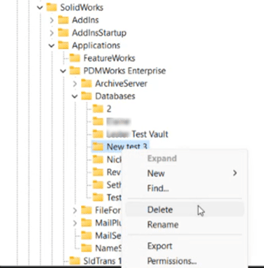
HKEY_LOCAL_MACHINE\SOFTWARE\WOW6432Node\SolidWorks\Applications\PDMWorks Enterprise\Databases\[VAULTNAME]
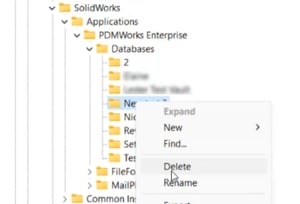
HKEY_CURRENT_USER\Software\SolidWorks\Applications\PDMWorks Enterprise\Vaults
**If you only have one vault view delete the key below instead**
HKEY_CURRENT_USER\Software\SolidWorks\Applications\PDMWorks Enterprise\ConisioAdmin
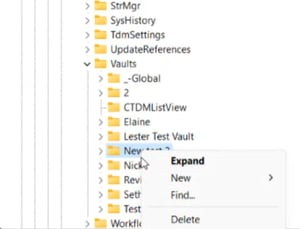
2. Now we need to modify the attributes of the view’s folder from the command line.
Launch a command prompt (Run>CMD) as administrator.
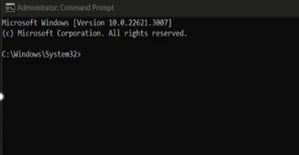
In the Command prompt enter “RD “c:\path_to_vault_view” /s” hit enter and then confirm with “Y” then enter
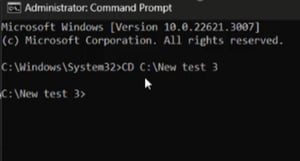
3. Now we will use the following command to remove the Attributes from the Desktop.ini that is part of the view.
“attrib –s –h –r desktop.ini”, then type “Del desktop.ini” and hit enter.
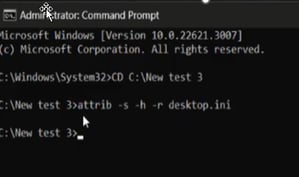
4. Next we will use the delete command to delete the Desktop.ini
“Del desktop.ini” and hit enter.
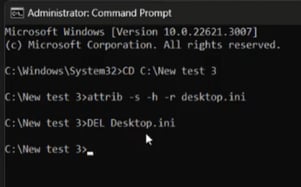
5. After deleting the Desktop.ini the vault view should change from the typical “Blueberry” icon to a normal windows folder. Rename this folder to allow a new one to be created.
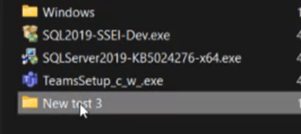
Now you should be able to recreate your vault view! For a closer look at the process check out the video below.