
3DEXPERIENCE Platform Licensing/Roles & Required Versions of SOLIDWORKS
To access the AI companions from within SOLIDWORKS, the license must include Cloud Services and be connected to the 3DEXPERIENCE platform. If the license does have cloud services or are unsure if it does, contact your SOLIDWORKS reseller.
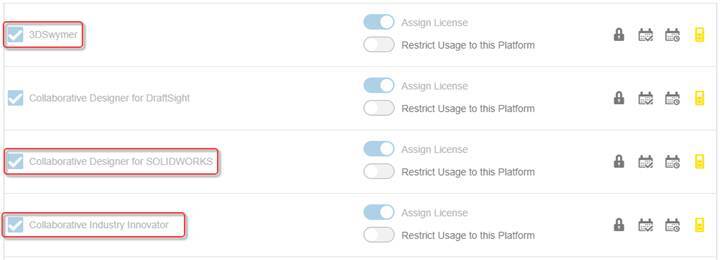
The roles 3DEXPERIENCE platform you will need to have assigned are the following:
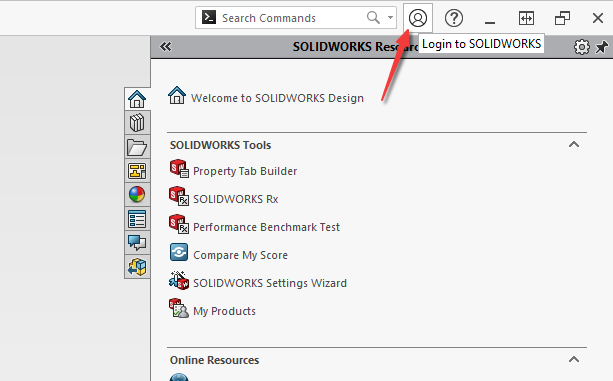
Launching SOLIDWORKS Design (Desktop), will require login the first time to be connected to the platform. Based on your IT and cookies/cache, it may prompt to log into the platform each time SOLIDWORKS is launched. If not prompted, click on the account icon located at the top right corner to log in.
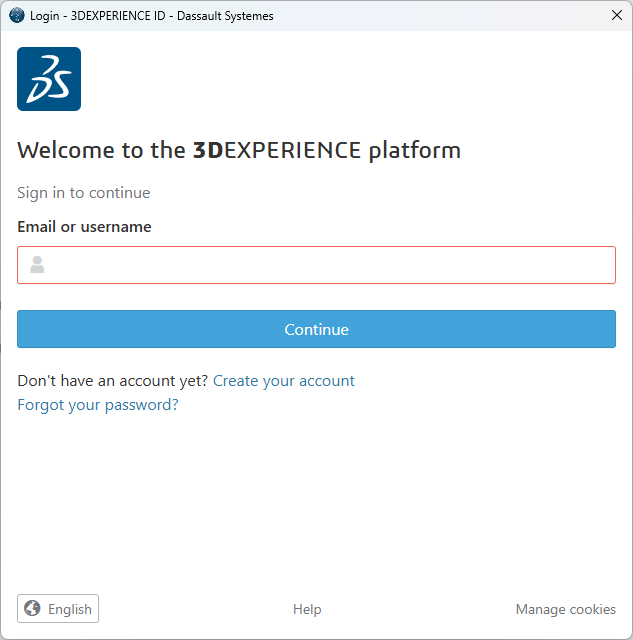
Then you will be prompted to log in.
Alternatively, when SOLIDWORKS Design (Cloud) is launched from a web browser, it will automatically connect to the platform each time.
To verify, check the upper right-hand corner to see if it is connected.
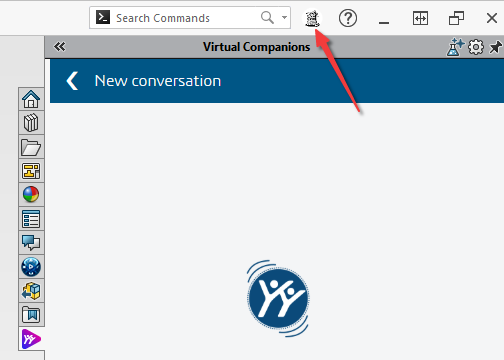
Once SOLIDWORKS and 3DEXPERIENCE are connected, you can add the AI companions.
Virtual Companions Add-in
Look for the Virtual Companion icon on the task pane.
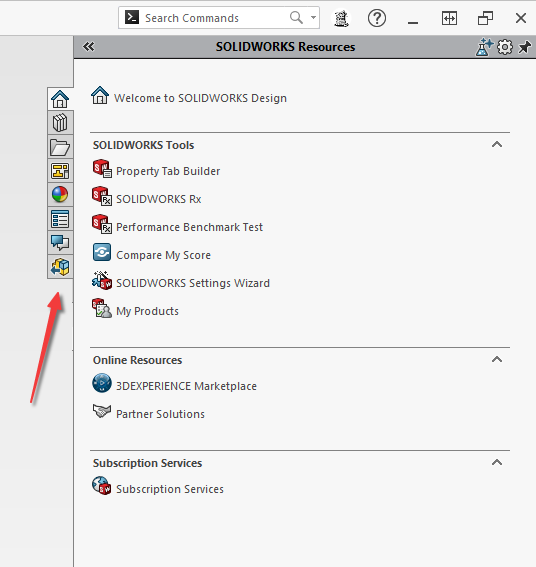
If the icon is missing, then you need to enable the “3DEXPERIENCE” add-in.
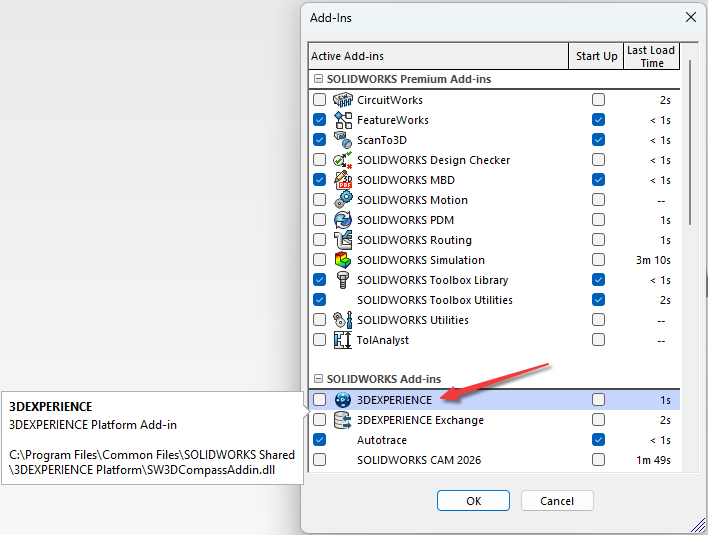
Once the add-in has been enabled, the Virtual Companions icon should be visible.
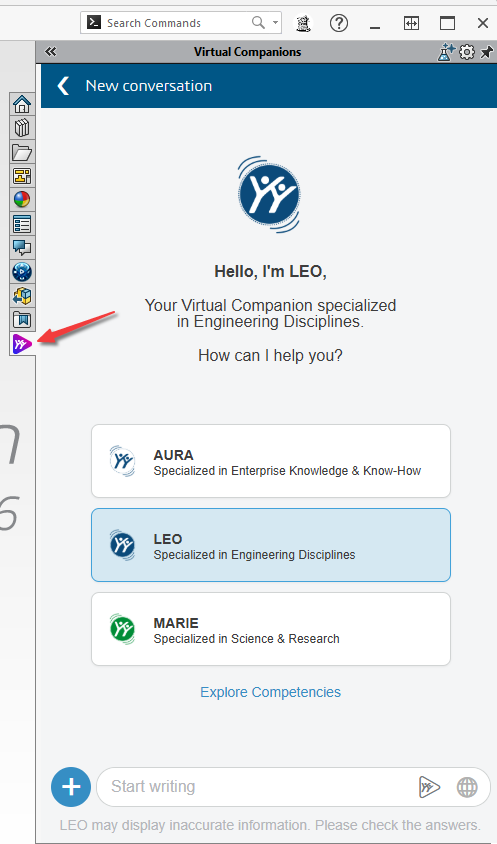
AURA, LEO, and MARIE are all under this one tab.
Learning Resource Links:
CADimensions Virtual Companions
Questions, please contact us.