
You will probably be asked to log into 3DEXPERIENCE each time you open SOLIDWORKS if you have ever installed the 3DEXPERIENCE add-in. Even if you have unchecked or removed the 3DEXPERIENCE add-in, the login screen could still appear. This occurs because the prompt setting is stored in the Windows registry, so even if you turn off or uninstall the add-in requesting the login, the registry key remains and triggers the login anyways.
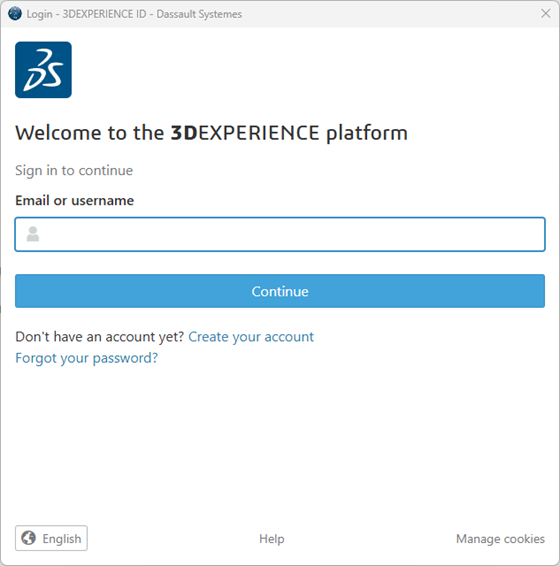
If you log in while choosing the Remember Me option, you will only be able to stay signed in for a maximum of seven days before being prompted to log in again. This article will outline a registry modification that will permanently stop the prompt to completely prevent it from showing.
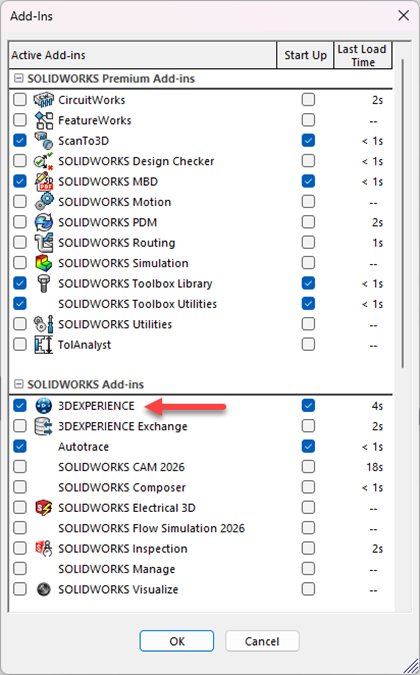
This is an example of the installed and enabled 3DEXPERIENCE add-in that will require a 3DEXPERIENCE login each time SOLIDWORKS is launched.
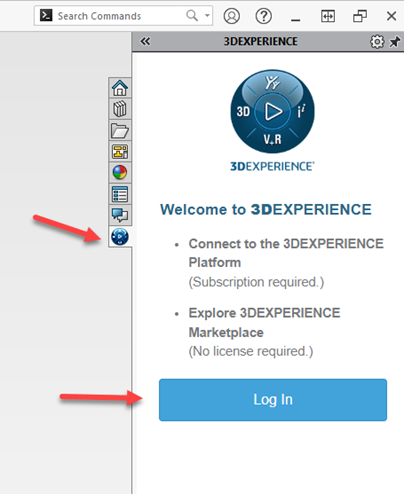
You can still manually log into the 3DEXPERIENCE apps as needed after disabling the 3DEXPERIENCE login prompt by following the instructions in this article. Usually, you can do this by opening the add-in in the SOLIDWORKS Task Pane, as demonstrated below.
Step 1: Backup the Registry
WARNING: Incorrect modifications to the Windows Registry may result in the failure of Windows or installed programs. When making changes to the Windows Registry, exercise caution or have an IT specialist do it for you.
- Close all applications, including all SOLIDWORKS products.
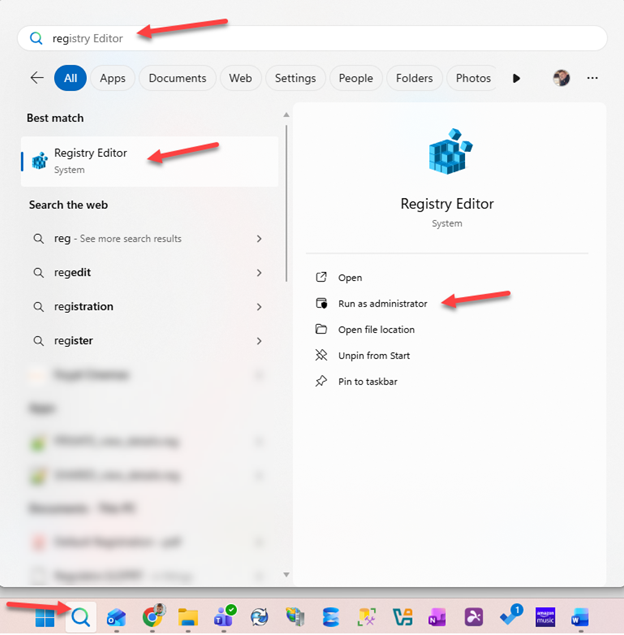
- Windows search for ‘regedit’ and launch the Registry Editorvia the “Run as administrator” option. If you do not have admin rights to the machine, contact an IT person to help with this step.
- Browse to the folder named HKEY_CURRENT_USER\Software\Dassault Systemes, right-click and select Export. Name the file and save it in case it’s needed for restoration.
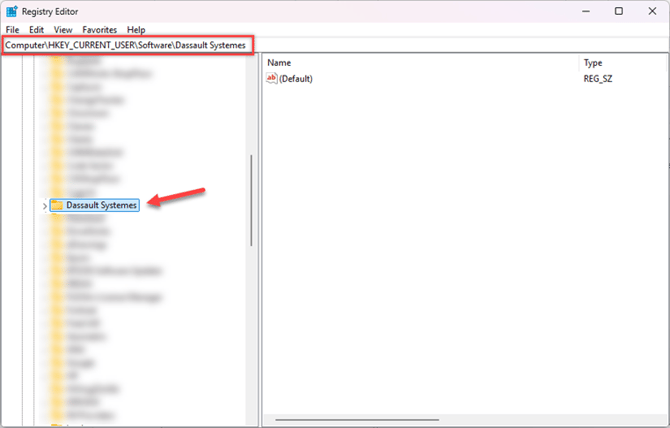
Step 2: Modify Registry to Disable 3DEXPERIENCE Login Prompt
- Browse to the folder named HKEY_CURRENT_USER\Software\Dassault Systemes\SolidWorksPDM\Servers\3DEXPERIENCEand review the string value named SW_Login_Disable. By default, the value should be set to ‘False’
If the string does not exist, you can right click and select New > String Value to create SW_Login_Disable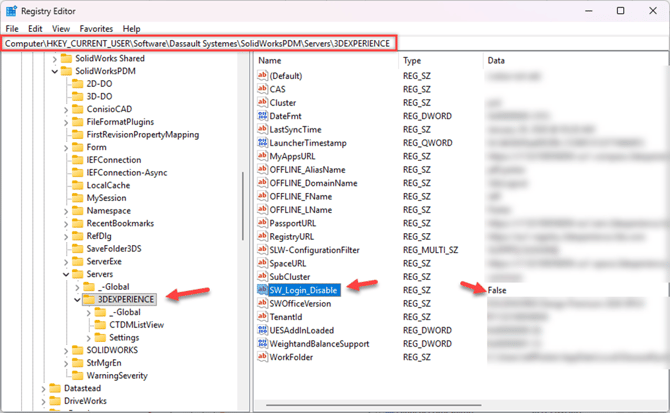
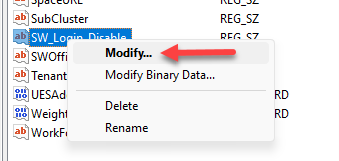
- Right-click SW_Login_Disableand select the Modify option to edit the value. Change the Value Data to True and then click OK.
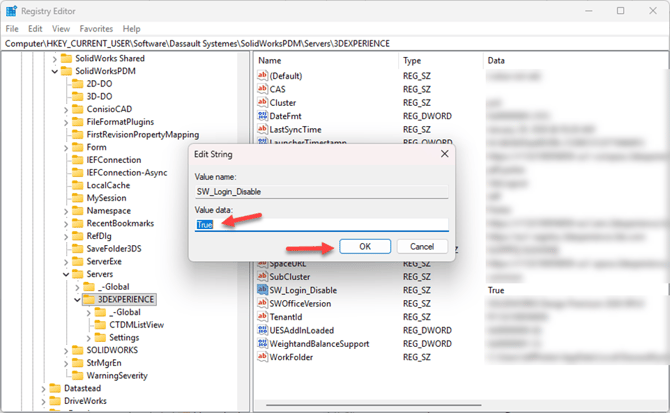
- Close the Registry Editor and then launch SOLIDWORKS to test if the 3DEXPERIENCE login prompt has been disabled successfully.