Required Items:
1. Access to the SQL server.
2. Microsoft SQL Server Management Studio
3. sa password
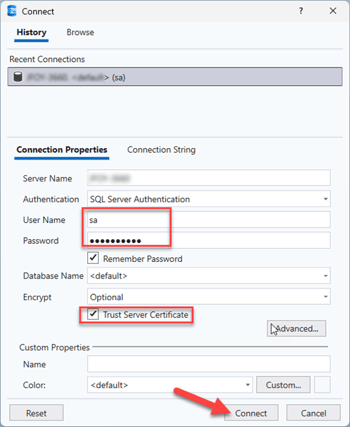
- Log into MSSMS with the sa password (Make sure Trust Server Certificate is checked).
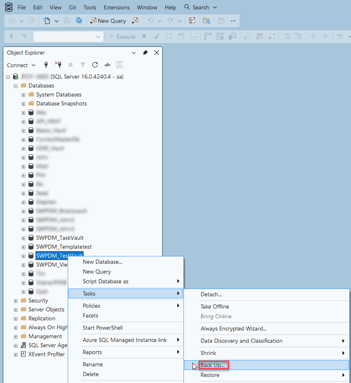
- Expand the databases in Object Explorer, then find and select the database used for PDM and right click. Now go to Tasks>Back Up.
- On the general page choose:
Backup Type: Full
Backup component: Database
Destination: Back up to Disk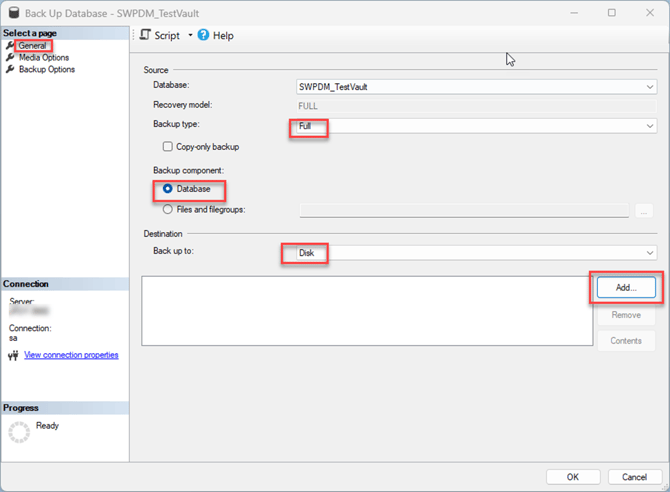
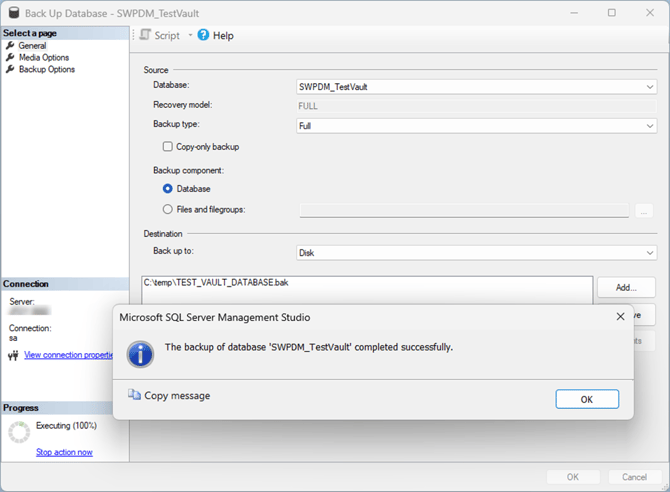
- Then, select add and point to a temp folder location and name the file. For example, C:\temp\TEST_VAULT_DATABASE.bak (You must add the .bak to the file name)
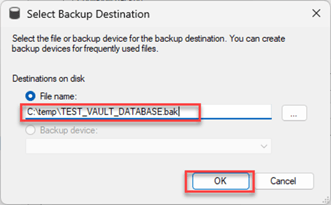
- Once the file location and name have been added to the destination field select OK and you should receive a message that the backup was successful.