The process involves the following components:
- Generating a license request file on your server
- Transferring it to a computer with internet access
- Returning the follow-up license response file to your server
Step-by-Step Manual Activation
- Open the SolidNetWork License Manager Server on your license server computer by accessing the Windows Start Menu → SOLIDWORKS Tools → SolidNetWork License Manager Server, or by searching for SolidNetWork License Manager Server.
-
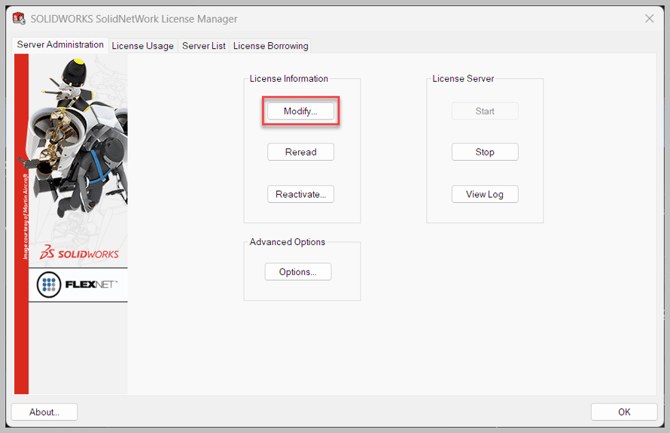
On the Server Administration tab and click Modify
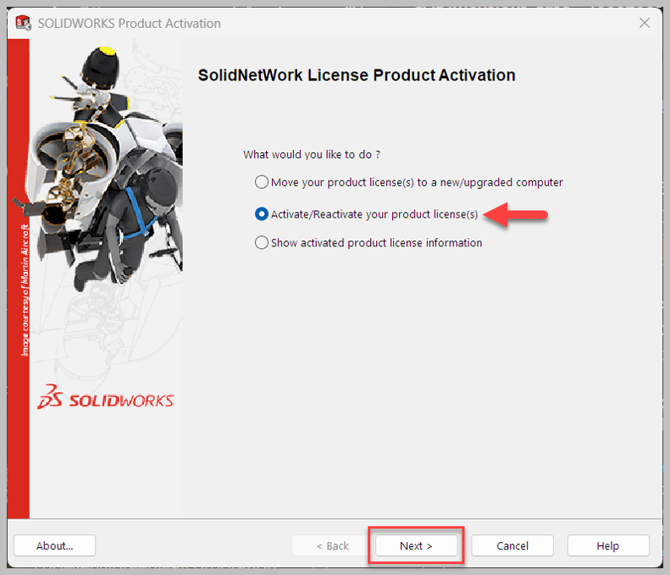
- On the SolidNetWork License Product Activation pane, toggle Activate/Reactivate your product license(s) and click Next.
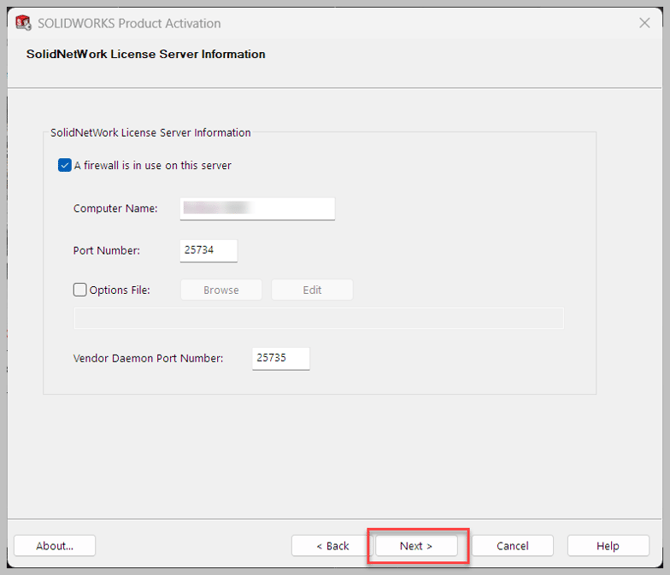
- On the SolidNetWork License Server Information pane, confirm your information and click Next.
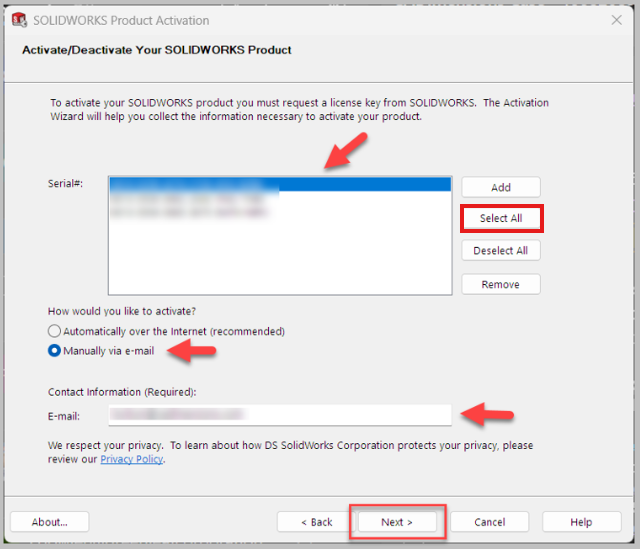
- On the Activate/Deactivate Your SOLIDWORKS Product pane, select or add the Serial Number(s) you wish to manually activate. If you are activating multiple serilal numbers press Select All. Under How would you like to active, toggle Manually via E-mail. Confirm your contact information e-mail is correct and click Next.
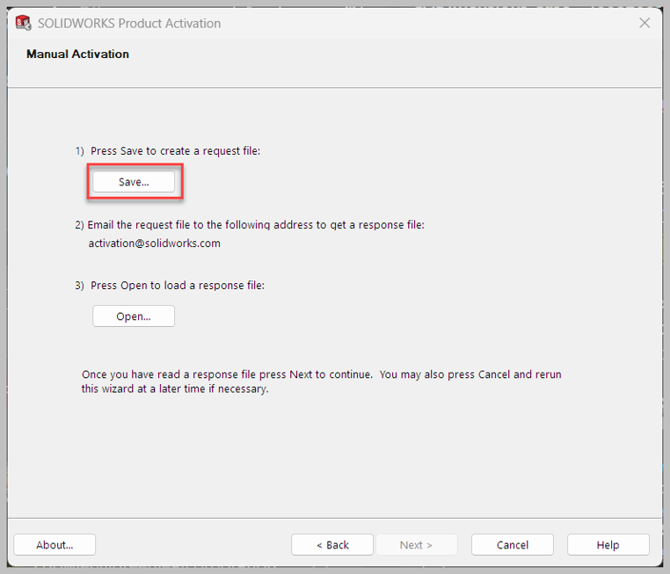
- On the Manual Activation pane, click Save. In Windows File Explorer, browse to a location to create and save the resulting .txt license request text file.
- You will now need to transfer this saved license request file to a device connected to the internet. Once transferred, e-mail the file as an attachment to activation@solidworks.com.
- SOLIDWORKS will reply to your email with a license response file. Save this .txt file and transfer it back to your license server.
- If you closed the SolidNetWork License Manager Server app previously, then repeat steps 1 through 5 above to re-open. In step 5, be sure to select the same serial number(s) from the Activate/Deactivate Your SOLIDWORKS Product pane that you used to generate the original license request file.
- On the Manual Activation pane, click Open.
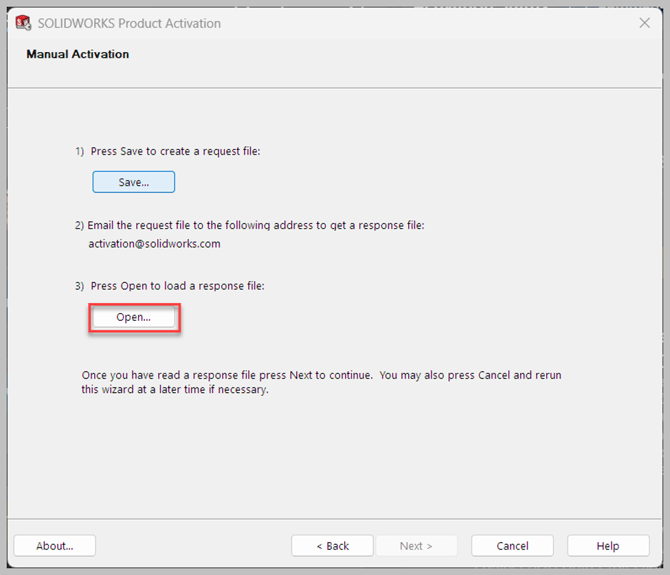
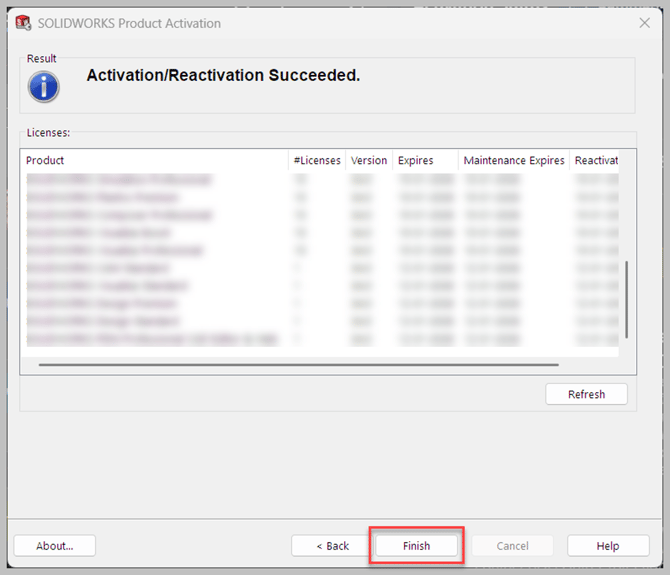
- Browse for the response file you received in Windows File Explorer and click Open to load it. Then click Finish.