
This article addresses the process for upgrading Toolbox during a major release upgrade. For instance, upgrading SOLIDWORKS from version 2024 to 2026. Incremental service pack updates do not require any special knowledge as far as Toolbox is concerned.
Preparing To Upgrade
The Toolbox database is upgraded automatically when SOLIDWORKS is upgraded. This is by far the most straightforward way to upgrade the Toolbox database. In order to get the upgrade to take place, we need to make SOLIDWORKS think it's using a database on the local computer.
It is possible to upgrade the Toolbox database if it resides on a network location, but that is much more problematic. Other factors come into play, such as path names and permissions. With a local copy, the database can be upgraded while engineers continue to work (with the exception of the person who's computer is being upgraded).
Create A Copy
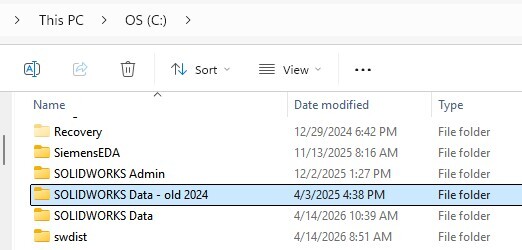
Regardless of whether the Toolbox database is shared on a server or stored locally on a hard drive, create a copy. Use Windows file explorer to do this. If the database is shared on the network, copy it to the local computer which is being upgraded. If the upgrade is occurring on a computer that is using a local database, create a copy of the database and rename them. In the example shown in the image, SOLIDWORKS is being upgraded from version 2024 to 2026. The old "SOLIDWORKS Data" folder was renamed to "SOLIDWORKS Data - old 2024". The Toolbox database which will be upgraded shortly retains the original name of the database.
Checking The Version
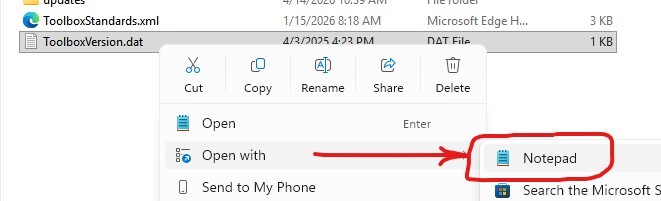
If there are multiple versions of the SOLIDWORKS Data folder, it's easy to check which version each of these folders are for. Open the SOLIDWORKS Data folder and look for a file named "ToolboxVersion.dat". Right click that file and open it in Notepad. It's a simple text file, and there will be a line that states what SOLIDWORKS release and service pack the folder is associated with.
Check The Path
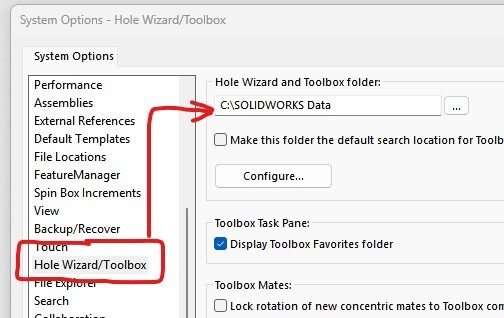
The goal is to make the SOLIDWORKS Installation Manager think we are using the copy of the SOLIDWORKS Data folder. If it believes we are using that folder, it will be upgraded. Open SOLIDWORKS and click the Tools menu > Options > and select the "Hole Wizard/Toolbox" category, shown in the following image. Make sure the "Hole Wizard and Toolbox folder:" is the copied database folder that needs to be upgraded to the new version.
Perform The Upgrade
Now you are ready to perform the upgrade. This article will not delve into the full SOLIDWORKS upgrade process, and is only focused on what is needed to upgrade Toolbox.
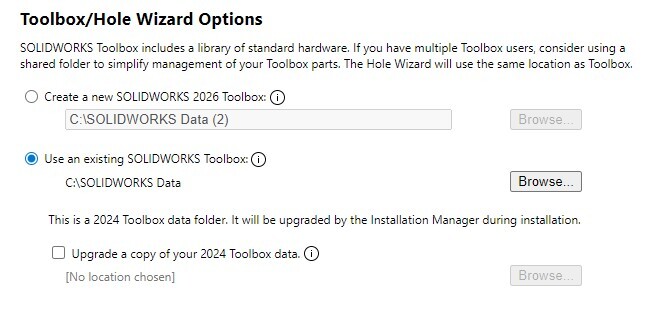
During the upgrade process (which can also be a new install if retaining a previous version), the Summary screen will display a section titled "Toolbox/Hole Wizard Options". Clicking Change to the right of this section will allow for upgrading the appropriate database.
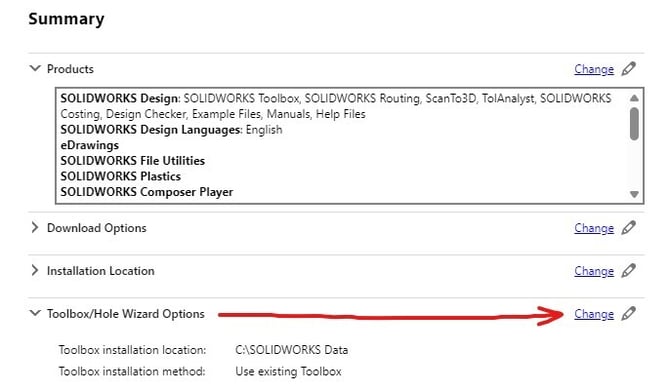
After clicking Change, the following window will appear. Select the option to "Use an existing SOLIDWORKS Toolbox". If necessary, use the Browse button to select the appropriate folder. Click the "Back to Summary" button when finished (not shown), and follow through with the upgrade.
 Move The Database
Now that the database has been updated, if it was a shared Toolbox database to start with, place it back on the server at the desired location. Assuming the folder has the same name it started with, all the computers using SOLIDWORKS Toolbox will be able to start using the new database as soon as they are updated to the same version.
On the computer where the upgrade took place, make sure to point back to the Toolbox database location on the server. Otherwise, it will still be pointing to the local hard drive and using the non-shared database.