
The first thing to do would be to use the reset File Associations button within the SOLIDWORKS settings, which requires running the software as Administrator.
-
Launch SOLIDWORKS as Administrator.
- Navigate to Tools > Options > System Options tab > General, and click the button marked Restore File Associations
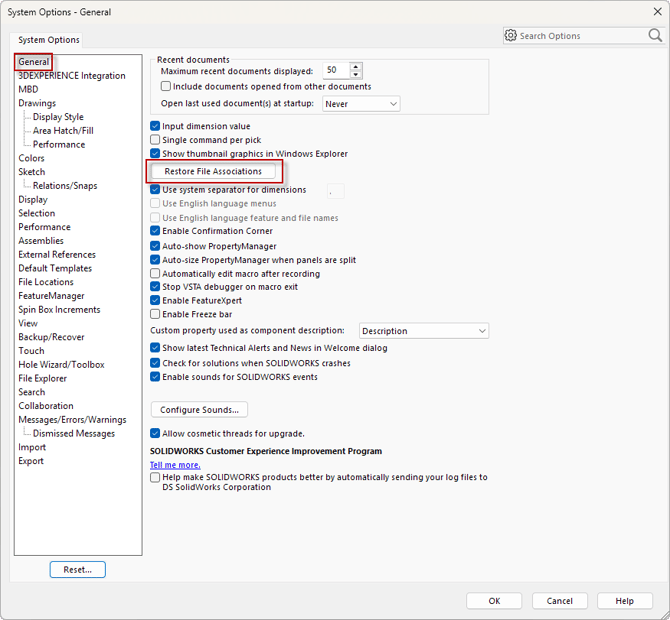
- You will get a confirmation window, then you can close out of SOLIDWORKS and test the behavior.
If issues persist, proceed to the next steps to check the file associations manually:
-
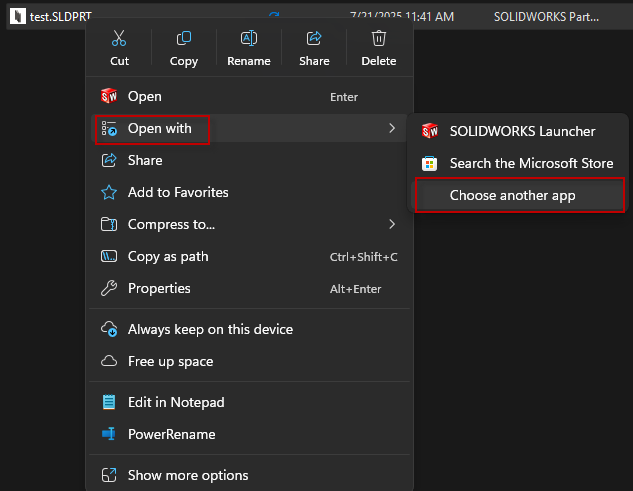
Right click a SOLIDWORKS file. (.sldprt, sldasm, slddrw) in Windows File Explorer, and navigate to Open with > Choose another app
- Select SOLIDWORKS Launcher as the app. This is what is used to open SOLIDWORKS files regardless of version.If this is set to just SOLIDWORKS, then that may be the source of your issues. Ensure that it is selected, then click Always.
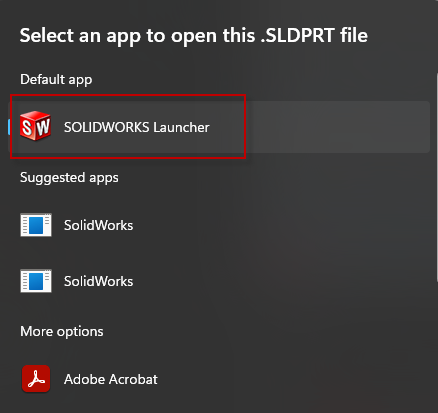
- If the SOLIDWORKS Launcher is not listed, you can scroll to the bottom of the list and select to browse for an installed app. The default location for the SOLIDWORKS Launcher is: C:\Program Files\SolidWorks Corp\SolidWorks.
- Repeat the steps above for each of the other two filetypes, then test the behavior.
If you have any further issues or need more assistance, submit a ticket here: https://www.cadimensions.com/contact/support/