
Moving SOLIDWORKS
This is a very common question. Here is the "short list" answer:
-
Download SOLIDWORKS
-
Install SOLIDWORKS
-
Deactivate the license on the old computer
-
Activate the license on the new computer.
Seems straightforward enough, right? It should be, but it isn't. Here's the first problem you will likely run into.
Create a 3DEXPERIENCE ID
In order to download the software, you will need a 3DEXPERIENCE ID. If you already have one, skip to the next section. If not, navigate to my.solidworks.com and click the Join link near the top right corner of the page. Follow the prompts to create your account.
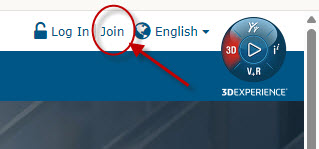
The steps are self-explanatory, so every mouse click will not be listed here. If you run into problems setting up 2-factor authentication, do a search for "2fa" or "2-factor authentication" in this same knowledge base, as we have multiple articles on that topic.
Logging In
Once you have your 3DEXPERIENCE ID, return to my.solidworks.com and log in.
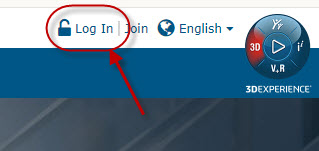
The Download Page
Now that you're logged in, let's navigate to the Download page. Click the Support link at the top of the page.

These instructions assume you are running some variation of desktop SOLIDWORKS, not one of the 3DEXPERIENCE "platform" versions of SOLIDWORKS, which are installed from a browser after logging in to your desktop on the 3DEXPERIENCE platform. That is not covered in this article.
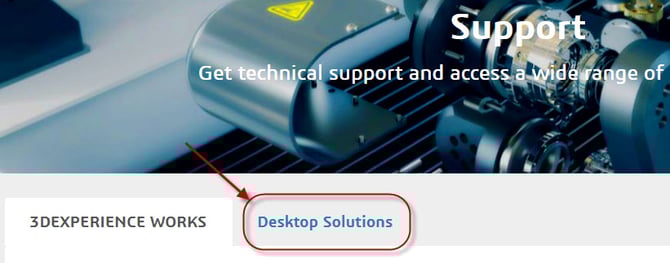
To get to the download page for downloading SOLIDWORKS desktop installation files, click Desktop Solutions, shown here.
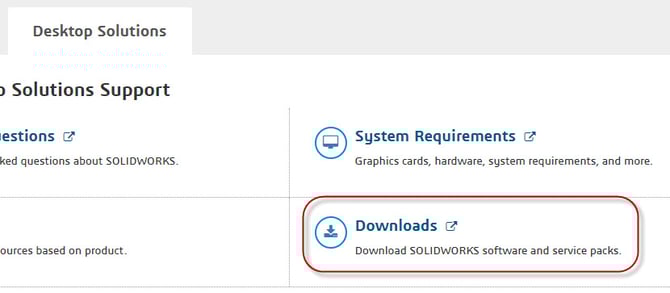
Next, click Downloads.
Click the blue Access Downloads button.
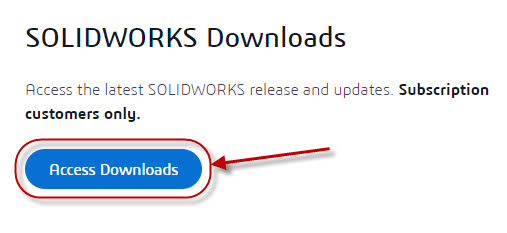
Give the page a moment to load, and then... you made it! Welcome to the SOLIDWORKS Downloads page. Do yourself a favor and bookmark this page!

If you're receiving an error about the need to be on subscription, please contact your SOLIDWORKS reseller. Only customers with an active SOLIDWORKS subscription can download software from the SOLIDWORKS Downloads page. Your reseller may be able to supply you with installation files, at their discretion, even if you have fallen off subscription.
DSx.Client Care
If you are still experiencing problems accessing the SOLIDWORKS Downloads page, your contact information might be missing from the DSx.Client Care and Order database maintained by Dassault Systèmes and administered (in part) by your reseller. Simply having a 3DEXPERIENCE ID is not enough.
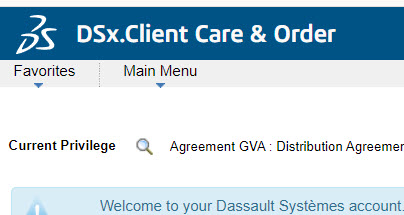
There are 2 entities who can add your contact information to the DSx.Client Care system. One is your reseller, and the other is somebody at your company who has the Security Administrator role. If you do not know who that person is at your company, please contact your reseller.
Once your contact information has been added to the DSx.Client Care system, the appropriate role must be granted which allows for downloading SOLIDWORKS and accessing the forums and SOLIDWORKS knowledge base. That role is typically "Support Restricted". Please see our knowledge base article on the "DSx.Client" for more information.
Downloading SOLIDWORKS
Now that you're actually at the Download page, pick the version you wish to download.
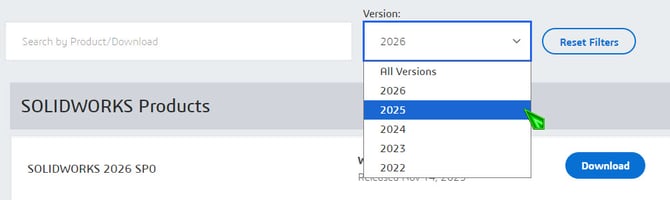
Next, select the service pack to be downloaded. This is usually the most recent service pack available.
SOLIDWORKS users can be on different service packs and still exchange files. It is only when users are on different versions (2024, 2025) that things become a problem. Look for our knowledge base article on "opening files in older versions".
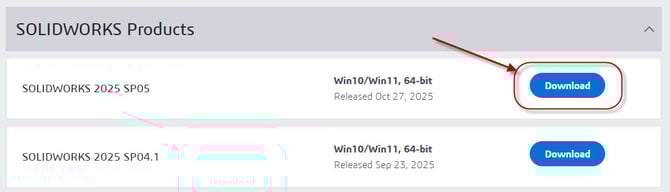
The End User Agreement will appear next. It is necessary to scroll down to the bottom of the agreement before the Accept and Continue button becomes available. Once that button is clicked, a file named SolidWorksSetup.exe will be downloaded to your computer. The file will normally be found in the Windows Downloads folder unless the settings for your web browser have been changed.
The Installation Manager
"SolidWorksSetup.exe" is otherwise known as the Installation Manager. The Installation Manager does not contain the files needed to install SOLIDWORKS! It is the utility used to download the files needed to install SOLIDWORKS. There is a difference.
Double click SolidWorksSetup to run it. The WinZip Self-Extractor window will appear. Click the Unzip button.
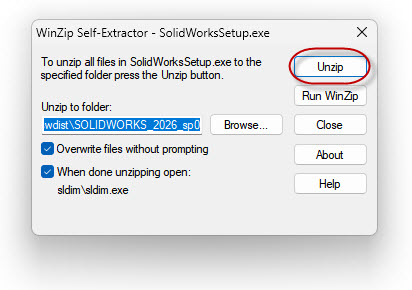 After the files are unzipped, a confirmation will appear. Click OK to accept it.
The Reboot Message
After the files are unzipped, the Installation Manager will appear. A reboot message will likely also appear. Ignore it. You could reboot 100 times and it will still appear. Just click OK to continue.
The Actual Download
An important point worth noting is no matter what option is used on the first page of the Installation Manager, files must be downloaded. It is usually in one's best interest to download a full set of files, rather than only what the Installation Manager deems necessary. It is normally better off in the long run and certainly more efficient if multiple installations are required.
Separating the download from the installation is also good when troubleshooting problematic installs. It allows for determining if the problem is with the download, or the install.
To download a full set of files which can be used for installing any SOLIDWORKS bundle (Standard, Professional or Premium) and almost every add-on (PDM, Simulation, Flow, Inspection, etc.), as well as the SolidNetwork License Manager, click the "Download and share all files." option.
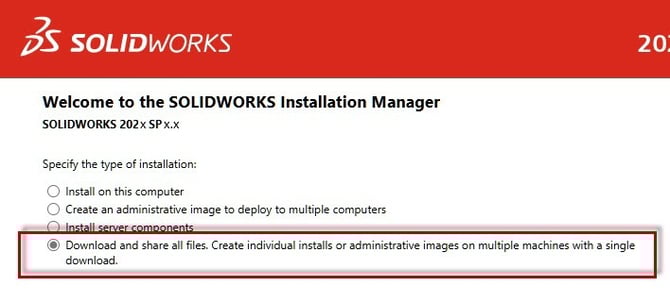 Click Next. This will bring you to the Serial Number page. Add serial numbers for the products you own. If the serial numbers are unknown, contact your Manager, CAD administrator, or reseller.
If the serial number has been saved electronically (as opposed to written on a piece of paper or printed out), it can be copy and pasted into the first of 6 boxes displayed on the serial number page. All 6 boxes will be populated, saving on typing and eliminating typographic errors.
Click Next again. The Summary page will appear. Feel free to accept all the defaults. Check the box to accept the terms of the SOLIDWORKS license agreement and click Download Now.
Installing SOLIDWORKS
The trick to a smooth transition from running SOLIDWORKS on one computer to running it on another is to make sure it gets successfully installed on the second computer prior to deactivating on the first. Have it all ready to go.
To install SOLIDWORKS, navigate to where the files were downloaded. This is normally the Windows Documents folder, followed by SOLIDWORKS Downloads\SOLIDWORKS 20xx SPx.x. The year and service pack values are dependent on the actual year and service pack. This makes things easy to find when looking for a particular version that has been previously downloaded.
Run Setup from within that folder and the Installation Manager will appear. Click OK and ignore the reboot message if it appears. Select "Install on this computer" and click Next.
The serial number(s) should auto-populate. Click Next. Accept all the default selections, check the box to accept the license agreement, and click Install Now. If you wish to explore the installation in more detail, please search for "Install SOLIDWORKS" in our knowledge base.
Deactivating The License On The Old Computer
Don't try running SOLIDWORKS on the new computer yet. It will prompt you to activate, and you're not ready for that. The license still needs to be deactivated on the old computer. Here are the steps:
- Start SOLIDWORKS on the old computer.
- Open the SolidWorks Help menu (question mark inside a circle near the top right corner).
- Click Licenses
- Click Deactivate
- Click "Select All", use "Automatically over the internet", add your email and click Next.
A message should appear stating the deactivation was successful. If you run into problems, contact your reseller.
Activating The License On The New Computer
Start SOLIDWORKS. It should automatically prompt you to activate. If it does not, go through the Help menu again, then:
- Click Licenses
- Click Activate
- Click "Select All", use "Automatically over the internet", add your email and click Next.
A message should appear stating the activation was successful. Here again, if you run into problems, contact your reseller.
There are plenty of articles in our knowledge base that expand on the activation process if you have more questions. You knew I was going to say that, right?