
Review the Logs
Your first step should always be to examine the logs. These files often provide valuable clues about connection failures. Error messages may sometimes be vague, but the logs can still point you toward the right area to troubleshoot.
Client Log Location
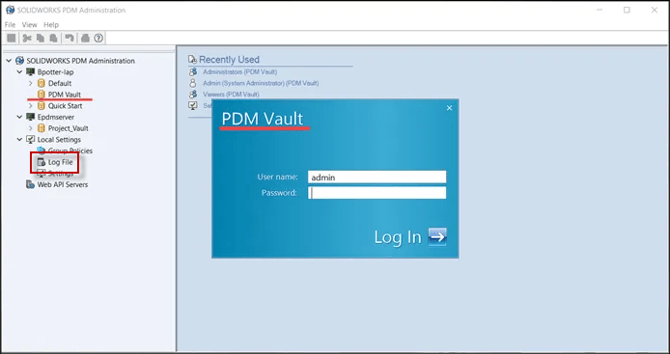
Open the Administration Tool and review the Log File. Entries are listed chronologically, with the newest items at the bottom.
Archive Server Log Location
In the Administration Tool, right-click the server and select Show the Archive Server Log.
Verify the Installed Version
All PDM components must be on the same major version (same release year). Mismatched versions can cause unpredictable behavior. Check the version on the client machine, then compare it to the server and vault versions.
Checking the PDM Client Version
Open the Administration Tool, then select About SOLIDWORKS PDM Administration. The Client Version will be displayed
Checking the Vault / Database Version
In order to check the vault version:
-
In the Administration Tool, right-click the vault name and choose Properties
Beginning with 2019, version numbers are offset; subtract 8 from the version number to determine the release year (e.g., 27 → 27−8 = 19 → 2019).
Validate Registry Settings
If the PDM client is pointing to the wrong server location—common after migrating server components—the issue may lie in the Windows Registry. Editing the registry typically requires administrative rights.
Keys to Verify
Local Machine Keys (all users):
- HKEY_LOCAL_MACHINE\SOFTWARE\SolidWorks\Applications\PDMWorks Enterprise\Databases\[Vault_Name]
- HKEY_LOCAL_MACHINE\SOFTWARE\WOW6432Node\SolidWorks\Applications\PDMWorks Enterprise\Databases\[Vault_Name]
- HKEY_CURRENT_USER\Software\SolidWorks\Applications\PDMWorks Enterprise\Vaults\[Vault_Name]
- DbServer should contain the SQL server name. In a default instance of SQL you will see just the server name. If you have a named SQL, then you will need the server name followed by the instance ([servername]\SQLExpress)
-
-
ServerLoc refers to the Archive Server name.
-
Confirm Network Communication
After confirming that the client is referencing the correct servers, ensure that communication to those systems is functioning correctly.
Required Connections
PDM relies on access to the following:
-
Archive Server – Port 3030
-
SQL Database Server – Port 1433 (or 1434 for named SQL instances)
-
License Manager – Ports 25734 and 25735
How to Test Connectivity
You will use two tools: Ping and Telnet.
-
Ping verifies basic visibility of the server.
-
Telnet checks whether a specific port is reachable.
Telnet may need to be enabled first (see Appendix).
Ping Test
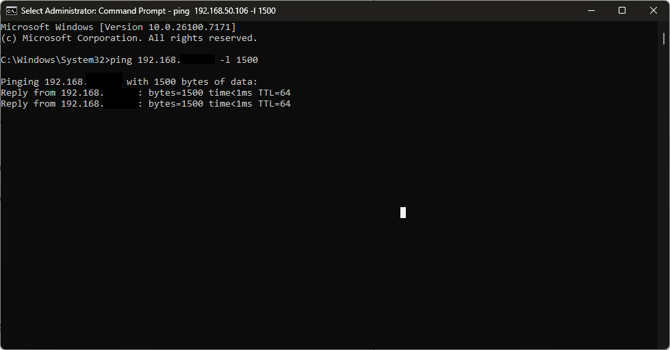
Open Command Prompt and run:
ping [ServerName] -l 1500
(-l is the letter “L”, setting the packet size to 1500 bytes.)
You should see 0% packet loss and the correct IP address.
Telnet Test
Open PowerShell and run:
telnet [ServerName] [Port]
Check Essential Services
Connection problems can occur when required Windows services are stopped. On the server, open Services and verify that the following are running:
-
SOLIDWORKS PDM Archive Server
-
SOLIDWORKS PDM Database Server
-
SQL Server (MSSQLSERVER or your named instance)
-
SolidNetWork License Manager
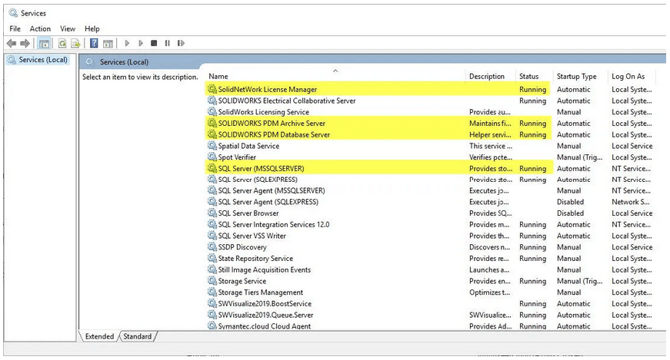
Depending on your system architecture, these services may be on separate servers. Restarting the Archive or Database services is safe and sometimes necessary when configuration changes are pending.
Inspect SQL Server Configuration
SQL Server may be configured to listen on nonstandard ports. To verify or correct this:
-
Open SQL Server Configuration Manager.
-
Navigate to:
SQL Server Network Configuration → Protocols for MSSQLSERVER (or your named instance). -
Right-click TCP/IP and select Properties.
-
Under the IP Addresses tab:
-
TCP Dynamic Ports should be blank
-
TCP Port should be 1433 (or 1434 for named instances)
-
After making changes, restart the SOLIDWORKS PDM Archive Server service.
Reset the SA User Password
PDM needs valid SQL authentication credentials to access its database. Typically, this is the SQL System Administrator (sa) account. During initial configuration, the SA password may have been mistyped or later changed. Confirming the correct password requires logging into SQL Server Management Studio using the SA account.
Updating the SA Password in PDM
To update the password used by PDM:
-
Open Archive Server Configuration.
-
Navigate to This Computer → Archives.
-
Right-click the vault → Properties → Login tab.
-
If Use Default SQL Login is enabled, you will update the default credentials instead.
-
Cancel out and go to Tools → Default Settings → Login tab.
-
-
Choose Change and verify the SQL Login is set to sa.
Not working like it should? Submit a ticket on our support page here: https://www.cadimensions.com/contact/support/