
If you run into problems during or after installing the 3DEXPERIENCE Launcher, it’s likely due to some settings in your web browser. The common issue encountered occurs due to default settings in Google Chrome or Microsoft Edge browsers.
You may experience some common errors on installation, the most common being "The provided port is unreachable". Another common error is "Unable to retrieve installation data" (displayed under the Compass, when trying to launch, click this link for alternative fix).
Background Information
Starting with Google Chrome 142 and Microsoft Edge 143, browsers now prompt users to allow or block network access when a website tries to connect to an app or service on the local machine.
If the connection is blocked or not granted, the launcher fails, resulting in an infinite loop or multiple "Download 3DEXPERIENCE Launcher" prompts. Users will also be unable to open 3DEXPERIENCE desktop and other native applications from the 3DCompass.
If you are presented with pop-ups prompting "Look for and connect to any device on your local network" click Allow
If the popup is not displayed: click "View site information" then Activate permission for "Local Network Access"
To allow access more directly through browser settings, see the steps below.
Note: Follow these steps in accordance with your organization's internal security policies
Quick Settings Adjustment
After initially installing the 3DEXPERIENCE Launcher, you are still met with this window:
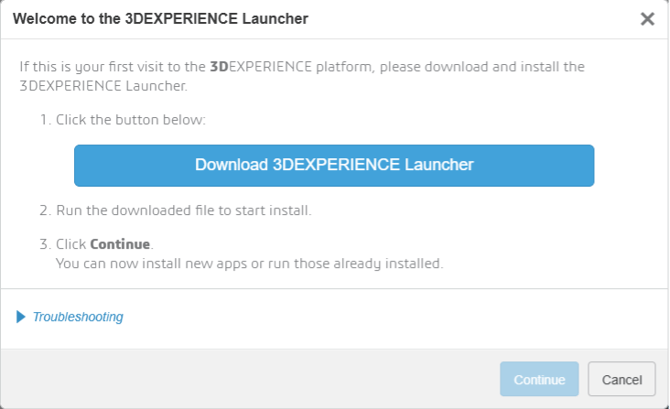
You will be prompted to download the launcher install files again, run the installer, and the cycle repeats. This is due to a default browser security setting that blocks local network access on your PC, essentially stopping the launcher from communicating with your computer and, eventually, the installed version of SOLIDWORKS Design.
How to resolve this:
- In your web browser, select the menu icon in the top right corner of the screen
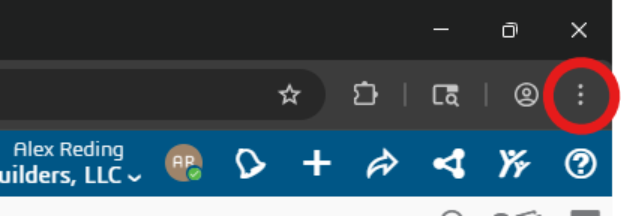
- From there, scroll down in the menu and select “Settings.” In Google Chrome, this should open a new tab for your browser settings interface.
- In the menu on the left of the screen, find and select “Privacy & Security” or similar for other browsers.
- In the menu in the middle of the window, select “Site Settings”
- Under Recent Activity, select your 3DEXPERIENCE Platform URL from the list of recent. It should look like this:

- Once selected, your screen will show a long list of permissions, but the ones we are looking for are all the way at the bottom. Scroll down to the bottom of the list to find these 3 settings:

Make sure these 3 settings (Web app installations, Local Network & Apps on device) are all set to “Allow.”
- Once those settings are corrected, return to your 3DEXPERIENCE Platform tab in your web browser and refresh the web page.
- Resume your installation or update attempt for SOLIDWORKS Design by selecting the application again from the 3DCompass menu. If prompted, you may need to run the 3DEXPERIENCE Launcher installation once more to make sure everything is properly in place with the new settings.
- It may ask if you want to repair the current installation. If so, select “Repair.”
Once this is completed, you should be able to click “Continue” after the Launcher is finished to move onto installing SOLIDWORKS Design or Collaborative Designer for SOLIDWORKS.
Optional Settings
While not required, these settings allow for you to limit the allowed items if your security policy requires the options mentioned above to be "Blocked". You can manually insert the paths for "3ds" to allow them to run in a tight-security application. If the above settings worked for you, you do not need to continue in this guide.
Google Chrome
-
Go to: chrome://settings/content/localNetworkAccess (or navigate manually through: "Menu → Settings → Privacy and Security → Site Settings → Additional Permissions → Local network access")
-
Under "Allowed to connect to any device on your local network", click "Add" and "Enter"
-
For Cloud: [*.]3dexperience.3ds.com
-
For On-premise: [*.]%your-on-premise-domain%
-
-
Refresh your browser and retry launching the application
Microsoft Edge
-
Go to: edge://settings/privacy/sitePermissions/allPermissions/localNetworkAccess (or navigate manually through: "Menu → Settings → Privacy, search, and services → Site permissions → All permissions → Local network access")
-
Under "Allowed to connect to any device on your local network", click "Add" and "Enter"
-
For Cloud: [*.]3dexperience.3ds.com
-
For On-premise: [*.]%your-on-premise-domain%
-
-
Refresh your browser and retry launching the application
Administrator Instructions
Administrators can pre-grant local network access to 3DEXPERIENCE domains so end users never see the prompt depending on their selected browser
Google Chrome via Google Admin Console
-
Go to "Admin Console → Devices → Chrome → Settings → Users & browsers → Security → Local Network Access"
-
In the field “Allowed for local network access”, add:
-
For Cloud: [*.]3dexperience.3ds.com
-
For On-premise: [*.]%your-on-premise-domain%
-
-
Save changes and allow time for the policy to propagate
Microsoft Edge via Group Policy or Intune
Note: Use Microsoft’s LocalNetworkAccessAllowedForUrls policy.
-
1. Open the Edge management policy (Group Policy Editor or Intune template)
-
2. Add this URL pattern to the Allow local network access for URLs list:
-
For Cloud: [*.]3dexperience.3ds.com
-
For On-premise: [*.]%your-on-premise-domain%
-