
This is your Quick Access Toolbar. It can be moved to this location or put back up on the top ribbon.
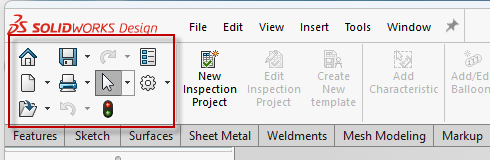
The buttons on here are Home, Save, Redo, Custom Properties, New, Print, Selection, Settings, Open, Undo, and Rebuild. Just mentioning all of those so people searching can find this article!
To put it back on the ribbon, you can right click anywhere on the CommandManager. If you do not have a file open, you won't be able to do this, so, open a blank part. Select "Customize".

Then, toggle the option for where you want your Quick Access Toolbar.
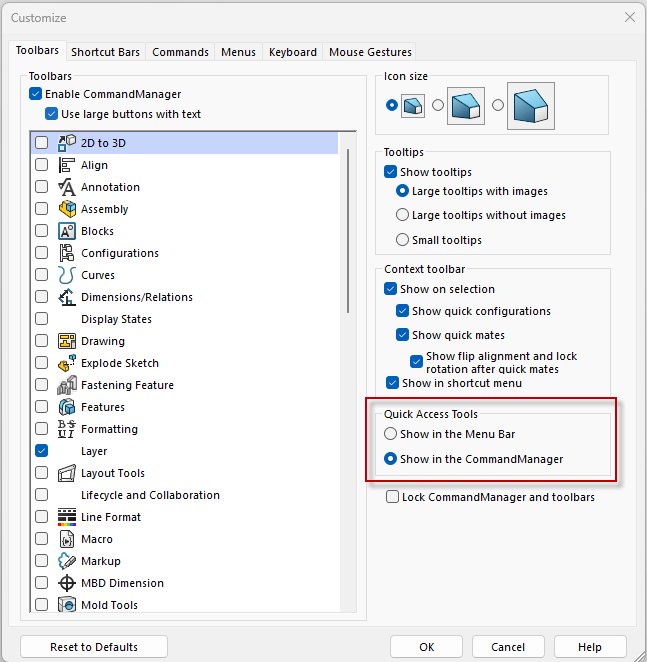
In the Menu means up on the top, in the ribbon:

In the CommandManager is inside of the CommandManager: